






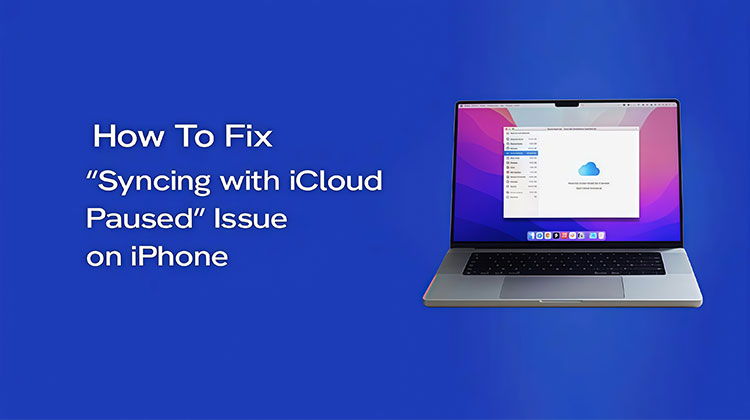
“Why is iCloud syncing paused on my iPhone? Any ideas on how to unpause syncing with iCloud? iCloud is a good option for syncing all your data across Apple products, such as iPhone, iPad, and Mac. It allows you to access contacts, photos, notes, and other important data on each device. But sometimes, the synchronization process can be interrupted, leading to delays in your data update. In this article, we discuss the reason why iPhone is showing a syncing with iCloud paused issue and how to fix it quickly.
What Does “Syncing with iCloud Paused” Mean?
iCloud sync automatically processes updates to your content and files across all devices associated with using the same Apple ID. Any modifications that you make to your data, apps, and settings on one Apple device are immediately synced across all devices. The kinds of data you can sync with iCloud are:
- Photos
- Contacts
- Calendars
- Notes
- iMessage
- Safari data
- iCloud Drive
What is the Syncing with iCloud Paused? This means that the data syncing is Paused, and changes can’t be synchronized to other devices connected to that Apple account.
Why is iCloud Syncing Paused?
What is the reason a message says syncing with iCloud paused? It is important to determine the reason behind this issue before attempting to solve it. It’s unfortunate, however, that there could be several causes. The most likely causes are:
- The iCloud server is down.
- The data isn’t syncing across all of your devices.
- Low iCloud storage
- The network connection is not stable.
- You’re not using the same iCloud account on all your devices.
- Low Data Mode can cause the iCloud syncing issue
- Your date and time settings do not match across devices.
- The system is crashing.
Also read: How to Free Up iCloud Storage: 7 Smart Tricks You Need to Try
How to Fix Syncing with iCloud Paused
Based on the primary factors, we provide solutions to fix the syncing with iCloud paused. Try the solutions listed below, one at a time, to transfer your messages, photos, and other information across all your devices.
1. Check iCloud Storage
iCloud offers each account 5GB of storage for free. If you’d like to have more space, you can sign up for iCloud+. If you experience the syncing issue with iCloud paused, make sure you have cleared all of your iCloud storage.
- Open Settings
- Tap your Apple ID profile
- Go to iCloud > Manage Storage
You can also delete unwanted data from iCloud Drive.
2. Check Apple Servers
While it’s not common, Apple servers may experience delays because of scheduled maintenance or an error. If iCloud and iMessage servers go down. You can check the status of Apple servers on https://www.apple.com/in/support/systemstatus/ in a browser. Red or yellow indicates that servers are experiencing problems. You’ll need to wait until the server is restored and then try to sync your iPhone via iCloud.
3. Check Internet Connection
iCloud sync requires a stable Internet connection. If you’re using cellular data when syncing the iPhone, it is recommended to switch to Wi-Fi. If you’re using Wi-Fi, test your network connection and make sure it is working smoothly.
- Go to Settings > Wi-Fi
- Connect to a strong, stable network
- Disable Low Data Mode if enabled
4. Restart iPhone
Restarting your iPhone is the most basic troubleshooting method. It is a way to stop the synchronization issue with iCloud stopped. This can clear the cache and fix minor software issues, giving your device a fresh start.
- Press and hold the Side button + Volume button
- Slide to power off
- Wait a few seconds and turn it back on
This clears temporary bugs and refreshes the system. Check to see if iCloud syncs again
5. Force Restart iPhone
If your iPhone becomes stuck and is unable to sync with iCloud, you can’t fix it with a simple restart. In addition, you should do a force restart to help with troubleshooting. The buttons you press are dependent on the iPhone model.
6. Disable & Re-enable iCloud Sync
If iCloud syncs are paused due to iMessage on your iPhone, you can manually restart it to fix the issue. This is the same procedure for syncing with iCloud paused to allow for photos or other data.
- Open Settings
- Tap your profile → iCloud
- Select a service (e.g., Photos or Messages)
- Toggle it OFF, then ON
- Tap Sync Now
7. Disable Low Power Mode
When you enable Low Power Mode on your iPhone, certain functions will temporarily stop iCloud syncing. If you’re looking to connect your data to iCloud, it is recommended to disable low-power mode.
- Go to Settings > Battery
- Turn OFF Low Power Mode
Also read: Top 5 iCloud Activation Lock Removal Tools in 2025
8. Sign Out & Sign Back into Apple ID
iCloud syncs work through a single Apple ID. If you log in to multiple Apple identities on an Apple device, you will need to log out of the account and sign back in. Steps to follow:
- Open Settings
- Tap your profile → Sign Out
- Enter your Apple ID password
- Sign back in using the same account
9. Correct Date and Time
If the time and date on your iPhone differ from the time zone, syncing with iCloud will stop. You can set the correct date and time on your iPhone. Follow the steps below:
- Go to Settings > General > Date & Time
- Enable Set Automatically
Be aware that if your iPhone connects to the Internet, iOS will automatically correct the date and time.
10. Reset All Settings
Another way to fix the syncing with iCloud paused issue is to reset all settings on your iPhone. This will restore all settings to the default state. This feature won’t interfere with your device data.
- Go to Settings > General
- Tap Transfer or Reset iPhone > Reset
- Enter your password
- Select Reset All Settings
11. Factory Reset Your iPhone
Another option to fix sync issues with iCloud paused is to do a factory reset of your device. This will erase all data, apps, and settings. This means that your iPhone will be restored to factory state.
- Go to Settings > General
- Tap Transfer or Reset iPhone
- Select Erase All Content and Settings
Pro Tips to Prevent iCloud Sync Issues
- Keep at least 1–2GB free iCloud storage
- Always use stable Wi-Fi
- Avoid switching Apple IDs
- Keep iOS updated
Final Thoughts
This article explains the reasons syncing with iCloud paused on an iOS device. Additionally, you can use these solutions to fix the issue and sync your data to your Apple devices via iCloud account.
FAQs: Syncing with iCloud Paused
Why does my iPhone say “Syncing with iCloud Paused”?
This usually happens when your iPhone temporarily stops syncing due to low power mode, weak internet connection, full iCloud storage, or system glitches.
How do I resume iCloud syncing on my iPhone?
You can resume syncing by turning off Low Power Mode, connecting to a stable Wi-Fi network, restarting your device, or toggling iCloud sync settings off and on.
Is “Syncing with iCloud Paused” a serious problem?
No, it is usually a temporary issue and not a serious error. In most cases, it resolves automatically once conditions like battery, internet, or storage are fixed.
Can low storage cause “Syncing with iCloud Paused”?
Yes, low or full iCloud storage can cause “Syncing with iCloud Paused” because iCloud does not have enough space to upload or update your data, such as photos, videos, and files.







Leave a comment