






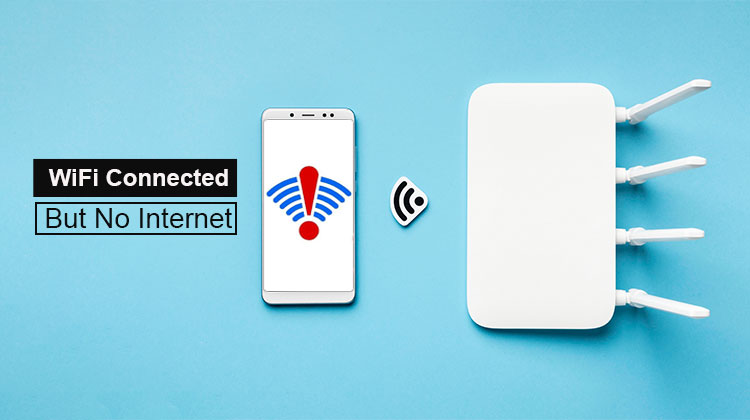
Imagine coming home from a busy day at work and hoping to find peace in the vastness of the Internet, and then being disappointed by a message that says, “wifi connected but no internet.”
What Does “WiFi Connected But No Internet” Mean?
It is common to see Wifi connected but no Internet as a flash message with an alert triangle and a black exclamation mark on Windows computers. The same message can see a black triangle on Android phones and iOS devices. There is a chance that you will see some of the following messages on your phone:
- Connected no Internet access
- Wifi has no Internet access
It means your device is successfully connected to a router or modem, but the connection to the actual internet is failing.
Why is My WiFi Connected But No Internet?
There are several possible reasons behind the internet connection issues:
- Internet Service Provider (ISP) outage
- Router or modem malfunction
- Outdated network drivers
- Antivirus or firewall is blocking access
- Incorrect DNS settings
- IP address conflicts
Before we can troubleshoot and start discussing different ways to fix the problem “wifi connected but no internet,” it’s crucial to pinpoint the issue. To do this, determine the time you notice a drop in connectivity, or a group of users on the same network is experiencing the same issue. This easy step could help to resolve the issue without hassle.
Also read: Why Is My Wi-Fi So Slow? 8 Easy Fixes to Boost Your Internet
How to Fix WiFi Connected But No Internet
The methods listed below are best suited for “wifi connected but no Internet” confined to your device.
1. Run Windows Network Troubleshooter
This is among the easiest ways to pinpoint the root of the problem connected to wifi but no internet. It is important to note that the Windows operating system has its own troubleshooting software that can quickly detect and fix common network problems automatically.
Steps:
- Go to Settings → Network & Internet
- Click Status
- Select Network Troubleshooter
👉 It can automatically identify and fix common problems.
2. Restarting your Modem/Router
If the issue isn’t with the Service Provider, there’s a possibility that the problem is with your router/modem. One way to tackle this issue is to reboot the device.
Steps:
- Turn off the router/modem
- Unplug from power
- Wait 30–60 seconds
- Plug back in and restart
⏱️ Wait a few minutes and reconnect your device. Verify that they can connect right now, and if not, the “wifi connected but no Internet” message goes away.
3. Disable Fast Startup
Most devices running Windows 10 seem to have the Fast Startup option enabled by default. If this mode is enabled, it doesn’t go into complete shutdown. What it does is shut down the user and enter temporary hibernation. Windows states that this will make the computer boot much faster.
Fix:
- Go to Control Panel → Power Options
- Disable Fast Startup
- Restart your PC
4. Disable Windows Firewall and Antivirus Temporarily
Another cause that has not been considered issue with connectivity conflicts between applications that may have temporarily blocked your access. A simple fix is to turn off third-party software or antivirus.
- Open Control Panel
- Go to System and Security
- Click on Windows Defender Firewall
- Select Turn Windows Defender Firewall on or off
- Disable it for the network you’re having trouble with
You might need to do this for any antivirus software or other similar apps on your device that you believe could be getting the error message “wifi connected but no Internet”.
5. Turn Off IPv6
Most network operators today use Internet Protocol Version 6 (IPv6), the most recent version of the network protocol. Although this is the most advanced version, it is also known for causing network problems. Therefore, you should disable IPv6 on your network and then switch to a stable protocol, such as IPv4.
Steps:
- Open Network Connections
- Click Change Adapter Settings
- Open WiFi properties
- Uncheck Internet Protocol Version 6 (IPv6)
Restart your device afterward.
6. Switch WiFi Frequency (2.4GHz vs 5GHz)
The frequency of your WiFi router will impact your overall speed. The 5 gigahertz frequency is said to offer higher speeds than the standard 2.4 gigahertz frequency. However, it comes with complaints due to connectivity issues. Therefore, it could be worthwhile returning to 2.4 gigahertz. You can also temporarily disable the option on your device to change to 5 gigahertz in a sequence.
7. Change DNS Settings
You’ve likely got your DNS settings set incorrectly in the process of setting up, or, more importantly, may have been hacked by malicious malware. If this is the case, try changing DNS server settings to check if you notice any improvement.
You can do this from the Start menu by pressing the Windows key and the R button together. Type in control/nameMicrosoft.NetworkAndSharingCenter. It should be a separate window where you need to click on WiFi and click Properties. A second window will open in front of you, displaying your IP address and DNS server. Select to use the following DNS Server and change the DNS server you prefer to 8.8.8.8 and the alternate DNS server to 8.8.4.4, and confirm it.
Also read: WiFi Booster vs WiFi Extender (2025): Which One Improves Your Signal Better?
8. Update Network Adapter Drivers
Many users forget to update their network adapter drivers. This could cause connection problems as the computer and driver are unable to function efficiently. To successfully update your drivers, you must.
- Go to Settings and Open Device Manager
- Find Network Adapters
- Update your driver
9. Check IP Address Configuration
If the other methods fail and your Internet not working, it could just have an incorrect IP address. To verify whether your IP address is valid, you’ll have to find the Internet and Network Settings from the Network icon on your taskbar.
- Go to Network Settings
- Open Adapter Properties
- Select IPv4
- Ensure IP and DNS are set to Automatic
10. Resetting your Network Settings
If all other solutions do not resolve the issue, resetting your network could be the only option. It’s time to set everything up to start over. To do this:
- Go to Settings → Network & Internet
- Click Network Reset
- Follow instructions
Conclusion
WiFi connected but no Internet is among the most frequently encountered issues by users across a range of platforms. Once you’ve pinpointed the source of the issue, try all the solutions listed above. These options include a basic restart device, to more complex ones such as flushing your DNS servers or performing a complete factory reset. The first one should help in repairing the connectivity. But, if you aren’t able to, contact an IT expert and let them try to solve the no internet connection problem.
FAQs: WiFi Connected But No Internet
Can DNS cause WiFi connected but no internet?
Yes, incorrect or slow DNS settings can prevent your device from accessing the internet even if WiFi is connected. Switching to public DNS like 8.8.8.8 often fixes the issue.
Why is my router connected but no internet access?
Your router may be connected to your device but not to your ISP. This can happen due to service outages, cable issues, or incorrect router configuration.
Why is my phone showing WiFi connected but no internet?
If your phone shows WiFi connected but no internet, it could be due to network glitches, wrong DNS settings, or temporary software issues.
How do I permanently fix WiFi connected but no internet?
To permanently fix WiFi connected but no internet, keep your router updated, use reliable DNS, and regularly reset network settings.










Leave a comment