






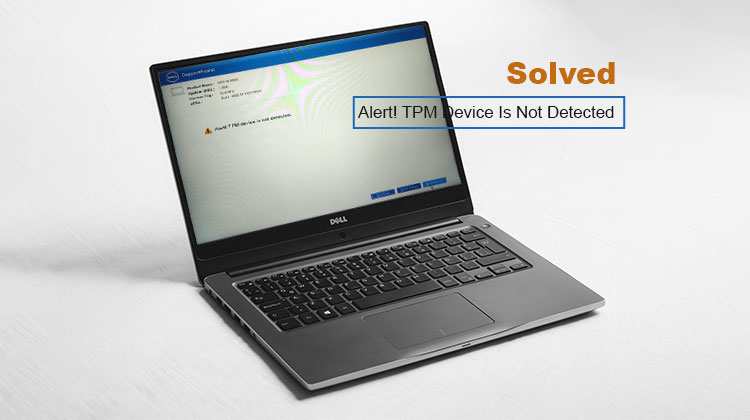
When you power up the laptop of your Dell notebook, you’re presented with an error message:
“Alert! TPM Device Is Not Detected .”
This could be very frightening; however, once you know what is going on and how to fix Alert! TPM Device Is Not Detected issue, you’ll feel more comfortable. If you happen to get this message on your screen, pay attention to the information below for how to tackle the issue without difficulty.
What Is TPM?
TPM is a short form for Trusted Platform Module. It is an embedded chip on your laptop’s motherboard that executes cryptographic functions in your Dell Laptop’s operating system.
It helps secure the laptop’s hardware by integrating cryptographic keys, protecting your computer from malware and security threats.
Different computer systems utilize it to authenticate and authorize the data and files. This error message appears because your TPM, and therefore a part of your laptop’s security, is compromised.
BitLocker’s functions by Windows could be the reason; however, BitLocker is also essential as a stand-alone program. Disabling it can cause other problems with your laptop.
The simplest solution could be to remove BitLocker this isn’t the best option.
Common Causes of the Alert! TPM Device Is Not Detected Error
Sometimes, computers do not recognize the TPM devices. It can be confusing, but here are some common causes of the TPM device not detected:
- BIOS/UEFI Settings Issue
- Firmware Glitch or Update Problem
- Hardware Issue
- CMOS Battery Reset
How else could you resolve this issue? Here are a few solutions to try to fix Alert! TPM Device Is Not Detected error.
Also read: Blurred Screen on Laptop: 8 Quick Solutions to Fix Blurry Display
How to Fix the Alert! TPM Device Is Not Detected Error
1. Enable TPM in BIOS/UEFI
If TPM is not enabled in the BIOS, and Windows or software detects it, it will display this error. Enabling BIOS is easy, but the procedure varies by OEM. It’s typically accessible in the security section.
- Restart your PC
- Enter the motherboard’s BIOS using Del, F2, or F9 at startup, depending on the manufacturer.
- Look for options like:
- “TPM Device”
- “Security Chip”
- “Intel PTT” or “AMD fTPM”
- Enable it and save changes
2. Disconnecting Your Laptop’s Battery
The first option is to remove your laptop’s battery completely.
It seems that many Dell laptop users who have been affected by Alert! TPM Device Is Not Detected issue discovered that simply taking the battery out fixed it, and then the board would return to normal after plugging it back in.
For this step, you must jump onto your laptop, then follow the arrows to remove the battery safely.
Every Dell laptop differs in model and design, so you’ll need to identify the battery on your laptop and go from there.
After the laptop has been removed, relax for just a couple of minutes. The power supply to your laptop will have been shut off, and the fans should have stopped.
After a few minutes, you can plug the battery in and restart your Dell laptop once more.
3. Update Your Laptop’s Firmware
If removing the laptop’s battery does not solve the issue, then your laptop’s firmware is the root of the problem.
The most effective way to fix this issue is to update your laptop’s firmware to the latest version available from Dell themselves.
But, since each laptop is unique and comes with its own distinct firmware, you’ll have to study it yourself. Find the model and ID number, then update the firmware the laptop is running, and then install it.
The best site to use for Dell’s Drivers and Downloads.
There’s a section that will help you find the right driver for your laptop to download it quickly. Enter your laptop’s model number or product ID, and Dell will assist you.
A powerful utility program that can assist you with this issue is Dell SupportAssistant. It will detect any outdated drivers installed on your laptop’s system and update them for you.
This will ensure that your laptop’s firmware is always up to date. This is a method many users use when they aren’t sure about the model or manufacturer identification for their Dell laptop.
When your firmware is upgraded, all you need to do is restart the Dell laptop, and hopefully, the issue will be resolved.
4. Reset BIOS Defaults
If your laptop’s firmware is fully updated, but you still get Alert! TPM Device Is Not Detected error, you can change your BIOS defaults.
It could be that you’ve updated the firmware in error, and you need to restore it to its default state, or this technique could work on its own and help your laptop recognize the TPM chip.
- Start by turning off your laptop and ensuring that it’s not connected to any power source.
- Press and hold the ESC or CTRL key, connect the power cable, and then press the power button.
- After your laptop has booted up, you can release your ESC or CTRL keys.
- You will be directed to the computer’s BIOS page. Here you’ll be presented with the three recovery options available to BIOS.
You’ll have to select”Rollback BIOS” to reset your laptop’s BIOS defaults and return it to its original condition.
Start your laptop up again and, if you’re lucky, the Alert! TPM Device Is Not Detected error message will disappear.
Also read: BIOS ID Check Error: 6 Easy Ways to Fix It During BIOS Update
5. Clear TPM
Clearing the TPM will clear all keys and any other information stored in it. That means that all keys will disappear. There are ways to clear the TPM. However, before you do this, we must ensure that all keys linked to those associated with the TPM can be destroyed, and the information secured by these keys.
Go to Windows Security → Device Security → Security Processor and select the option to clear TPM.
Conclusion
After you’ve tried these solutions, you can fix the Alert! TPM Device Is Not Detected error message pops up each time you boot up your Dell laptop.
FAQs: Alert! TPM Device Is Not Detected
What does “Alert! The TPM device is not detected” mean?
It means your system is unable to find or communicate with the Trusted Platform Module (TPM) chip. This usually affects security features like BitLocker, Windows Hello, and secure boot.
Why does my Dell laptop show Alert! TPM Device Is Not Detected Error?
Common reasons include: TPM disabled in BIOS/UEFI BIOS or firmware issues CMOS battery reset Hardware communication failure
Will clearing TPM delete my data?
Clearing TPM does not delete personal files, but it removes encryption keys. If you use BitLocker, make sure you have your recovery key backed up before clearing TPM.
How do I check TPM status in Dell laptop?
Press Win + R → type tpm.msc → Enter. This will show whether TPM is active or if the Alert! TPM Device Is Not Detected Dell laptop error exists.




Leave a comment