






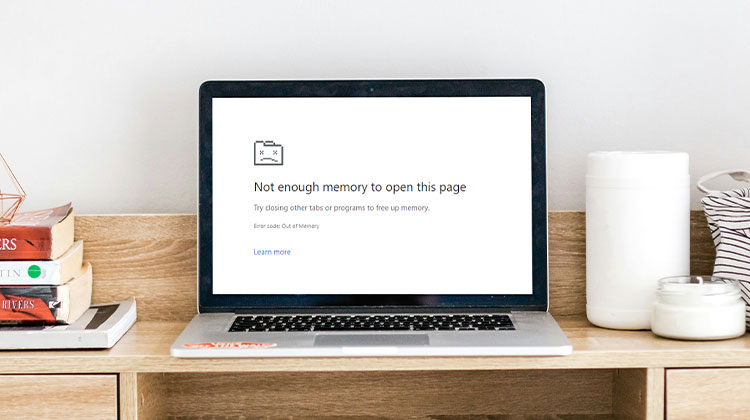
If you’re receiving a ” Not enough memory to open this page” error message or ” Out of Memory” error message instead of a website, you can fix this error by using the solutions below.
Why does my Chrome Say Not Enough Memory to Open This Page
If you notice errors such as “Chrome not enough memory to open this page, “it typically means that your system is running low in resources. Here are some common reasons to see it:
- Too many browser tabs or apps open at the same time
- Heavy websites with videos, animations, or high-resolution images
- Excess cached files or cookies in your browser
- Background processes consuming RAM
- Outdated Chrome or Windows version
Also read: CTF Loader High CPU & Memory Usage? 5 Easy Fixes for Windows
How to Fix “Not Enough Memory to Open This Page”
Fix 1: Close Other Tabs, Extension and Apps
Your computer may have a memory issue and be unable to load the website while running your extensions, apps, and programs. To clear memory, close each tab, excluding the one that shows an error message.
Shut down any other applications or programs that are running. You can also pause any apps or downloads.
Uninstall any unnecessary extensions in Chrome. On the right side, click More Tools and then Extensions. For extensions you don’t need, click to remove them.
Fix 2: Clear Chrome Cache
Chrome may have data stored that prevents the page from loading. It’s easy to clean the cache and cookies.
- On the top right-hand side, click More More and select More Tools and then Clear browsing information.
- In the next “Time range,” select All time. Select browsing history, cached images and files, Cookies, and other site data
- Click Clear data. Reload the tab to fix the error.
Fix 3: Turn off hardware acceleration
Enter the chrome://settings section of Google Chrome’s URL bar and then press the Enter key.
Select Advanced to open the settings tab. Then switch off the Hardware acceleration when it shows an option. Restart Google Chrome.
Fix 4: Upgrade Chrome to the 64-bit Version
Open Google Chrome. Type chrome://settings/help in the address bar and press Enter. Choose the About section. Check if there’s a 64-bit version displayed after updating your Google Chrome version.
If you do not have the 64-bit version that comes with Google Chrome. Download it from this link, then install it.
Fix 5: Increase Page Filling
By extending charging pages, you can increase storage space on disks allotted to virtual memory, even when there is no memory available on the system. There is then more space on the hard disk available in RAM. This way, you’ll be able to ensure that Google Chrome has enough memory to display the webpage.
- Go to the Search box, search for Advanced System Settings, and then press the Enter button.
- Within the System Properties window, go to the Performance tab, and then select the Settings button.
- Within the Performance Options window, click the Advanced tab and choose Change option.
Remove the automatically manage paging file dimensions for drivers of all types button. Select the Custom size radio option. Then, enter a number in the box with the Initial size that is larger than the recommended or currently assigned values, as you can see at the lower. Then, you can put an even larger value in the box with the maximum value.
Also read: Windows Update Stuck: 9 Easy Ways to Solve It
Fix 6: Clear Memory Cache
To fix the “Not Enough Memory to Open This Page” error on Windows, clear your memory cache by deleting temporary files (press Windows + R, type temp and %temp%, then delete all files), run Disk Cleanup to remove system cache and temporary files, optionally flush your DNS cache using ipconfig /flushdns in Command Prompt, and finally restart your PC to refresh memory and improve performance.
Other Quick Fixes to Try
- Restart your device to clear temporary memory usage.
- Update your system to the latest version.
- Reduce background apps running at startup.
- Upgrade RAM if memory errors occur frequently.
Conclusion
These are some solutions to fix the Not Enough Memory to Open This Page’ error in Chrome. If you’re facing the same issue in your system, you may try these solutions to fix the problem.
FAQs: Not Enough Memory to Open This Page
What does “Not Enough Memory to Open This Page” mean?
It means your device’s RAM is full or overloaded, so Chrome or other apps can’t load the page properly.
Does clearing memory cache delete my files?
No. Clearing cache only removes temporary files and data stored by apps or browsers. Your personal files stay safe.
Can low RAM cause this error?
Yes. Devices with limited RAM are more prone to memory errors when running multiple tabs or heavy apps.
Can this happen on mobile devices too?
Yes. Mobile devices have limited RAM and may show this error when too many apps or browser tabs are open.
Are there lightweight browsers that reduce memory errors?
Yes. Browsers like Brave, Opera, or Firefox Lite use less memory and can reduce this error on low-RAM devices.




Leave a comment