






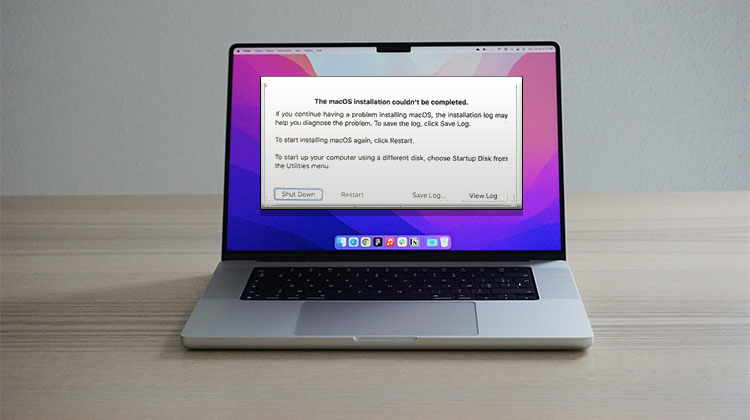
When updating macOS, some users encounter an error message: the macOS installation couldn’t be completed. For instance:
“I’m installing the 10.13.6 supplemental update on my 2018 MacBook Pro. It seemed to go through fine, but after restarting, it was still offering me the update in the App Store… I clicked it again, but this time it said ‘The macOS installation couldn’t be completed’. ”
Why does your Mac say ” the macOS installation couldn’t be completed”? How to fix this issue and complete your macOS installation?
Why Does “The macOS Installation Couldn’t Be Completed” Error Occur?
Understanding the cause helps you fix the problem faster. Here are the most common reasons why the macOS installation couldn’t be completed:
- Corrupted macOS installer files
- Incompatible macOS version
- Faulty startup disk
- Insufficient storage space
- Missing or damaged system files (e.g., /System/Installation/Packages/OSInstall.mpkg)
Things You Should Do Before Fixing macOS Installation Problems
Before resolving the macOS installation couldn’t be completed error, you should take some security measures to avoid data loss and any other problems that occur during the procedure.
1. Boot Your Mac in Safe Mode
This will ensure that your programs don’t auto-launch each time you boot up your PC. The macOS installation program will not be among the exceptions. If you boot your Mac into Safe Mode, programs that run in the background without authorization will be disabled.
For Intel Macs:
Press your “Shift” key while you restart the Mac computer. Once it has powered off and the startup audio or displays the Apple logo, let go of your “Shift” key. Choose “Safe boot” from the login screen.
For Apple Silicon Macs:
After shutting down your PC, hold the power key and hold until the options for starting appear at the top of your screen. Select a startup disk and while pressing your “Shift” key, click on “Continue in Safe Mode”.
Also read: MacBook Won’t Power On? 5 Easy Troubleshooting Tips
2. Back Up Your Data
It is a smart choice to back up your data before trying an important Mac update since it’s likely to alter the operating system’s primary files. If there’s a problem, you’ll be able to complete clearing your PC to start the fix. This will be an external drive to create backups using Carbon Copy Cloner. This tool will ensure that all your data is secure during progressive backups. By doing this, you can access and retrieve information from specific dates rather than relying on an environment where data is overwritten in the latest version.
3. Check macOS Compatibility
In these times, it is important to determine which of the most recent macOS versions on your computer is essential to save time and anxiety. To verify your Mac’s compatibility, visit the official support website, determine which macOS version you want to install, and click to review the specifications. You can compare these requirements with your Mac by using the menu bar, then clicking on the “Apple” logo and then “About This Mac”. Do not try installing it if it’s not compatible.
How to Fix “The macOS Installation Couldn’t Be Completed” Error
Now let’s fix the macOS installation couldn’t be completed error step-by-step. Start with the simplest solution.
1. Restart Your Mac and Reinstall
Most of the time, you can restart your Mac, and reinstalling the update may be enough to remove the macOS could not be installed on your computer” error. For this, restart your computer using your “Apple” menu. If your Mac isn’t responding due to this issue, hold down the power button to force shut down. But, don’t try it; the installation process is already designed to prevent damage to your operating system’s files.
2. Check your Mac Date and Time.
An error in the date and time may cause Apple’s servers to be inaccessible. This alone may be the reason for an unsuccessful macOS update. If your time and date are wrong, you’ll want to correct this. Fix it by selecting “Date and Time” in “System Preferences”. To ensure your date and time are always updated, simply click the “lock” icon. Then key in your password, if there is one you have one, and then choose “Set dates and times automatically.
3. Free Up Storage Space
At least 20GB of free memory on the device is necessary for a successful macOS update. The macOS installer itself requires 4 and 5GB of space on your phone. The additional 15GB is required as files and folders need to be removed from the device and then transferred onto your Mac. When you have low storage space, this can make your MacBook slow and may be the cause of that macOS error.
Steps:
- Go to About This Mac → Storage
- Click Manage Storage
- Delete unnecessary files
4. Download a Fresh macOS Installer
A corrupted macOS installer might be responsible for the error. If you are still experiencing the macOS installation couldn’t be completed error, try replacing it with a new macOS installation. You can download this macOS installer via a reputable source, such as Apple’s support site. Compared to downloading through your App Store or System Preferences, the support website offers a complete combination installer, while the latter provides a simpler version. However, more recent editions (macOS Monterey) might require you to download an installer through the App Store.
5. Reset NVRAM/PRAM
Every setting and preferences such as display brightness, screen resolution, and sound volume, is stored in the NVRAM and PRAM on your Mac. Issues with PRAM or NVRAM might be the reason behind the macOS problems you’re seeing in your Mac. If luck is on your side, resets are simple, and you won’t lose any personal data. To reset, you must start by restarting your computer. Switch it on and hold “Option+Cmd+P+R” while it boots. After that, release the keys until you hear the 2nd startup sound or you see an additional “Apple” logo.
Also read: How to Reset Mac Password: Step-by-Step Guide (2026)
6. Run Disk Utility First Aid
At the moment, it appears this macOS installation error is; however, if it’s not, you’ll need to test the fix. Use the preinstalled Disk Utility app on your current macOS to perform a first aid test of your disk to ensure there are no disk permission errors. To start, go through your “Application”, “Utility folder” and then open”Disk Utility” “Disk Utility”. In the sidebar, you’ll find the Mac’s startup disk (Macintosh HD), click it, then click “First Aid”. The first aid test will search the Macintosh HD for possible errors and then fix them.
7. Reinstall macOS in Recovery Mode
If the above options do not fix the macOS installation couldn’t be completed error, you can try reinstalling macOS by restarting your Mac, pressing Option and Cmd keys. Then wait until you hear an eerie sound at the start of your computer and the Apple logo. In the macOS Utility window, click the Reinstall Mac alternative. The process will download the newest version of macOS.
How to Prevent macOS Installation Errors
To avoid macOS update error in the future:
- Keep enough free storage
- Use a stable internet connection
- Avoid interrupting updates
- Always download from official sources
Final Thoughts
The error “the macOS installation couldn’t be completed” may seem serious, but it’s usually easy to fix. In most cases, simple solutions like restarting your Mac, freeing storage, or reinstalling macOS will resolve the problem.
If none of these methods work, consider contacting Apple Support, as it may indicate a deeper hardware or macOS installation issue.
FAQs: The macOS Installation Couldn’t Be Completed
What does “The macOS installation couldn’t be completed” mean?
This error means your Mac was unable to finish installing macOS due to issues like corrupted files, low storage, or system errors.
Is “The macOS installation couldn’t be completed” a serious problem?
Not usually. In most cases, it’s a temporary software issue that can be fixed with simple troubleshooting steps like restarting or reinstalling macOS.
Why does this error appear during macOS updates?
It often appears when something interrupts the update process, such as unstable internet, insufficient storage, or incorrect system settings.
Can this error happen on both Intel and Apple Silicon Macs?
Yes, the “macOS installation couldn’t be completed” error can occur on both Intel-based and Apple Silicon Macs.
How do I fix “The macOS installation couldn't be completed” error?
You can fix this error by trying simple steps such as restarting your Mac, checking date and time settings, freeing up storage space, running Disk Utility First Aid, or reinstalling macOS in Recovery Mode.






Leave a comment