





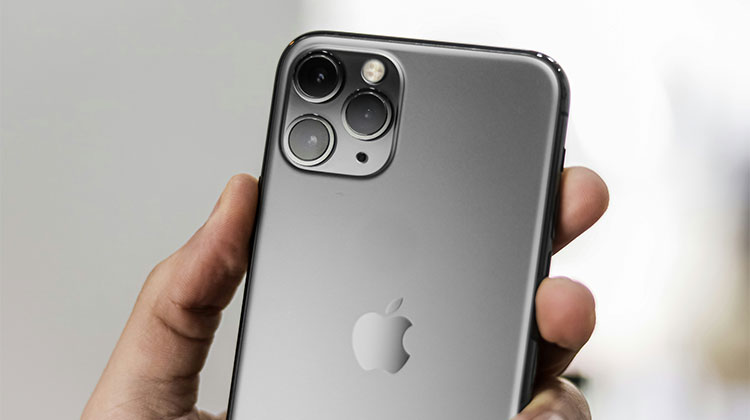
The iPhone camera not working issue is related to a hardware issue or a misconfiguration in your Settings. This camera issue can be found on almost all iPhone models, and some users report that triggered by an iOS update.
For a few users, this issue can occur with either the front or back camera. There are unfortunate cases where the iPhone camera not working. The problem occurs when you start the camera application, but it does not start, crashes, or displays a black/blurry screen with camera controls.
Why is My iPhone Camera Not Working? Common Reasons
There are several common reasons for the iPhone camera not working. It could be due to:
- Software Glitches
- App Conflicts
- Hardware Issues
- Storage Issues
- Outdated iOS Version
Also read: iPhone Touch Screen Not working? Try These 11 Quick Fixes
10 Quick Fixes for iPhone Camera Not Working
1. Force Restart Your iPhone
Before starting the troubleshooting procedure, we must first check whether your iPhone is hot or cold. If it is, take the time to normalize to room temperature because extreme phone temperatures can be an issue with the back camera not working on iPhone. Additionally, if your iPhone has a case and you want to remove it, take it off and ensure that nothing is blocking the camera lens or the flashlight.
2. Clean the Camera Lens
Smudges, fingerprints, and dust that accumulate on the lens are among the main causes of blurred or out-of-focus images. Use a soft, dry, microfiber towel to clean the rear and front lens of the camera. Avoid harsh chemicals or abrasive substances that could damage lens coatings.
3. Enable Camera in the Screen Time Settings
If your camera is not enabled in the Screen Time settings of your iPhone, it may cause the iPhone camera stopped working. If your daily time has expired, it is possible that the Screen Time module will not allow the camera app run. Here, you enable the camera within the screen time settings on your iPhone, which may resolve the issue.
- Go to the Settings and open the screen timer.
- Now select Content & Privacy Restrictions.
- Open Allowed Applications and turn on the camera by turning its switch to the on position.
- Launch the Camera and verify that the iPhone camera is working properly.
4. Update the iOS
If your iPhone camera not working because of a bug in the operating system or an older version. Updating it to the current version may fix the bug and solve the issue. Before doing this, be sure that you fully charge your iPhone and don’t forget to backup you device.
- Go to iPhone settings.
- Select the General option and then open Software Update.
- If an iOS update is available for your iPhone, download the update and install it.
After installation, restart your iPhone. Upon restarting, start your iPhone Camera to check if it’s working well.
If you’re not, and have been a beta tester on iOS, try installing the latest beta profiles on your iPhone to fix the issue.
Also read: Why Is My iPhone So Slow? 12 Fixes to Speed Up The iPhone
5. Enable Flash and Launch Camera
The flash is an integral component of the camera. If the camera fails to connect to the flash on the iPhone, and iPhone camera flash is not working. Here, you can manually turn on the flash, and then opening the camera could solve the problem.
- Go to the iPhone’s Control Center and then enable the flash. The flash might not turn on, but the control center might display it as active.
- If none of this worked, but the camera app shows a black or blurry screen, check if using the flash button repeatedly (flash on and off) on the camera’s screen resolves the issue.
If the issue persists, place your iPhone on charge and continue the steps 1 through 2 to determine whether the camera is functioning perfectly.
If this doesn’t resolve the issue, try turning off Auto Flash in the camera’s settings to fix the iPhone camera flash issue.
6. Disable the NFC Tag Reader
The NFC tag reader uses the camera on your iPhone to complete the process. If it does not release the iPhone camera to other OS modules due to a software bug, this could cause the iPhone camera not working. Here you can disable this NFC Tag Reader on your iPhone to resolve the issue.
- Open the Settings on your iPhone and then click Control Center.
- Then tap on Customise Controls.
- In the Controls Included, search to find the NFC Tag Reader. After it is located, tap the plus (-) symbol before it.
- After that, tap on Remove. Then, verify whether your iPhone camera is working properly.
If not, try a force reset on your iPhone and then verify whether the camera has begun working.
7. Disable the Dark Mode
The dark mode on your iPhone plays an important role in the execution of OS modules. It adjusts the modules’ outputs in accordance with its dark setting. If dark mode settings are an issue with the iPhone camera not working, the display shows a black screen. Here you can disable dark mode on your iPhone, which could resolve the camera issue.
- Open your phone’s Settings and tap Display and Brightness.
- Select the Light and then verify that the camera is operating properly.
- If the iPhone’s dark mode is disabled, see whether turning it on clears the problem.
8. Try Another Camera App on the iPhone
The camera issue could be the result of a problem within the installation process of the default iPhone camera app. Using another camera application could resolve the issue temporarily.
Open another camera application (if you don’t have one, you could download one) and verify that the camera works in the other application. Here are a few examples. The camera is reported to work, and you could test it one at a time:
- 9 Cam
- Camera in the eBay app
- Camera in the WhatsApp app
- QR code scanning through the PayPal app
- Capturing Pictures using the Apple Messages
If the camera functions well in another app, switch into the standard iPhone camera app and verify whether it’s functioning properly.
Also read: Laptop Camera Not Working? Try These Simple Tips
9. Reset All Settings of Your iPhone
If one or more settings of your iPhone hinder the functioning of a crucial component for the camera’s operation, it could lead to the iPhone front camera not working properly. In this situation, resetting your iPhone to default settings can resolve the iPhone camera not working issue. Before you do this, be sure you save the settings (like Wi-Fi passwords, etc.) that you might need later on.
- Go to the iPhone Settings and then select General.
- Then, open the Reset option and click Reset All Settings. After that, confirm to reset all iPhone settings. Then, force restart the iPhone.
10. Factory Reset Your iPhone
If none of the suggestions above worked, then a damaged OS might be the reason for the iPhone camera not working. In such a scenario, it is possible to reset your iPhone to its factory settings, which could resolve the issue.
Before proceeding, make sure back up your data on iCloud or iTunes. And your iPhone is fully charged.
- Go to iPhone Settings and then open General.
- Then, select Reset, and then, within the menu displayed, tap on erase all content and settings.
- Then, confirm to factory reset your iPhone, and then wait until the process finishes.
After that, set up your device as a new device (without recovering or syncing with iCloud) and then verify whether the camera functions perfectly. If yes, you can restore the backup or sync with iCloud.
Conclusion
Most of the time, iPhone camera not working issues are caused by software bugs, app conflicts, or storage problems. Fixing these issues by yourself with a few simple steps. First, check permissions. Then restart your mobile. Install the latest version of iOS. Clear the lens. Make space for storage. These iPhone camera not working solutions are effective in most cases.
FAQs: iPhone Camera Not Working
Why does my iPhone camera say “Cannot Use Camera”?
This usually happens due to app conflicts, Screen Time restrictions, or a hardware problem. Start with software fixes first.
What should I do if my iPhone camera stopped working after a drop or water exposure?
Power off your iPhone immediately. If the camera still doesn’t work after restarting, it’s likely a hardware issue — visit an Apple Store or authorized service center.
How do I fix blurry photos on my iPhone camera?
Clean the camera lens, remove obstructions, check focus settings, and make sure your iPhone is updated to the latest iOS version.
Why is my iPhone camera app crashing?
App crashes can happen due to software bugs, low memory, or conflicts with other apps. Restarting the phone, updating iOS, or resetting settings usually fixes it.
How much does it cost to replace an iPhone camera?
It depends on your iPhone model: About $25–$75 for older iPhones, $50–$130 for iPhone X–13, and $110–$175 for iPhone 14 or newer





Leave a comment