






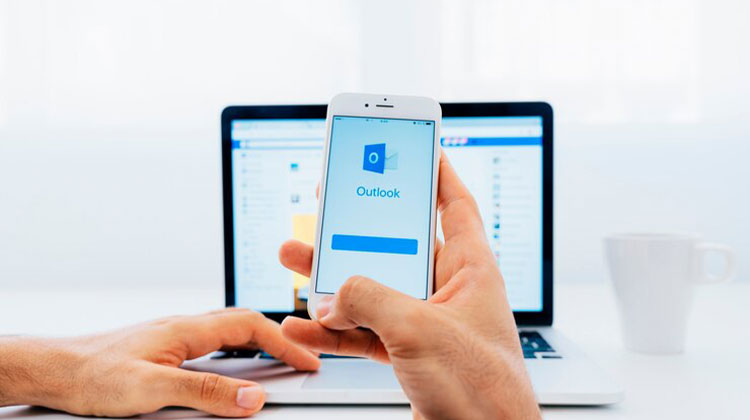
Are you having problems with Outlook not working? In this guide, we’ll learn the most likely causes behind why Outlook not receiving emails and show how to fix these problems. So you can restart your inbox quickly!
It’s been three hours. Yet, there’s not a trace of that important email you’d hoped be receive earlier. It’s been a while since you checked your Internet connection and logging in and out of the Microsoft account, and refreshing the page several times… But, despite all your efforts, your mailbox remains abysmally empty. Why is Outlook not receiving emails, and what are its possible solutions? In this guide, we’ll outline eleven approaches for fixing it.
Cause of Outlook Not Receiving Emails
There may be several reasons why I am not receiving emails:
- Microsoft’s servers are down
- Your internet isn’t working correctly
- The email did arrive, but it’s in a different folder
- Your password is outdated
- The sender is blocked
- Outlook is set to work offline
- The email profile is corrupt
Also read: What Is Hide My Email? How It Works on iOS and iCloud
How Can I Fix Outlook Not Receiving Emails?
Let’s look at 10 solutions to fix Outlook not receiving emails error.
1. Check Your Internet Connection
Let’s get down to basics first: Outlook requires an internet connection to establish communication with its email server.
Outlook cannot refresh and add new messages to your inbox unless it’s connected to the Internet.
An essential step when diagnosing internet issues is testing whether the connection works. One quick way is to open your browser and load websites. If no results appear, then the internet is not working, and Outlook may not be receiving emails as expected.
2. Check the Junk Folder
Log in to your Outlook account, then navigate to the Junk Mail folder.
Unknowingly misclassifying emails as junk can sometimes occur. Checking and marking legitimate correspondence as non-junk will ensure it reaches your direct inbox.
3. Clear the Outlook Cache
The Outlook application saves cached files to increase performance and operate more effectively on PCs, and should these cache files become damaged, you could no longer receive emails through Outlook. Clear the Outlook cache files – doing so will not delete all attachments or emails in Outlook.
4. Edit Filter Settings
To help you organize your email, Outlook allows filtering in your inboxes. But you might have set a filter previously, and you’ll need to remember it.
Go to your Outlook inbox filters to eliminate any unwanted choices. Click “Filter” then “Sort by” and choose to sort emails according to date. This allows you to discover and get access to recent emails that your filter might have accidentally blocked.
5. Check Your Blocked Users List
Outlook makes it simple and secure to block senders or domains with just a click, providing additional protection from cyberbullies and spammers.
After you’ve blocked a user, Microsoft automatically diverts all their emails to your Junk Folder, regardless of their content.
If you are waiting for an email from someone, you might want to double-check that the sender is not listed in your blocked list.
6. Check Storage Limit
Outlook accounts can contain up to 100GB of storage space per mailbox. Most likely, that should be more than sufficient storage. But if your inbox remains full for extended periods.
If this is the case for you, email cannot reach your inbox until there is enough space. Clear out the unwanted messages in your inbox to create space.
7. Update your Outlook
Have you checked for Microsoft Outlook updates on the Google Play Store or the Apple App Store? An outdated version may be the cause for it not receiving email, and could explain why your Outlook not receiving emails.
Always update your apps to run efficiently and securely. Install updates as soon as they become available, as this helps combat security vulnerabilities and sync errors that arise over time.
Also read: EmailOnDeck Alternative: Top 10 Temporary Email Services
8. Clear Multiple Accounts
Outlook allows us to connect 20 accounts by default. This is very convenient. However, if you have multiple accounts, make sure they are not causing conflict. To remove inactive or redundant accounts.
Multiple accounts can cause problems with synchronization or conflicts. Removing unnecessary accounts ensures a smoother email experience.
To resolve the Outlook not getting emails issue, go to”Accounts” and then the ” Connected Accounts” section to view the list of connected accounts. Find and delete the email account that is no longer active.
9. Outlook Downtime
Microsoft servers are extremely reliable. They rarely fail to function, and Outlook won’t open. However, it’s still important to determine if others are experiencing similar problems in Outlook.
There are at least three places where you can verify Outlook is working and not. You can check the Microsoft 365 Service page. Whenever a yellow or red icon appears on the right side of Outlook.com, this indicates an issue, and Microsoft is aware of it. You could sign in to Twitter (X) and search #Outlookdown hashtag to see if any other users have experienced problems too.
10. Create a New Profile
If Outlook not receiving emails, it could be due to something giving an issue with the Outlook profile. The best way to fix a corrupt Outlook profile is to create a brand new profile and then remove the old profile.
Bottom Line
There are many reasons that lead to your Outlook not receiving emails. The most common issues are internet connectivity issues and emails being delivered to spam or the other tab in Outlook, inbox storage restrictions, or technical issues with your device or the browser you’re using to view your messages
FAQs: Outlook Not Receiving Emails
Why is my Outlook not receiving emails?
Your Outlook may not receive emails due to incorrect account settings, server issues, low storage space, or outdated app versions. Checking your connection and email filters usually helps.
How can I fix Outlook sync issues with my email server?
Go to Send/Receive settings, click Update Folder, or remove and re-add your account. Check server status to ensure synchronization is active.
Why are my Outlook emails missing or going to Junk?
Filters, spam rules, or antivirus programs may redirect emails. Review your spam settings and mark important senders as “safe.”
How do I check if my Outlook account is blocked?
Go to your Microsoft Account settings and review any security alerts. If Outlook detects suspicious activity, it may temporarily block incoming mail.







Leave a comment