







Are you experiencing an Xbox controller blinking or not connecting? Do not worry, as this article will guide you to fix the Xbox controller blinking, but not turning on, in a matter of minutes:
Xbox controllers flash a lot due to a failure connect to the console. There are many reasons why this happens. They range from an insufficient battery or poorly connected batteries to software and hardware issues.
This article offers the causes of the Xbox controller blinking error and solutions. We offer solutions that can be implemented on all Xbox controllers, including those for PC, Xbox One, One S, One X, Series X, Series S, or other Xbox controllers.
Why Is My Xbox Controller Blinking?
When the Xbox controller light flashes, it usually indicates one of these problems:
- The controller is not paired with the console
- Low or dead batteries
- Connection interference
- Firmware issues
- Controller out of range
- Console or Bluetooth connection error
Now, let’s solve the Xbox controller blinking issue step by step.
How to Fix the Xbox Controller Blinking Issue
1. Pair the Controller Again
Check to see if the connection issue is temporary by pressing the button to pair the console and controller. You can also turn off and back on to check if the issue disappears.
Another method to test this is to change the device it is connecting to. For instance, when you’re using the console, you can check it out using an iPhone or a PC with the right connections, and then check whether the issue goes away. This happens if you suspect the issue lies with your controller or the device it’s connected.
Also read: How to Fix PS5 Controller Drift and Restore Smooth Gameplay Easily
2. Out-of-sync Controller
The controller could start flashing or blinking if it is not connected to the console. The aim is to attempt to restore the connection and also inform users of the problem. The Xbox controller flashing slowly signifies it is unable to locate the Xbox it is synchronized with.
To sync again and restore the connection, switch to the Xbox console, then hold and press the Pair button on the top of the controller until the Xbox button of the controller blinks faster. Give it some time. The controller will reconnect when the lights begin to stabilize.
Make sure you are within the range of your device and have a strong, direct signal. The controller could be far away from the console, and you will notice this issue when using wireless connectivity.
Also, ensure there is no interference from any other devices around the controller. If you’ve connected multiple controllers, make sure you disconnect them first before using the original controller.
3. Low Battery or Incorrectly Installed Batteries
Problems with the Xbox controller blinking can occur when the controller isn’t adequately powered due to a low battery or defective battery installation.
When the battery is low, it will flash intermittently as it alerts you to the low battery. This issue can manifest in the controller blinking diagonally across four lights, also indicating that your battery may be almost completely flat.
Inspect the battery compartment, and verify that the battery terminals are properly connected, inserted, and properly set. If the issue doesn’t stop, try recharging and/or replacing batteries.
4. Update Controller Firmware
Issues and bugs within the firmware can cause communication issues between the console and controller. It is recommended update the software to fix these issues.
To upgrade the firmware, connect the controller to the Xbox console using a USB cable. Hit the Xbox symbol, then go to Settings -> Devices and Connections, then Controllers and headsets or Accessories, and select the controller you want to use. To view the latest firmware version for the controller. Select Update if there is an update available. Then select the most current Firmware version. Follow the on-screen prompts to install.
5. Reconnect After Using Another Device
Xbox controllers are synchronized with the most current device that they are being used with. Thus, a constant flash even when the console is turned on occurs if it has been played on an older device.
To resolve the Xbox controller not pairing problem, plug the Xbox controller into the console using a USB-to-Micro-USB cable and disconnect it once it is connected. Use the “Beacon-style” (with icons) button on the Xbox One, S, and X (located on the left side of the Xbox One or at the front of One S and X and between the RB and LB buttons, next to a USB micro connector).
The console and Xbox controller blinking rapidly during this process means that they are in sync and will eventually stop blinking.
A flashing light here indicates that the controller is in sync mode. In this case, remove the battery, then put it back in to take it out of sync mode.
6. Reset the Controller
Resetting a controller may resolve problems with blinking or flashing. The reset will return the controller to its original state and let it establish a new connection with the console.
To reset the controller, press the Xbox symbol to power off your controller. Remove the batteries and re-insert them. Press the Xbox symbol button to turn it on.
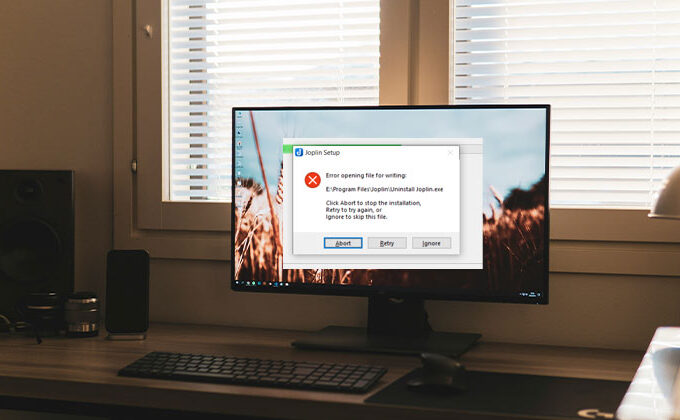
7. PC Driver Issues
If you are using an Xbox controller as a PC controller instead of the console, you need to have the controller driver installed.
Xbox controllers are connected to PCs through Bluetooth and a USB cable. For the latter, it’s plug-and-play on Windows 10 or subsequent Windows versions. So, either the proper drivers aren’t installed, or there is a problem with either the USB cable or the USB ports.
If you uninstall the drivers in case you are using an older OS version, plug the Xbox controller device, and then update the drivers using the PC Device Manager utility (search for the settings to locate this). There is a way to manually search for and then install Xbox controller drivers from the Internet. However, using an application like the Device Manager utility on your PC will make it much easier to install the necessary drivers.
Also read: What Is xResolver? How It Works + 4 Safe Alternatives to Try
8. Check for Console Hardware Issues
It is indicated by an illuminated lighting (red colour) at the power button of your console whenever one switches to turn on the console. Try unplugging and reconnecting power supplies, memory units, and hard drives before taking the console to a repair shop.
You turn off the console one at a time, disconnect all devices connected to it, and verify that the device is working effectively.
When the light is still red to illuminate the console when you disconnect and connect a device at a given time, then the issue isn’t related to the device. Proceed to the next check by disconnecting and reconnecting additional devices and accessories, each one at a.
Again, if the console doesn’t perform as expected when you disconnect and reconnect all accessories and devices at a time, it’s likely that the console needs maintenance. Visit the Xbox website, log in to your Device, select Register a new device, and then check the device’s warranty status. The device can be repaired for a cost if the warranty does not cover it.
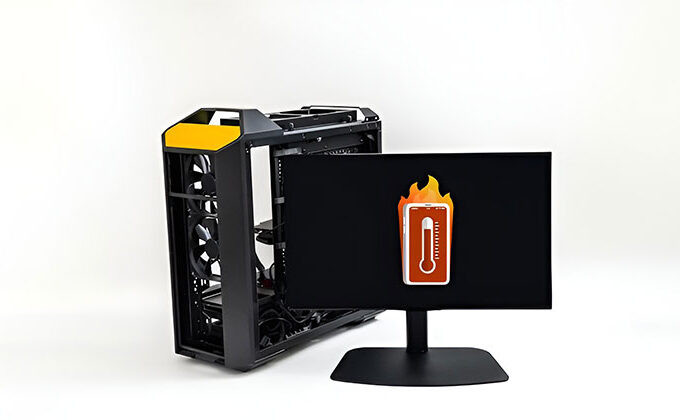
9. Prevent Overheating
The issue on the Xbox 360 console manifests as two lights flashing on the power button when the console is on. Clean the space around the console, then let it air dry or put it in an open area. Be sure that the console and power supply are placed on a hard surface.
Keep the console clear of direct lighting, heating vents, and other heating and cooling devices and appliances. For instance, it gets hot near televisions, computers, or other electronic devices.
Also, red lights may indicate that the controller has overheated. Turn off the console, and unplug the power supply from all connections. Let it cool down for about an hour, then reconnect to the console in a normal manner. The device should show a steady glowing green on your power button. You can also purchase an alternative power supply on the Xbox console’s website.
10. A/V Connection or Cable Problems
This issue is identified by four flashing green LEDs on the console’s power button. Turn off the console and the television. Unplug the A/V cable from the console and TV, and then connect them. You could also try an alternative A/V cable.
If the Xbox controller blinking issue persists, you can register the device via the Xbox website and then submit a repair request.
If you see three red lights flashing around the Xbox 360 power button, for example, instead of the usual four green lights that indicate normal operation, the console may require a repair. This issue is often known as”the Red Ring of Death.
Conclusion: Solve the Xbox controller blinking issue
The Xbox controller blinking light could indicate one or several things, based on the type of light it emits. It could be due to a low-powered or damaged battery, a faulty connection to other gadgets, or damaged hardware.
To fix a problem with your Xbox controller blinking, but not working, try resetting it and recharging or replacing the batteries by cooling them down, disconnecting and reconnecting wired connections, disconnecting other controllers, and moving towards the console, making sure that there isn’t any interference from other devices close to the console or it, and looking into a repair service.
FAQs: Xbox Controller Blinking
Does a low battery cause Xbox controller blinking?
Yes, low or weak batteries are one of the most common reasons for an Xbox controller blinking.
Why is my Xbox controller blinking but not connecting?
A blinking Xbox controller usually means it is not paired with the console, the battery is low, or the controller is out of range.
How do I fix Xbox controller blinking on Bluetooth?
Turn Bluetooth off and on, remove the controller from paired devices, and pair it again.
How do I fix Xbox controller blinking after switching devices?
Reconnect it to the current device using the Pair button or a USB cable.







Leave a comment