






Have you encountered videos with soundtracks you’d like to separate and save separately, or are you searching for ways to extract audio from video and make it suitable for radio? If that’s the case for you, look no further: this page offers solutions!
This article presents five effective techniques to extract audio from video on Windows 10, including both paid and free options available to you. Use our guide quickly and efficiently to explore these solutions!
How to Extract Audio From Video: 5 Easy Methods
1. FlexClip
This Audio Extractor can assist you extract audio from videos on Windows 10. However, not all are available for free, without downloading requirements, or preserve the original quality of sound as FlexClip does.
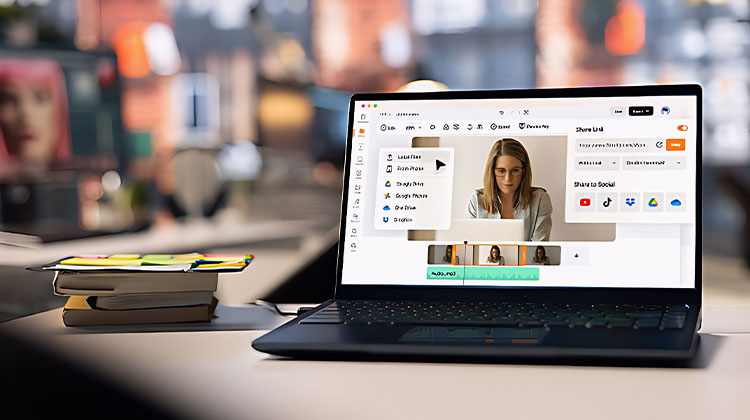
As an audio and video editing online service, FlexClip provides a full collection of audio editing tools, including taking audio out of videos, changing the background music for your clip, and even converting your video into audio with a few clicks.
Pros:
- Easy-to-use online platform; no software installation needed for basic tasks.
- Preserves original audio quality well.
- Supports both audio extraction and video-to-audio conversion.
- Offers additional audio editing features (e.g., trimming, replacing background music).
Cons:
- Some advanced features require a paid subscription.
- Limited free usage per day/month.
Also read: YouTube Audio Extractor: Top 10 Tools to Download and Extract Audio
2. VLC
VLC Media Player is used by millions of users around the world and is compatible with Windows 10, macOS, and Linux operating systems. However, just using VLC to watch media won’t unlock all its powerful hidden features. One such powerful function of VLC is being able to convert video files to audio.
Pros:
- Free and open-source.
- Cross-platform: works on Windows, macOS, and Linux.
- Lightweight and widely trusted.
- Allows extraction to multiple audio formats (MP3, FLAC, etc.).
Cons:
- Interface for audio extraction is not intuitive for beginners.
- Limited editing capabilities—cannot trim or enhance audio within VLC.
3. Windows Video Editor
Windows Movie Maker can extract music from video easily with no special knowledge required, being free video editing software developed by Microsoft.
Windows Movie Maker includes all of the tools for video editing and audio extraction. Therefore, all that’s necessary to use it is basic knowledge about video editing and how programs operate. Whether this tutorial serves as a refresher for experienced users or provides you with your first attempt to extract audio from video footage for extraction is also here!
Pros:
- Completely free with Windows 10.
- Beginner-friendly interface; no technical expertise required.
- Integrates basic video editing and audio extraction.
Cons:
- Very limited editing options for audio compared to specialized tools.
- Slower workflow for larger or multiple video files.
- Some advanced audio formats may not be supported.
4. Audacity
Audacity is a free and open-source audio recorder and editor compatible with Windows, macOS, and Linux users. The program supports various audio file formats and editing options like trimming, cutting, and copying. One particularly impressive aspect is its ability to extract audio from videos within a few seconds.
Note: To extract audio from video with Audacity, you will first need to download and install the FFmpeg library since Audacity cannot import video files directly.
Pros:
- Free and open-source.
- Powerful audio editor: supports trimming, cutting, mixing, and filters.
- Can handle multiple audio formats.
- Cross-platform support (Windows, macOS, Linux).
Cons:
- Requires installing FFmpeg library to import videos.
- Slightly more complex for beginners unfamiliar with audio software.
- Extraction is limited to audio; no video editing features.
Also read: How to Extract Vocals: 10 Best Acapella Extractor Reviewed
5. Beecut Online Audio Extractor
Alongside an easy and effective video editing software, Beecut’s Online Audio Extractor allows users to effortlessly and quickly extract audio from videos in just a single click, without losing audio quality. You can specify the beginning and ending times for the audio that you extract by using the slider or by entering the start and ending times.
Pros:
- Quick and easy online tool; no installation required.
- Allows precise selection of start and end times for audio.
- Maintains good audio quality.
- Ideal for users who need simple extraction without learning software.
Cons:
- Free version may have file size or length limits.
- Dependent on the internet connection.
- Fewer advanced editing options compared to desktop tools.
Bottom Line
The right tool can make it simple for you to extract audio from videos using Windows 10. We have listed the top audio extractors to remove audio offline and online. Pick your favorite now and begin to save your audio file immediately.
FAQs: Extract Audio from Videos
Can I extract audio from videos without losing quality?
Yes, tools like FlexClip and Beecut preserve original sound quality while converting. Make sure to choose a high-quality export format like MP3 or WAV.
Is there a free way to extract audio from a video?
Absolutely. VLC and Audacity are 100% free and allow you to convert or extract audio from most video formats without paying for any subscription.
Can I use the extracted audio for podcasts or radio?
Yes! Once you extract the audio in MP3 or WAV format, you can freely use it for podcasts, radio shows, or background music — just ensure you have copyright rights for the original video.
How do I extract audio from a video online without installing software?
Use online extractors such as Beecut Online Audio Extractor or FlexClip. Simply upload your video, select the output format, and download your extracted audio file instantly.








Leave a comment