



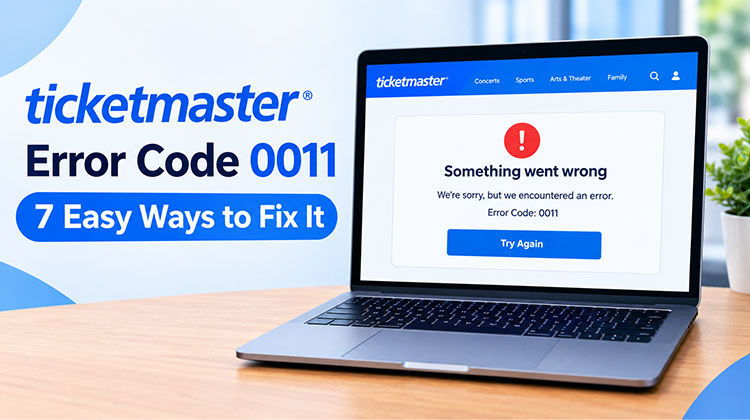
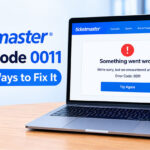
Are you trying to book tickets on Ticketmaster but getting Ticketmaster Error Code 0011? This error can appear when you search for an event, select seats, sign in, or try to complete your ticket purchase. It can be especially frustrating when tickets for a popular concert, sports event, or show are selling quickly.
Fortunately, there are several simple solutions you can try. In this guide, we explain the common causes of the error and show you how to fix Ticketmaster Error Code 0011 with easy step-by-step instructions.
What Causes Ticketmaster Error Code 0011?
Ticketmaster Error Code 0011 can occur for different reasons. Sometimes, the problem is related to Ticketmaster’s servers, while in other cases, your browser, network, VPN, or stored website data may be responsible.
Common causes include:
- Temporary Ticketmaster server issues
- Corrupted cache or cookies
- Browser extensions
- VPN or proxy connections
- Unstable internet connection
- Outdated browser
- Multiple Ticketmaster tabs or sessions
- Heavy traffic during ticket sales
Once you identify the possible cause, you can try the solutions below.
Also read: Error 400 Bad Request: A Complete Guide to Understanding and Fixing It
How to Fix Ticketmaster Error Code 0011
1. Check If Ticketmaster Is Down
First, check whether Ticketmaster is experiencing a temporary outage or heavy traffic. When many users access the website at once, especially during popular ticket sales, Ticketmaster Error Code 0011 may appear. Check Ticketmaster’s official social media pages or outage reports for updates. If other features are also unavailable, wait and try again later.
2. Clear Browser Cache and Cookies
Your browser stores cache files and cookies to make websites load faster and remember your preferences. However, outdated or corrupted data can sometimes interfere with Ticketmaster. Clearing this stored information gives Ticketmaster a fresh browser session and may resolve login, page-loading, or ticket-selection problems.
Steps to clear cache and cookies:
- Open your browser.
- Go to Settings.
- Select Privacy and Security.
- Click Clear Browsing Data.
- Select Cookies and other site data.
- Select Cached images and files.
- Choose the appropriate time range.
- Click Clear Data.
- Restart your browser.
- Open Ticketmaster and try again.
You may need to sign in to your Ticketmaster account again after clearing cookies.
3. Use Incognito or Private Browsing Mode
Using Incognito or Private mode is a quick way to determine whether your normal browser settings are causing Ticketmaster Error Code 0011. This mode creates a fresh browsing session and reduces the impact of existing cookies, cached data, and some stored website settings. If Ticketmaster works normally in private browsing, your regular browser may need further troubleshooting.
Steps to use Incognito or Private mode:
- Open your preferred browser.
- Select New Incognito Window or New Private Window.
- Open the Ticketmaster website.
- Sign in to your account.
- Search for your event.
- Select your tickets.
- Check whether the error appears again.
If the website works in private mode, clear your normal browser data or check your extensions.
4. Disable Browser Extensions
Browser extensions can sometimes interfere with website scripts, security checks, or page functionality. Ad blockers, privacy extensions, script blockers, and similar tools may prevent Ticketmaster from loading certain features correctly. Temporarily disabling these extensions can help determine whether one of them is responsible for the problem.
Steps to disable extensions:
- Open your browser.
- Go to Settings or Extensions.
- Open the extensions management page.
- Temporarily disable unnecessary extensions.
- Close and reopen your browser.
- Visit Ticketmaster again.
- Try searching for your event or purchasing tickets.
If the error disappears, enable your extensions individually to identify the extension causing the conflict.
5. Disable Your VPN or Proxy
A VPN or proxy changes how your internet connection reaches Ticketmaster. In some situations, this can interfere with website verification or access. If you are using a VPN while trying to purchase tickets, temporarily disconnecting it can help determine whether it is contributing to the problem.
Steps to disable a VPN or proxy:
- Open your VPN application.
- Disconnect from the VPN server.
- Open your device’s network settings if you use a proxy.
- Temporarily disable the proxy.
- Close and reopen your browser.
- Visit Ticketmaster.
- Try accessing the event again.
If Ticketmaster works after disabling the VPN, try using your normal internet connection when purchasing tickets.
6. Try Another Browser or Device
Sometimes the problem is limited to a particular browser or device. An outdated browser, damaged browser profile, or incompatible setting can cause Ticketmaster Error Code 0011. Testing Ticketmaster on another browser or device helps you determine whether the issue is specific to your current setup.
7. Check Your Internet Connection
A weak or unstable internet connection can prevent your browser from communicating properly with Ticketmaster. This can become particularly noticeable during high-demand ticket sales, when the website is handling a large number of users. Checking your connection and changing networks can help determine whether your internet is causing the error.
Steps to check your connection:
- Open another website.
- Check whether pages load normally.
- Restart your Wi-Fi router if necessary.
- Move closer to your router.
- Disconnect devices that are not being used.
- Try switching from Wi-Fi to mobile data.
- Reopen Ticketmaster.
- Try the transaction again.
Avoid repeatedly refreshing the Ticketmaster page during a ticket sale because doing so can disrupt your current session.
Also read: WiFi Connected But No Internet? 10 Ultimate Fixes Guide
What to Do If Ticketmaster Error 0011 Still Appears?
If Ticketmaster Error 0011 continues after trying all the methods above, the issue may be temporary or related to your Ticketmaster session. Start a fresh browser session, avoid keeping multiple Ticketmaster tabs open, and try again after some time.
If Ticketmaster is still not working, contact Ticketmaster Support and provide the error code, event details, browser information, device type, and troubleshooting steps you have already tried. This information can help support identify the problem more efficiently.
Final Thoughts
That’s all about how to fix Ticketmaster Error Code 0011. Hopefully, the solutions above help you get Ticketmaster working again and complete your ticket purchase without problems. If you have any questions or other useful solutions, feel free to share them in the comments below. We’ll be happy to help.
FAQs About Ticketmaster Error Code 0011
What does Ticketmaster Error Code 0011 mean?
Ticketmaster Error Code 0011 is an error that can appear when accessing Ticketmaster or trying to purchase tickets. It may be related to browser settings, cookies, VPNs, extensions, network issues, or temporary website problems.
Why is Ticketmaster not working even though my internet is fine?
If your internet works normally but Ticketmaster is not working, the problem could be caused by browser data, extensions, VPN settings, or a temporary Ticketmaster outage.
How long does Ticketmaster Error Code 0011 last?
There is no fixed duration. If the problem is caused by your browser or network, it may disappear after troubleshooting. If Ticketmaster is experiencing a temporary server issue, you may need to wait until the service is restored.
What is the easiest way to fix Ticketmaster Error Code 0011?
Start with the simplest solutions: refresh the page, clear cache and cookies, open Ticketmaster in Incognito mode, disable VPNs and extensions, and try another browser or device. These steps can resolve many common access problems.






Leave a comment