





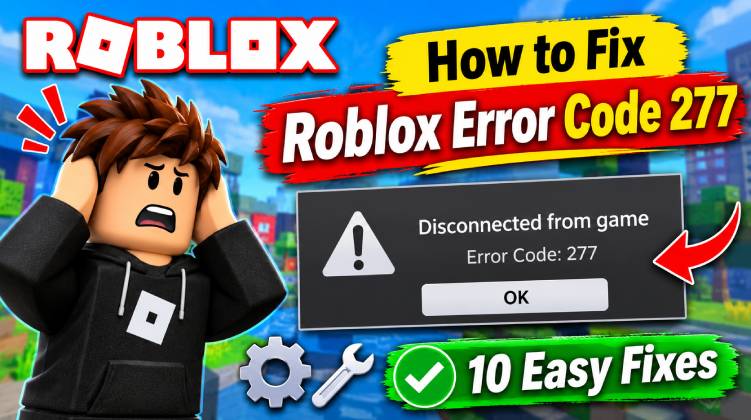
As any Roblox veteran knows, encountering errors on the platform can be incredibly frustrating. Fortunately, most Roblox errors are relatively common and easy to fix. One such issue is Roblox Error Code 277, a network-related glitch that can unexpectedly disconnect players and interrupt their gameplay. If you’re experiencing Error Code 277 in Roblox and looking for a solution, you’ve come to the right place. Without further ado, let’s explore how to fix Roblox Error 277.
What Is Roblox Error Code 277?
Roblox Error Code 277 is a connection-related error that appears when your device cannot maintain a stable connection with a Roblox game server. It may disconnect you during gameplay and display an error message. This problem is generally associated with network interruptions, server issues, or application problems rather than an account ban. In simple terms, Roblox error 277 indicates a problem maintaining your game connection.
Why Does Roblox Error Code 277 Occur?
Roblox error code 277 can occur for several reasons, including:
- Unstable or weak internet connection.
- Temporary Roblox server outages.
- Outdated Roblox application.
- Corrupted temporary or cache files.
- Firewall or antivirus restrictions.
- VPN or proxy connection issues.
- Incorrect network settings.
- Router connectivity problems.
Also read: How to Fix Steam Error Code 2: Steam Servers Are Busy
10 Ways to Fix Roblox Error Code 277
If you’re facing this Roblox network error, try the following troubleshooting methods to restore your connection and enjoy uninterrupted gameplay.
1. Check Your Internet Connection
A weak or unstable internet connection is one possible reason for Roblox Error Code 277. Check your Wi-Fi speed and make sure your device has a stable connection before launching Roblox again.
Steps:
- Check your internet connection.
- Restart your Wi-Fi router.
- Reconnect your device.
- Open Roblox and test the game.
2. Check Roblox Server Status
Sometimes, Roblox servers experience temporary outages or maintenance. If the servers are unavailable, you may experience Error Code 277. Check the official server status page before changing your device settings.
Steps:
- Visit https://status.roblox.com/.
- Check for reported outages.
- Wait if services are disrupted.
- Try playing again when services recover.
3. Restart Roblox
Temporary application glitches can interrupt communication between Roblox and its servers. Restarting the application can refresh your gaming session and potentially resolve the connection problem.
Steps:
- Close Roblox completely.
- Open Task Manager.
- End any remaining Roblox processes.
- Relaunch Roblox.
- Join your favorite game.
4. Clear Roblox Cache Files
Corrupted temporary files can sometimes cause application performance and connection issues. Clearing unnecessary Roblox cache files may help resolve Error Code 277.
Steps:
- Press Windows + R.
- Type %localappdata%.
- Open the Roblox folder.
- Clear appropriate temporary cache files.
- Restart Roblox.
5. Update Roblox
An outdated Roblox application may experience compatibility or performance issues. Installing the latest available version can help fix bugs and improve application stability.
Steps:
- Close Roblox.
- Open the official Roblox website or app store.
- Check for available updates.
- Install the latest version.
- Launch Roblox again.
6. Disable VPN or Proxy
VPNs and proxy connections can sometimes create network routing problems or increase latency. Temporarily disabling them may help establish a more stable connection with Roblox servers.
Steps:
- Open your VPN application.
- Disconnect the VPN.
- Check your proxy settings.
- Disable unnecessary proxy connections.
- Restart Roblox.
Also read: Best VPN for Roblox: 5 Top Picks for Fast & Safe Gaming
7. Check Firewall Settings
Windows Firewall or antivirus software may occasionally block Roblox network communication. Make sure Roblox is allowed through your firewall to avoid unnecessary connection interruptions.
Steps:
- Open Windows Security.
- Select Firewall and network protection.
- Choose Allow an app through firewall.
- Find Roblox in the list.
- Allow the trusted application on the appropriate networks.
8. Flush DNS Cache
Incorrect or outdated DNS cache information can sometimes contribute to network connectivity problems. Flushing the DNS cache refreshes stored DNS information and may help resolve certain connection issues.
Steps:
- Open Command Prompt as Administrator.
- Type ipconfig /flushdns.
- Press Enter.
- Wait for the confirmation message.
- Restart Roblox.
9. Reinstall Roblox
If Roblox Error Code 277 continues, damaged application files may be responsible. Reinstalling Roblox can replace problematic files with a fresh installation.
Steps:
- Uninstall Roblox from your device.
- Restart your computer.
- Visit the official Roblox website.
- Download the latest version.
- Install and launch Roblox again.
10. Contact Roblox Support
If none of these solutions work, contact Roblox Support for further assistance. Provide details about your device, internet connection, and when the error appears so the support team can investigate the issue.
Steps:
- Visit https://www.roblox.com/support.
- Enter your contact information.
- Select the relevant technical support category.
- Describe Error Code 277.
- Submit your support request.
Last Line
And that’s how you can fix Roblox Error Code 277 and get back to enjoying your favorite experiences without interruptions. We hope one of these solutions helped you resolve the issue. Follow this Roblox troubleshooting guide whenever you encounter similar connection problems. If you’ve found another solution, let us know in the comments below!
FAQs: Roblox Error Code 277
Why does Roblox keep disconnecting with Error Code 277?
This error can occur because of unstable internet, server outages, outdated application files, firewall restrictions, or network configuration problems.
Is Roblox Error Code 277 caused by an internet problem?
Yes, an unstable internet connection can cause this error. However, temporary Roblox server issues and application problems may also be responsible.
Can I fix Roblox Error Code 277 without reinstalling the game?
Yes. Try restarting Roblox, checking your internet connection, flushing DNS, updating the application, and clearing temporary cache files before reinstalling.
What should I do if Roblox Error Code 277 still appears?
If the error continues, check the official Roblox server status page, reinstall the application, or contact Roblox Support for additional assistance.





Leave a comment