






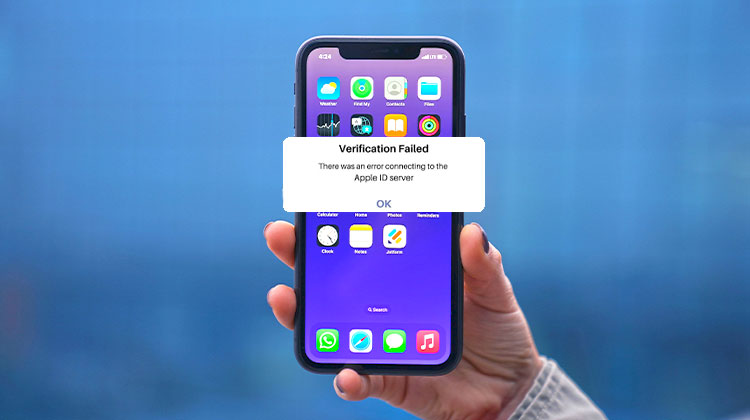
Have you encountered the “There Was an Error Connecting to the Apple ID Server” on your iPad/iPhone? One of my friends experienced the same issue with her iPhone at the beginning of this month, and couldn’t connect to the Apple ID server. However, the issue was fixed successfully, and she reported the incident to me. This is why I wrote this post to assist you and others who are trying to find the root of the problem and solutions to fix the “there was an error connecting to the Apple ID server”.
Why does “error connecting to Apple ID server” occur?
In certain instances, the moment you try to log into iTunes or the App Store, it could be a message that reads “Verification Failed. There was an error connecting to the Apple ID server.” Why is it that it states “Unable to connect to the server? According to my information, the following explanations could help explain the Apple ID server issue.
- Unstable Internet connection.
- Apple servers are down.
- The wrong Apple username and password.
- Incorrect settings on the iPhone/iPad, such as Time.
- iOS errors or software glitches.
Also read: Guided Access Not Working on IOS? 8 Proven Fixes You Can Try
How do I solve “There was an error connecting to the Apple ID server.”
To resolve the “There was an error connecting to the Apple ID server”, my friend and I attempted the methods described below, one at a time. There are a few possible solutions provided.
1. Force Restarting the Device
The moment the issue first started to show up, the first and fastest option my friend considered was to force restarting iPhone.
2. Verify the Network Connection
As a reliable network connection is essential to log into Apple’s servers, my friend was wondering whether her iPhone’s cellular data is not strong enough. Therefore, she inspected it and reset the network.
- Open Settings on your iPhone.
- Tap on General.
- Scroll down and select Transfer or Reset iPhone.
- Tap on Reset.
- Choose Reset Network Settings.
3. Sign Out and Sign Back In
But it’s not the network connection that causes her iPhone error connecting to Apple ID server. Also, she attempted to log out of her Apple ID account and log in again.
- Open Settings. Then click on her name.
- Click on the account, then select Sign Out.
- Sign in again to your account.
4. Check Apple Servers
When she noticed that “Verification Failed. There was an error connecting to the Apple ID server,” still exists, she began to wonder whether Apple servers were down. In this situation, she went to the Apple system status page and found that all was well. Most of the time, if an Apple server is down, it’s not because of maintenance. In this case, the only solution is to sit and wait.
5. Set Date & Time
Keeping the latest software update for the iPhone, it might be due to out-of-sync date & Time settings, resulting in the issue connecting to the Apple ID server. So she logged into the Settings menu, General tab, and Date and Time, and turned on the “Set Automatically” option.
Also read: iPhone Error 4013: Why It Happens and How to Solve It
6. Update iOS
In the current situation where individuals aren’t keen to install third-party software temporarily, there are two options available. One option is to update to the iOS software on the iPad or iPhone by going to the General tab in Settings and then Software Update. However, “There was an error connecting to the Apple ID server” typically happens after the release of an iOS update, which is why it’s not a good idea.
7. Use Verification Code
The second option is to use a verification code to fix the issue of connecting to the Apple ID server. This requires a different iOS device, like an iPad or iPod, and you’ll need to use the same Apple ID to generate the verification code. To obtain the code, go through Settings, Apple ID > Password & Security. Then, simply tap to”Get Verification Code.
Summing Up
These are easy solutions to fix the issue of connecting to the Apple ID server on iPhone or iPad. However, this problem can occur on a computer. If “There was an error connecting to the Apple ID server” appears on the computer, it is best to restart the device. However, any of the previous solutions is also possible. If you have any concerns you have, feel free to get in touch with us.
FAQs: There Was an Error Connecting to the Apple ID Server
Why does 'There was an error connecting to the Apple ID server' appear?
1. Why does “There was an error connecting to the Apple ID server” appear? This error usually occurs due to a weak internet connection, incorrect date and time settings, Apple server issues, or temporary software glitches on your device.
Is this Apple ID server error a serious problem?
No, it’s usually not serious. In most cases, it can be fixed easy using simple troubleshooting steps like restarting your device or correcting settings.
Can outdated iOS cause “There was an error connecting to the Apple ID server”?
Yes, outdated software can lead to compatibility issues, which may cause connection errors with Apple ID servers.
Can this error happen on a computer as well?
Yes, this issue can also occur on Mac or Windows when trying to access Apple services like iTunes or iCloud.









Leave a comment