






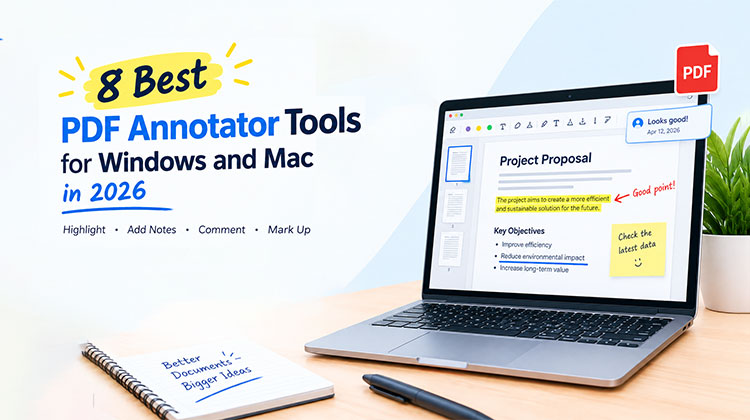
PDF files are useful for studying, sharing reports, and managing office documents. But sometimes, reading a document is not enough. You may need to highlight important lines, add comments, or write notes directly on a page. A good PDF Annotator makes these tasks easier. Here are eight PDF Annotator tools worth exploring, with their main advantages and limitations.
8 Best PDF Annotator Tools to Annotate PDF Files for Free
1. WorkinTool PDF Converter
If you prefer simple software over complicated menus, WorkinTool PDF Converter is worth considering. It focuses on PDF conversion and document utilities, making it useful for everyday file-related tasks. Before selecting it for annotation, check whether its current version includes the specific markup features you need.
Pros:
- Beginner-friendly interface.
- Offers PDF conversion tools.
- Useful for everyday document processing.
- Combines several PDF utilities.
Cons:
- Some features may require payment.
- Annotation options may vary by version.
- May not meet advanced professional requirements.
Also read: Remove Watermark From PDF: 5 Free Methods You Can Use
2. Adobe Acrobat Reader
Adobe Acrobat Reader is a familiar choice for people who regularly work with PDF documents. It lets users highlight text, add comments, and place sticky notes while reviewing files. Students can mark study materials, while professionals can leave feedback on reports. It is a practical PDF Annotator option for everyday document reviews.
Pros:
- Supports highlights, comments, and sticky notes.
- Available for Windows and Mac.
- Offers a familiar interface.
- Suitable for academic and professional reviews.
Cons:
- Advanced editing features may require payment.
- Some tools can take time to learn.
- Premium subscriptions may not suit occasional users.
3. UPDF
UPDF takes a modern approach to working with PDF files. Along with annotation, it offers editing and document management features, which can reduce the need to switch between multiple applications. It may suit users who want a flexible PDF Annotator with additional productivity tools. Compare its free and paid plans before deciding.
Pros:
- Modern and user-friendly interface.
- Combines annotation and editing tools.
- Supports Windows and Mac.
- Includes additional PDF productivity features.
Cons:
- Some features require a paid plan.
- Beginners may need time to explore its tools.
- Free-plan limitations may affect regular use.
4. Foxit PDF Reader
Foxit PDF Reader is a useful alternative for reviewing business reports, educational materials, and other documents. Its markup features help readers highlight important information and leave comments for colleagues. If you need a PDF annotator for Windows, Foxit is worth comparing with other established PDF applications.
Pros:
- Provides highlighting and commenting tools.
- Supports drawing and document markups.
- Suitable for business and academic files.
- Offers an alternative to Adobe Acrobat Reader.
Cons:
- Some advanced functions may require payment.
- The interface may feel crowded initially.
- Features can vary between versions.
5. PDF24 Tools
Not everyone wants to install software for occasional PDF tasks. PDF24 Tools provides browser-based utilities for working with documents, making it convenient when you need quick access. If you are searching for a PDF annotator online, check whether the particular tool supports your required annotations before uploading a document.
Pros:
- Convenient browser-based access.
- No desktop installation for online tools.
- Offers multiple PDF utilities.
- Useful for occasional document processing.
Cons:
- Online tools require an internet connection.
- Annotation features may be more limited than desktop alternatives.
- Confidential documents require careful privacy consideration.
6. Soda PDF
Soda PDF offers online and desktop solutions for handling PDF files. Users can explore its PDF editing, conversion, and management capabilities according to the available plan. It can be useful when you want several PDF functions in one service. If your goal is to annotate PDF free, review its current free-use restrictions first.
Pros:
- Provides online and desktop options.
- Includes PDF editing and conversion features.
- Offers convenient browser access.
- Combines several document tools.
Cons:
- Some features require a paid subscription.
- Online tools depend on connectivity.
- Usage limits can vary by plan.
7. PDF Annotator
PDF Annotator is designed for people who prefer writing directly on PDF pages. Its annotation-focused workflow supports handwritten notes, drawings, and other markups, making it useful for teachers, students, and professionals reviewing documents. This Windows-focused application may be particularly suitable when handwriting is more convenient than typing comments.
Pros:
- Designed specifically for PDF markup.
- Supports handwritten notes and drawings.
- Useful for teaching and document reviews.
- Allows feedback directly on PDF pages.
Cons:
- Primarily designed for Windows.
- A paid licence may be required after the trial.
- May not suit users needing cross-platform support.
Also read: Master Google Docs Voice Typing in 2026: Step-by-Step Guide
8. PDF-XChange Editor
For users who want more control over document markup, PDF-XChange Editor offers a broad set of annotation and editing tools. Supported features include highlights, comments, stamps, and shapes. Its extensive controls may appeal to experienced users, although beginners might need time to become familiar with the interface.
Pros:
- Offers extensive annotation options.
- Supports comments, highlights, stamps, and shapes.
- Includes PDF editing capabilities.
- Suitable for detailed document reviews.
Cons:
- The interface may challenge beginners.
- Some features require a paid licence.
- Primarily designed for Windows users.
Comparison of the 8 Best PDF Annotator Tools
| PDF Annotator Tool | Platform | Key Annotation Features | Free Availability | Best For |
|---|---|---|---|---|
| WorkinTool PDF Converter | Windows, availability may vary | PDF utilities; verify markup features | Limited free features may apply | Everyday PDF tasks |
| Adobe Acrobat Reader | Windows, Mac, mobile | Highlights, comments, sticky notes | Yes, basic features | Students and professionals |
| UPDF | Windows, Mac, mobile | Highlights, comments, drawing, editing | Limited free plan | All-in-one PDF productivity |
| Foxit PDF Reader | Windows, Mac, mobile | Highlights, comments, drawing, markups | Free reader features | Business and academic reviews |
| PDF24 Tools | Online, Windows tools | Features vary by tool | Many tools available free | Quick online PDF tasks |
| Soda PDF | Online, Windows, Mac availability may vary | Annotation and PDF management | Limited free access may apply | Online document processing |
| PDF Annotator | Windows | Handwriting, drawing, page markup | Trial may be available | Handwritten notes |
| PDF-XChange Editor | Windows | Highlights, comments, stamps, shapes | Free features available; some may be restricted | Advanced PDF annotation |
Note: Free features, platform support, and usage restrictions may change with software updates and subscription plans. Check each tool’s official website for current details before choosing.
Conclusion
In conclusion, PDF annotation tools make working with PDF files easier. You can highlight text, add notes, and leave comments in just a few clicks. In this article, we explored the 8 best free PDF annotators for Windows and Mac, each with different features and benefits. Compare the options and choose the one that works best for you. Pick your favorite tool today and start annotating your PDFs quickly and easily!
FAQs: PDF Annotator
What is a PDF annotator?
A PDF annotator is a tool that lets you highlight text, add comments, insert sticky notes, draw shapes, and write notes directly on PDF documents. It is useful for students, teachers, researchers, and professionals who need to review or share feedback on files.
Can I annotate a PDF online for free?
Yes, several online tools offer PDF annotation features without requiring desktop installation. PDF24 Tools and Soda PDF are options to explore. Check their current free-use limits and privacy policies before uploading documents.
s it possible to annotate a scanned PDF?
Yes, you can often draw on or add comments to a scanned PDF. However, highlighting or selecting the text itself may require optical character recognition (OCR) to convert the scanned image into searchable text.
What is the difference between PDF annotation and PDF editing?
PDF annotation involves adding highlights, comments, notes, shapes, and other review marks without necessarily changing the document's original content. PDF editing involves modifying existing text, images, page layouts, or other elements within the document.






Leave a comment