






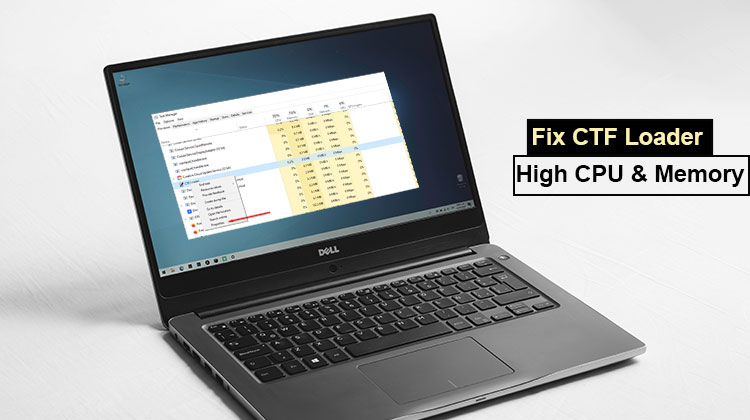
Certain Windows computers are slow and unresponsive. As the user searched for the reason, they discovered that a program called ctfmon.exe, or CTF Loader, is using a lot of computing resources. In most cases, this happens, the when a user attempts to close the program. which this process is a result of some other program, but in this case, the users were unable to determine which program the CTF Loader was referring to. In this article, we will discuss the issue and solutions to fix CTF Loader’s high CPU, Memory, or Disk usage.
What Is CTF Loader and Do You Need It?
CTF ( ctfmon.exe) is the acronym for Collaborative Translator Framework. It is a key Windows procedure that allows certain components of your PC to interact with one another. CTF Loader is required to offer technical support for alternative user input software. It also enables the Language Bar feature in Microsoft Office, which allows users to access different language options. This isn’t an infected program and should not be installed on your system.
Although CTF Loader may take up a significant amount of resources, including Memory and CPU, it does not continue to use them for an extended time. If you observe that the program is consuming a lot of your CPU or Memory. There is something wrong with your system’s files or the tool itself. There have been instances of users encountering malware that was disguised as CTF Loader. In the following, we’ll discuss the virus issue and other options you can use to stop this CTF Loader from eating the resources of your computer.
Why Does CTF Loader Use High CPU, Memory, or Disk?
CTF Loader usually runs quietly in the background. High resource usage may occur due to:
- Corrupted Windows system files
- Malware pretending to be ctfmon.exe
- Touch Keyboard or handwriting services are running unnecessarily
- Conflicts with third-party applications
- Broken scheduled tasks (MsCtfMonitor)
Also read: Why is My CPU Overheating and How to Fix It
How to Fix CTF Loader High CPU, Memory, or Disk Usage
When the Collaborative Translation Framework (CTF) or CTF Loader consumes high memory either on the CPU or disk, check these suggestions, solutions, and workarounds.
1. Check and Remove Virus
The first thing to check is to ensure that the CTF Loader installed on your system isn’t a virus. There is a high possibility that a virus could be disguised as an authentic process, such as the Collaborative Translation Framework, and cause trouble for you.
The two options are to accomplish the same, and you could check the location or the copyright certificate. We will go over both. Follow the steps that are prescribed for the identical.
- Launch Task Managerby Ctrl + Shift + Esc.
- Search for CTF Loader, then right-click it, and then select Properties.
- Find the location of the process. It must be in the following if the process is authentic. C:\Windows\System32
- Go to the Details tab to determine whether you can see if the Copyright is of Microsoft Corporation.
If the CTF Loader installed on your system meets the requirements mentioned above, there’s nothing to worry about, as it’s not a virus. If, however, you think that this is a virus, you should scan your system. Whether you have an antivirus installed to scan your system, if you don’t have an antivirus, then try using the Microsoft Defender program.
Follow the instructions to follow the steps.
- Start your Microsoft Securityapplication from the Start Menu.
- Go to Virus and threat protection. Click on the Scan option.
- Choose Microsoft Defender antivirusor Microsoft Defender Offline scan.
- Click on the Scan now button.
- Allow the antivirus to run its course and see if there are any issues.
2. Disable Unnecessary Windows Services
Numerous applications can be used in conjunction with CTF Loader. But most people do not utilize them, and it’s not a bad idea to disable these services. The ones you should be disabling include Handwriting and Touch Keyboard Panel, and the Text input management service, which must be disabled when you don’t use touchscreen controls on your computer. To do the same, first start Services and then search for these services. If you come across one, right-click it and choose Properties. Set the Startup kind to disable, then select Apply > OK.
Then reboot your computer and determine if the issue has solved.
3. Disable MsCtfMonitor
The MsCtfMonitor program is connected with CTF Loader, and should you be fed up with the process taking up a lot of resources, then disabling MsCtfMonitor is a good option. We aren’t removing the process. We are instead disabling it. Should you require CTF Loader, the exact procedure can be used to enable it again.
To disable MsCtfMonitor with Task Scheduler, you follow these steps.
- Start it by selecting the Task Scheduler app by clicking on it within the Start Menu.
- Go to Task Scheduler Library > Microsoft > Windows.
- Look for TextServicesFramework.
- Click on the right-click icon MsCtfMonitor and choose to disable.
Also read: How to Find Network Security Key on Windows 10
4. Repair System Files
If a few of the essential Windows files have been damaged, it is highly possible that you’ll encounter a strange situation like that we’re seeing here. To repair the files, start the Command Prompt as an administrator and execute this command — SFC scannow
If this doesn’t work, repair your system files from the Installation Media. Once your files are fixed, you can verify that the issue has been resolved.
5. Troubleshoot Using Clean Boot
Perhaps there is a third-party app that interferes with your Windows process. To identify which app is causing the issue, perform a Clean Boot and then manually enable processes to identify the culprit. Once you have identified the app that causes the issue, delete it from your computer to fix the issue.
FAQs About CTF Loader (ctfmon.exe)
Why does ctfmon.exe keep running in the background?
It supports language input, speech recognition, and handwriting features in Windows.
Why is CTF Loader using high CPU or memory?
CTF Loader may use high CPU or memory due to corrupted system files, misconfigured Windows services, malware pretending to be ctfmon.exe, or conflicts with third-party applications. Regular usage should not consume excessive resources.
Can I disable or stop CTF Loader?
Yes, if you don’t use touch, speech, or multilingual input features, you can safely disable CTF Loader by turning off Touch Keyboard and Handwriting Panel services or disabling the MsCtfMonitor task in Task Scheduler.
Is CTF Loader a virus?
No, the genuine CTF Loader is a Microsoft Windows process. However, some malware can disguise itself as ctfmon.exe. Check the file location (C:WindowsSystem32) and copyright (Microsoft Corporation) to confirm authenticity.








Leave a comment