






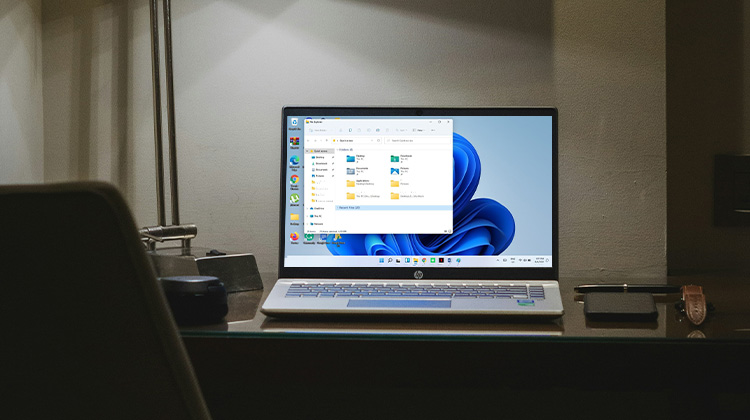
File Explorer is a useful tool that allows users to access the folders and files stored on their hard drives. However, people who have complained that their file explorer does not respond when they browse through files on their hard drive, this a major inconvenience. This article will give users eight solutions to fix file explorer not responding issues.
What Is File Explorer?
File Explorer, also called Windows Explorer, is a Windows built-in application for managing files. It was introduced with the release of Windows 95 by Microsoft. With a graphic user interface, it’s extremely convenient for users to connect and manage folders, drives, and files.
File Explorer is also a component of the operating system that displays various user interface elements on the screen, like the desktop and taskbar. There are a variety of ways to connect to the Windows 10 file explorer.
However, a large number of users have had to deal with Windows Explorer not responding on Windows 10 when they attempt to open it. In this article, we provide the best 8 solutions to the file Explorer not responding issue. If you are experiencing Windows Explorer not responding issues, take a look at these options now.
Why Is My File Explorer Not Responding?
Before applying fixes, it helps to understand what might be causing the file Explorer not responding issue.
Common Reasons
- Corrupted system files
- Too many File Explorer windows are open
- File Explorer history cache is overloaded
- Conflicting third-party apps or context menu extensions
- Outdated Windows version
- Low RAM or high disk usage
- Faulty external drives connected to the system
Also read: How to Fix Video Scheduler Internal Error in Windows 10/11
How to Fix File Explorer Not Responding
1. Restart File Explorer
If a program stops responding, then restarting it can be an efficient and quick way for it to return to normal. So, if you’re having issues with Windows 10 File Explorer not responding, try restarting your File Explorer in the Task Manager.
- Press Ctrl + Shift + Esc to open Task Manager
- Go to the Processes tab
- Scroll to Windows Explorer
- Click Restart
2. Restart via Command Prompt
Many people are unaware that the file explorer process is able to be restarted by Command Prompt commands. If you’re unable to start File Explorer normally, or if it gives you a message that the File Explorer not responding, it is possible to restart the explorer.exe process by using a few couple of simple commands.
- Press Win + R, type cmd, press Enter
- Run the following commands one by one: taskkill /f /im explorer.exe
start explorer.exe - This force-stops and restarts Explorer from scratch.
3. Run System File Checker Scan
The System File Checker is a Windows built-in tool that allows users to look for corrupted files within Windows system files, and then restore damaged files. If your Windows 10 file explorer is not responding, it could be due to corrupted data on the drive. Many users have reported that they solved the problem of file explorer not responding through a System File Checker scan. Try it and check if it works for you too.
Run this command:
- Open Command Prompt as Administrator
- Type: sfc /scannow
- Once the scan finishes, restart your PC and check if Explorer works.
4. Clear File Explorer History
Over 80% of Windows users with Windows Explorer not responding reported that this solution did the trick for them. So, if you’ve tried every solution above and aren’t finding any of them useful, then you should try this method.
- Open Control Panel
- Search for File Explorer Options
- Under General, click Clear
5. Change Display Settings
Display setting is not connected with the file Explorer Windows 10 not responding issues. However, it could affect your system if it’s not set to the proper sizes for text, apps, or other objects. In turn, unacceptable sizes of text and screen can cause the file explorer to crash.
If you’ve changed the size of your text, apps, and other items to sizes that aren’t the suggested, you should change it by following the steps below.
- Go to Settings → System → Display
- Under Scale, choose the Recommended percentage
- Restart File Explorer
6. Create a New User Account
A new user account has resolved the issue with File Explorer not responding for certain users. After creating a new account and logging in, they may find that Windows 10 File Explorer is functioning normally.
If you only have one account for your PC, you can follow Microsoft’s directions for creating a locally-based username and then verify that the file explorer is working and before.
The new account will delete the most recently used files from Quick Access. If this method is helpful for Windows Explorer not responding, it is possible to transfer all your data from the old account to your new account.
The only issue is that you might have to install (some) applications in the new account. If this is difficult or difficult, you can look at the following options.
Also read: 7 Best Server Antivirus Software for Windows Server
7. Update Windows
If you do not have the most current version of Windows 10, it is advised to upgrade to the most recent version since Microsoft resolves the most known issues, like the file browser not responding through updates.
8. Restore Windows 10
In the event that the System Restore feature is active on your computer, you can attempt to restore Windows 10 to an earlier date, when it was running well. Follow the steps in the following to restore Windows 10 to an earlier date, when the file explorer is working normally.
Prevent File Explorer Freezing in the Future
- Keep Windows updated
- Avoid unnecessary shell extensions
- Clean File Explorer history regularly
- Maintain enough RAM and storage
- Avoid force-plugging USB drives
FInal word
After trying the above 8 strategies, did you find a solution to your file explorer not responding to Windows 10 issue? Try these methods in case you are experiencing the same Windows 10 issues!
FAQs: File Explorer Not Responding
What causes File Explorer to stop responding on Windows 10/11?
File Explorer can stop responding due to system file corruption, outdated Windows updates, overloaded cache, third-party extensions, or high CPU and RAM usage. These issues often lead to Windows Explorer freezing or crashing.
Why does File Explorer take so long to load folders?
Slow loading is usually caused by large folders, corrupted thumbnails, or faulty indexing settings. It is one of the most common reasons behind the File Explorer slow or not responding issue.
Does a corrupted user profile affect File Explorer performance?
Yes. A damaged user profile can cause File Explorer not responding or fail to open. Creating a new Windows user account is an effective fix for profile-related Explorer issues.
Why does File Explorer crash when connecting an external drive?
Faulty USB drives, corrupted file systems, or driver conflicts can freeze File Explorer when you plug in an external device. Running CHKDSK or safely ejecting drives can prevent crashes.
How do I fix File Explorer crashing when searching for files?
This usually happens due to indexing errors or corrupted search cache. Rebuilding the search index can fix File Explorer not responding while searching.





Leave a comment