






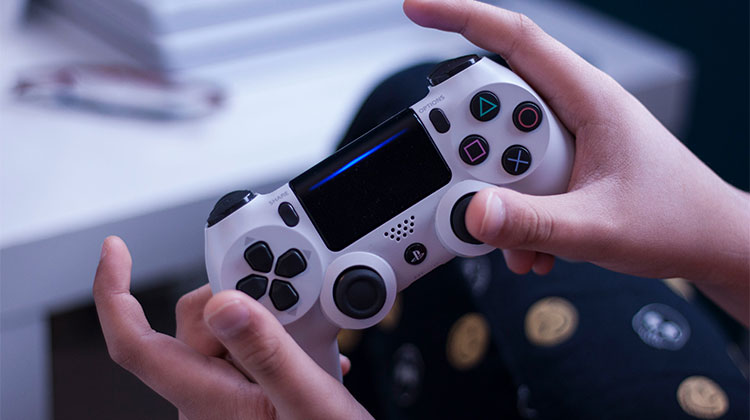
A faulty PS5 controller can be a huge irritation that makes simple in-game moving and aiming an exercise. Here are some suggestions you can try to solve the PS5 Controller Drift issue and get back to playing.
What is PS5 Controller Stick Drift?
The easiest way to determine if the PS5 DualSense controller is having stick drift is to ensure that it detects input from the sticks, even if you’re not using them. The most effective way to test whether this happens is to open any game that requires the use of two analog sticks. play around with them a bit and look for random movements. In more serious cases, the controller could get input even after you shut it off. If you spot any, the controller may be experiencing drift on the stick.
What Causes PS5 Controller Drift?
PS5 Controller drifting usually happens when dirt or dust is pushed under the stick’s base and then gets lodged inside the sensor. This causes inputs not to pass through the controller. In more serious situations, it happens when the internal mechanical components of your analog sticks begin to wear out and experience wear and tear. The former may be simpler to repair, but the latter might necessitate you to switch the controller.
Also read: Is Your PS5 Overheating? Here’s What You Should Do
How to Fix PS5 Controller Drift: 6 Simple Solutions
1. Reset Your DualSense Controller
You can fix the PS5 Controller Drift issue with a reset of your controller. Follow the steps until your controller receives an unreset. This means the controller is reset to its original settings. This is the same for DualShock and the DualShock and DualSense controllers.
- Switch off the PlayStation console.
- Turn your controller over in search of a tiny hole in the side of the controller.
- Press the button inside the hole with the help of a paperclip. Hold it for 5 to 10 seconds.
- The controller can be connected to the PlayStation with the USB cable.
- Turn on your PlayStation to wait for a while until it has fully booted.
- Press the PlayStation button on your controller, watch the light bar illuminate, and link your console to PlayStation.
- Your controller has been reset. Are you still experiencing drift in your stick? Keep following the steps below.
2. Update PS5 Controller Firmware
PS5 Controller Drift still not disappearing? Before you buy a new controller, consider making the necessary changes to your firmware before you buy. Sony issues regular updates with minor adjustments to correct problems with sensors that can cause false drift in inputs.
It’s also pretty simple to download the most recent software for your DualSense. Connect it to the PS5 via a USB-C cable and go into Settings > Accessories. Select General, then Wireless Controller Device Software. You’ll be able to see the version of the software you’re currently running. While you’re there, ensure that your system’s software is up-to-date as well.
3. Adjust Dead Zones and Sensitivity
Dead zone refers to the distance that you have to move with a control before the movement is recorded. The bigger it is the area, the greater you’ll have to move the stick before you can see the results on the screen. A larger dead area can help in masking stick drift by effectively ignoring minor unwanted inputs.
This is a short solution, but not an effective long-term solution. Because PS5 controller drift is likely to worsen over time, eventually the “fix” won’t work. Based on the DualSense controller you own, this could not function at all because it’s a setting that you will need to tweak during every game.
For the standard DualSense controllers, there’s no dead zone control at the system level. Instead, you’ll have to start the settings menu within whatever game you’re playing, and then look for a slider to control the dead zone of the stick you prefer. The positive side is that most first-person shooters game and racing games have this feature. However, most games don’t, and you’ll have to set it up in every match you take part in.
If you own a DualSense Edge controller You’re in luck. You can alter the dead zones by establishing and utilizing a custom profile. To create a custom profile, turn off your PS5 and navigate to Settings > Accessory DualSense Edge Wireless Controller Custom Profiles. Use the “Create Custom Profile” option followed by the “Stick Sensitivity/Deadzone” setting to effectively “trim” the stick drift.
If you’ve increased the dead zone, your controller may feel less precise, and you might feel that you’re losing control over the actions in-game. It’s better to use an instrument that is less precise than one with stick drift.
It is also possible to have results by altering the sensitivity of your stick within the game you’re playing. It won’t eliminate PS5 controller drift, but it will reduce its impact. However, it can make the experience feel a bit slower all over the board.
4. Clean Your Analog Sticks
If the issue is triggered by dirt or a result of you spilled something on your controller, there’s a good chance that a simple wash will be the solution. You’ll need cotton balls as well as alcohol isopropyl alcohol (rubbing alcohol, 70% is ideal).
Alcohol is great for losing grime, and it also can evaporate quickly. This makes it a good choice for application on electronics, and it means you don’t have to be concerned about “drying” the controller out afterwards. However, there are some cautions to be aware of when taking this method.
Be sure your controller is turned off just in case (press then hold down your “PS” button until the light goes out). It’s best not soak the controller too long in alcohol, in part because you won’t require much to finish the task. Cotton balls can help reduce the amount of alcohol you can apply. Even if this approach isn’t working, however, there are still ways to go about it, so don’t be discouraged and pour a whole bottle of iso on your controller to express your frustration.
The most straightforward method is to apply alcohol-based isopropyl to the cotton ball and put it on the edge of the analog stick’s housing, and then rotate it in circles. You may require alcohol on the cotton bud since the alcohol will get into the controller before it evaporates.
In essence, you’re working dirt and grease off using alcohol as a cleaning agent. It’s worth repeating this process until you’re sure you’ve achieved your goal and that adding more alcohol isn’t going to help.
Also read: PS4 Controller Not Connecting to PC? Try These Easy Fixes
5. Replace Faulty Analog Sticks
One solution to the issue of PS5 controller drifting is to replace the damaged stick. Based on the DualSense controller you are using, the process could range between a few minutes and more than an hour.
The great thing for DualSense Edge owners is that changing the sticks is simple. You can purchase new stick components at Sony at $19.99 for each (when they’re available, at the very least). Remove the cover of the controller by using the “RELEASE” slider on the lower part of the pad. It’s now a matter of raising the lever to release by sliding the previous module away and replacing it with the brand new and then pulling the lever back down.
This requires careful disassembly and removal of the entire controller, de-soldering the previous joystick module, then soldering the new joystick, and then reassembling the entire thing, repeating the process in reverse. While the procedure is easy enough for anyone to understand, you’ll require tools like the soldering iron and confidence in your abilities to accomplish this.
The bright side is that the components cost a fraction of the price. If the option is to just recycle your old controller, you could try it. Maybe you’re a professional at soldering?
6. File a Warranty Claim
If your PS5 controller drifts and it’s covered under warranty, stop reading now and make an insurance complaint with Sony or the retailer you bought the controllers from. While sticks are bound to shift over time, they shouldn’t show this issue until after the warranty timeframe (usually about a year). You can get a couple of years from the controller, even with high usage.
An approved warranty request can see your controller replaced with a new model at free. Your warranty should also be reset on replacement. Therefore, make sure to take note of any supporting documentation that you receive once you have the controller (or replacement) returned.
You can visit this PlayStation Support website to contact Sony and start the process.
Is PS5 Controller Drift Fixable? Final Thoughts
If your PS5 controller drifts, try the suggestions above and see if they help. Begin by cleaning the controller, and if that doesn’t work, bring the console back to Sony. While you wait, certain games let you change the deadzones, meaning you’ll be able to play regardless.
It is not a good idea to have an issue when purchasing a new PS5 controller, which is the main reason why people don’t enjoy the most popular controller. There are plenty of reasons to be thrilled with it as well. PS5 DualSense drift is an issue that Sony must address earlier rather than later to maintain its loyal PlayStation customers.
FAQs: PS5 Controller Drift
Why is my PS5 controller drifting on its own?
PS5 controller drift usually happens due to worn analog stick sensors, dust buildup, moisture, or calibration issues. Over time, internal components lose accuracy and send false movement signals.
Is PS5 controller drift a software or hardware problem?
It can be both. Minor drift may be software-related, but most cases are caused by physical wear inside the analog stick.
Can updating the PS5 controller fix stick drift?
Yes, firmware updates can improve sensor accuracy and reduce false inputs, especially for mild drift issues.
What’s the best permanent fix for PS5 controller drift?
Replacing the analog stick module or using official replacement sticks (DualSense Edge) is the most reliable long-term fix.






Leave a comment