




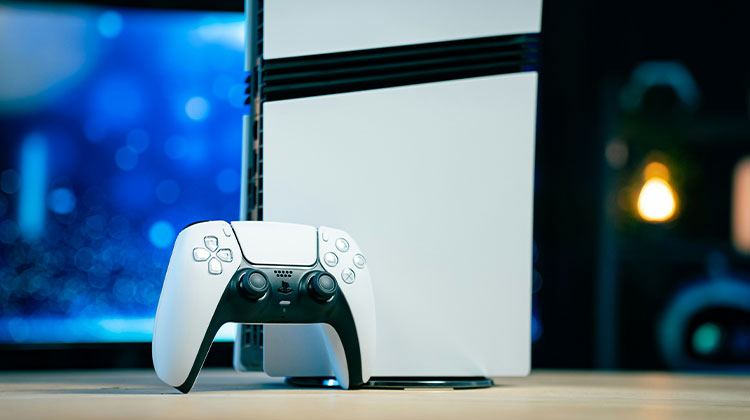
There’s nothing worse than being caught in the middle of a tense fight when your controller goes out of commission, and the PS5 controller is not charging. The PS5’s DualSense controller is an amazing piece of console gaming peripherals; however, only if its internal battery remains charged. There are rare occasions when your PS5 controller not charging. In those instances, you can toss the controller and purchase a new one.
We urge you to hold off on your reaction and allow us to guide you in fixing the PS5 controller not charging issue. Check out these easy troubleshooting tips to determine if you’ll need to buy an additional DualSense controller.
Common Reasons Why Your PS5 Controller Not Charging
Before jumping into fixes, it helps to understand why my PS5 controller won’t charge:
- Faulty or damaged USB cable
- Dirty or loose charging port
- PS5 USB port not supplying power
- Controller battery issue
- Incorrect power settings
- Charging dock malfunction
Let’s go through the solutions one by one.
Also read: How to Fix PS5 Controller Drift and Restore Smooth Gameplay Easily
6 Ways Fix PS5 Controller Not Charging Issue?
1. Check Rest Mode Power Settings
When your PlayStation is powered off, and the PS5 won’t turn on, it will not charge your controller. If your PS5 has been put into Rest Mode, it will need to be able to enable Rest Mode charging. follow these steps:
- Go to Settings – Power Saving – Features Available in Rest Mode
- Change the power supply to USB Ports to either “3 Hours” or “Always.”
2. Update the Controller Firmware
Your controller may require an update. If your controller can turn on:
- Go to Home Screen – Settings – Accessories – Controllers – Wireless Controller Device Software
- Then, connect the DualSense with your PS5 and wait for the download process to complete
3. Reset the DualSense Controller
The controller could require a reset to its factory settings. If the firmware update does not help, reset the controller by using a toothpick, clip, or pin, and then press the button inside the small hole on the back of the controller.
After the PS5 is reset, it’ll function the same as if you had just purchased it, which means it must be connected to your PS5.
4. Try a Different USB Port on Your PS5
The issue may be with the one USB port. Try charging the DualSense via your other USB port. If it does work, repairs or cleaning might be required to get the second port back in operation.
If the PS5 controller not charging, check the power cable, the USB port on your laptop/PC, or the wall outlet. If your controller is charging via another device, the problem lies with the PS5.
5. Check and Clean the USB Ports
A weak connection could prevent you from charging your device, and dirt can lead to an unreliable connection.
Examine the USB ports of your console, and clear any accumulation that has developed. If they need cleaning, then a bottle of compressed air will remove the majority of dirt. You can also gently apply a cotton swab to isopropyl alcohol.
6. Test the Charging Cable on Another Device
It could be that the problem was the cable all through. If you own another compatible device that uses a USB cable, you can test to determine if the cable is working. If the other device can charge without issues, then the issue is with the DualSense.
Also read: Is Your PS5 Overheating? Here’s What You Should Do
7. Confirm It’s Not the Battery
You can run a test to determine whether the DualSense battery is defective. If you’re able to turn up the device and use it to play games even when it’s plugged in, and it’s still unable to charge and the battery isn’t charging, then it may require replacement.
Unfortunately, the procedure to repair the battery won’t be simple and can cause permanent damage to the controller.
If All Else Fails
If, after all these tests and adjustments, you are still unable to fix your PS5 controller not charging issue, there are two alternatives:
- If it’s still under warranty, you can contact PlayStation customer support
- If the controller isn’t covered in warranty, purchase the new PS5 controller
How Can I Prevent Charging Issues?
A damaged battery can be a nightmare, and you must be extra careful with your DualSense to stop it from breaking. To reduce the chance of the PS5 controller not charging:
- Make sure that all ports are clean
- Unplug the DualSense once it’s fully charged.
- Be sure to roll wires carefully when storing to prevent damage
The DualSense is a special piece of hardware for PlayStation 5, but it certainly can be temperamental at times. If you follow these steps, you can solve the PS5 controller not charging issue and get back into gaming.
FAQs: PS5 Controller Not Charging
Can I charge my PS5 controller with a phone charger?
Yes, you can use a standard USB-C wall adapter (5V output recommended). However, avoid fast chargers with high voltage output, as they may damage the controller over time.
How do I reset a PS5 controller that won’t charge?
Turn off the PS5, then press and hold the small reset button on the back of the controller for 5–10 seconds using a pin or paperclip. Reconnect it via USB and press the PS button to pair it again.
Why is my PS5 controller not charging after a firmware update?
Occasionally, firmware updates can cause temporary glitches. Try resetting the controller and reconnecting it with a USB cable. If the issue continues, restart your PS5 and check for system updates.
How can I check the battery level of my PS5 controller?
Press the PS button to open the Control Center. The battery icon appears at the bottom of the screen. You can also check under Accessories in Settings.


Leave a comment