





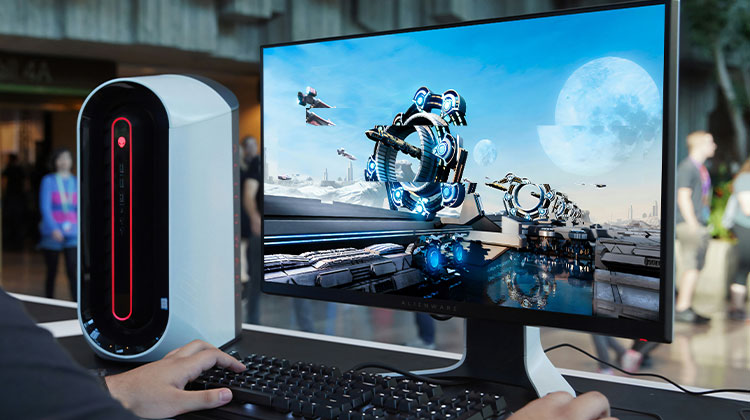
Screen tearing can ruin the gaming experience and is a major headache for gamers who love high-resolution, speedy games. Many players who play Elden Ring and Modern Warfare have complained about screen tearing. What can we do to fix it? Find out in this article.
What Causes Screen Tearing?
Screen tearing happens when your graphics card on the host system fails to sync with the display connected. In simple terms, it occurs due to the mismatch in frame rate. What exactly does screen tear appear like? It’s when different parts of an image show different frames. This can be seen in scenes that are fast-moving and have numerous objects, like racer games and explosions, where the motion requires a higher FPS for smooth rendering.
Also read: Computer Screen Shadow Problem? 7 Instant Fixes to Solve It
How to Fix Screen Tearing?
Resolving the screen tearing issue requires the graphics card to match the monitor frame rate so that each one keeps up with the other. Practical tips you can apply to daily PC tasks. To boost confidence are 5 suggestions that will help you troubleshoot the issue and determine which one will help you.
1. Check your hardware
A growing number of games are being produced with higher frame rates from 60hz up to 240hz. Consider these questions:
- If you’re playing high-refresh-rate games, which refresh rate can your monitor support?
- If you’re playing PC games, what’s the performance of your graphics card?
- Does the KVM switch support high resolutions and refresh rates to ensure that it doesn’t hinder your FPS play between the gaming and the monitor?
Use a monitor that has higher refresh rates, and if you’re using any intermediary devices, such as a KVM switch, choose one that can support not just the highest resolution to give you a fantastic gaming experience, but also high resolutions and types of refresh rates to ensure it doesn’t hamper the connection between your gaming and your monitor.
2. Cap refresh rates
If your monitor doesn’t support the refresh rate displayed by the game, limit the refresh rate so that the image will not exceed the limits your monitor can handle. The settings can be found in the game console, game app, or in the computer settings.
- Utilize third-party software: Many third-party software tools allow you to cap your refresh rate, like Nvidia Inspector and AMD Radeon Software. These applications cap your refresh rate at a specific value.
- Utilize in-game settings: Many modern games include options to limit the refresh rate. Examine the settings of a video game to determine the options available.
- Install V-sync: V-sync (Vertical Synchronization) is an option that allows you to synchronize the GPU frame rate and monitor refresh rate, preventing screen tearing. By enabling V-sync, you can limit the frame rate to the refresh rate of your monitor.
3. Enable Variable Refresh Rate (VRR)
VRR refers to variable refresh rate, a feature that allows you change the speed of image rendering. There’s an advanced VRR feature built into the monitor and graphics card to allow you to change your monitor’s refresh rate to the highest refresh rate. For instance:
- G-sync
- Free-sync
Make sure that your configuration supports the VRR function. If you’re using G-Sync by Nvidia and Free-Sync by AMD, switch it off and on from the driver settings to determine whether the setting change helps.
To keep the frame rate on the same level, features like G-sync can create input lags, so you must make sure to use it with care if you are playing extremely competitive multiplayer games.
Also read: Why Is My MacBook So Slow? 10 Tips to Speed Up MacBook
4. Turn on Your Game’s Settings
It was proven by some gamers that changing the settings in the system of the “game” and switching off “game mode” would help. Windows Game Mode is a feature added to Windows 10. This feature can enhance the gaming experience by reducing stuttering, improving frame rates, and reducing input lag. It affects frame rates, and in some cases, it could aid. Fullscreen Optimization could hinder certain games and create problems like screen tearing. So disabling “full screen optimization” may help solve the problem.
5. Reinstall the GPU display adapter
If you’re using an Nvidia G-sync’s graphic device and monitor, you can try downloading the Nvidia driver and then reinstalling it. Reboot your system. Reinstalling your GPU driver can help you solve the issue. (You must download the driver from their website, for instance, AMD and Nvidia.)
Wrap Up
Screen tearing is an undesirable effect that is often experienced when using high-performance gaming software on systems that can’t handle the high frame rate required for the most immersive game experience.
This article offers suggestions to fix screen-tearing issues if you are unfortunate enough to be affected. If none of these methods work, it right time to purchase a new monitor.
FAQs: Screen Tearing
What is screen tearing in games?
Screen tearing occurs when the GPU sends frames faster than the monitor can display, causing parts of multiple frames to appear on screen.
Is G-Sync better than V-Sync?
G-Sync and FreeSync are better for smooth gameplay with less input lag, especially for high-refresh-rate monitors.
Does turning off V-Sync improve FPS?
Yes, disabling V-Sync can improve FPS but often results in screen tearing, especially in fast-paced games.
How do I fix screen tearing without using V-Sync?
You can fix screen tearing without V-Sync by enabling G-Sync or FreeSync, capping FPS, or matching refresh rates manually.






Leave a comment