




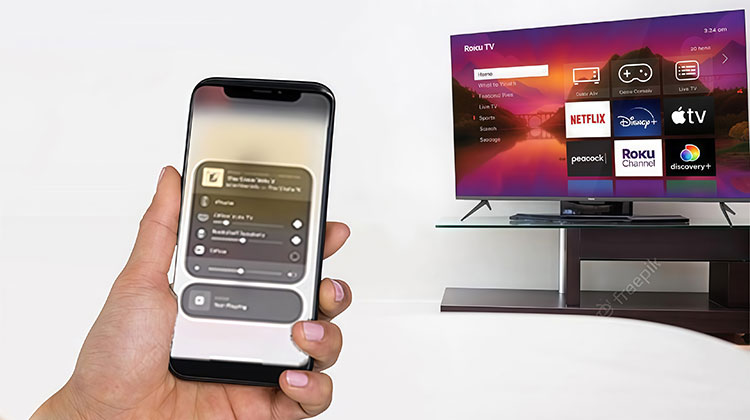
Roku offers a range of streaming devices that are aimed at cinephiles. OEMs such as TCL and Hisense offer models of TVs with Roku OS built in. In addition to a large app library and user-friendly experience, Roku has a variety of connectivity options, including screen mirroring and Apple AirPlay support. But some users have encountered issues like AirPlay not working on Roku when trying to mirror an iPhone or iPad. If you’re facing the same issue, here are the top solutions to resolve AirPlay not working on Roku.
Apple AirPlay offers a convenient way to stream your content on a smart TV. Indeed, you wouldn’t want Roku’s screen mirroring issues to affect your access to media. We’ve discovered a method to resolve AirPlay not working on Roku once and for all. Let’s look at.
Why Is AirPlay Not Working on Roku?
Here are the most common reasons for AirPlay not working on Roku:
- AirPlay is turned OFF in Roku settings
- Roku OS is outdated
- iPhone, iPad, or macOS is outdated
- Roku and Apple devices are on different Wi-Fi networks
- VPN or firewall blocking AirPlay
- Network router issues
- Temporary system or software glitch
Let’s go through all possible solutions in detail.
Do All Roku Devices Support AirPlay?
To confirm AirPlay or HomeKit support, you must be aware of the details of your Roku device’s software version and device model.
Check Your Roku Device:
- Go to Settings
- Select System
- Click About
- Note your model number and software version
Then, go to Roku’s official website, refer to the chart, and verify that the Roku device is compatible with AirPlay.
Also read: How to Fix Netflix Not Working on Roku (6 Simple Solutions)
How to Fix AirPlay Not Working on Roku
After getting the fundamentals in place, let’s take a closer look at troubleshooting techniques to resolve AirPlay not working on Roku device.
1. Restart Roku and iPhone
Before we go over advanced techniques, restart your Roku or iPhone, and then try mirroring your phone.
On your iPhone, hold and press the side button and a volume key simultaneously, then utilize your power-off slider. Press and hold the side button to turn on the iPhone. Follow the instructions below to restart Roku.
On Roku:
- Go to Settings
- Select System
- Click Power
- Choose System Restart
This helps resolve temporary glitches and connection issues.
2. Reboot Wi-Fi Router
Wi-Fi issues on both the Roku and iPhone may be the primary cause. If you are experiencing Wi-Fi issues across all your devices, you can reboot your router and try to connect again.
- Turn off your router
- Wait 30–60 seconds
- Turn it back on
- Reconnect all devices
3. Connect iPhone and Roku to the Same Network
The iPhone and Roku connect to the same Wi-Fi network to ensure an efficient AirPlay setup. Be sure to connect both your iPhone and Roku to the same WiFi network and try reconnecting them.
If Roku doesn’t connect with Wi-Fi, follow our guide to fix the issue.
4. Enable AirPlay on Roku
Did you accidentally disable AirPlay in the Roku device? Turn on AirPlay in Roku Settings, and you’ll be good to go.
- Open the Roku Settings screen from your homescreen.
- Navigate down to the Apple AirPlay and HomeKit menu.
- Turn on AirPlay by selecting the following menu.
Be aware that when you first install AirPlay on Roku, it will require a code.
5. Reset AirPlay on Roku
You can remove the paired device from the AirPlay menu and attempt again. Follow the instructions below to adjust the settings.
- Go to Settings
- Open Apple AirPlay and HomeKit
- Select About AirPlay
- Click Reset Paired Devices
- Confirm unpairing
You can enable AirPlay to both the iPhone and the Roku, and then set it up again.
6. Reset Network Settings
Are you still having problems mirroring your iPhone screen on Roku? If yes, it’s time to change the network settings.
- Go to Settings
- Select System
- Open Advanced System Settings
- Choose Network Connection Reset
- Click Reset Connection
Also read: How to Browse the Internet on Roku: Best Roku Web Browser in 2025
7. Disable VPN on iPhone
If you’ve used a VPN on your iPhone, this will change the IP address. This means that you will not be able to use AirPlay to mirror media stored on your iPhone to Roku. Correspondingly, you’ll need to deactivate any VPN connections or proxy settings on the iPhone and then try again.
8. Always Allow Screen Mirroring
If you’ve turned off screen mirroring on Roku, AirPlay may not perform as you expected on Roku.
- Go to Settings
- Select Screen Mirroring
- Click Screen Mirroring Mode
- Choose Allow
9. Update iOS and Roku OS
A software update for your system can create AirPlay not connecting on Roku problems. Go to General in iPhone Settings and select Software Update to install the latest iOS version.
Follow the steps below to update your Roku OS.
Update iPhone:
- Go to Settings → General → Software Update
Update Roku:
- Go to Settings → System → Software Update
- Select Check Now
10. Contact Customer Support
If none of these methods work, contact Roku customer support for assistance in diagnosing the issue.
Bonus Tips to Prevent AirPlay Issues
To avoid future problems:
- Always keep Roku updated
- Use 5GHz Wi-Fi for better performance
- Avoid overcrowded networks
- Restart the router weekly
- Disable VPN during streaming
- Keep devices close to the router
Final Thoughts
AirPlay issues on your Roku could ruin your ideal entertainment setup. If you decide to stick with an iPhone or iPad and have an unsatisfactory experience, follow the steps to resolve AirPlay not working on Roku. While you’re there, tell us a new method that worked for you.
FAQs: AirPlay Not Working on Roku
Why does Roku AirPlay stop working after standby or sleep mode?
This is a known issue reported by users. When Roku enters standby mode, network services may disconnect. Restarting Roku restores AirPlay functionality.
Does VPN affect AirPlay on Roku?
Yes, VPNs can interfere with AirPlay because they block local network discovery. Many users facing AirPlay not working on Roku find that disabling VPN or private relay resolves the issue immediately.
Why does AirPlay disconnect after a few seconds on Roku?
Frequent disconnections are usually caused by weak Wi-Fi, background network interference, or power-saving settings on the iPhone. These factors can trigger AirPlay not working on Roku or unstable streaming behavior.
What is the fastest way to fix AirPlay not working on Roku?
Most users recommend starting with basic steps: restart Roku and iPhone, ensure both are on the same Wi-Fi, enable AirPlay in settings, and update both devices. These steps solve most common issues quickly.





Leave a comment