






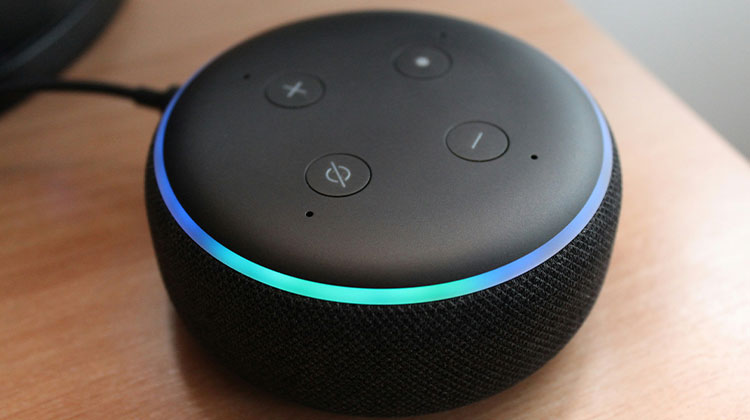
If your Alexa lights up blue after hearing the wake word, but it does not respond. It may happen occasionally. It is important to fix the Alexa not responding.
The issue is that the blue light appears on the Echo device, indicating it is processing your request, but Alexa not responding. To fix the issue, restart the Echo and check its internet. Repeat the command, naturally relocate other Echo devices to a different location, and reset the Echo and other options. We’ll look them up in depth.
Why is my Alexa Not Responding?
Before jumping into fixes, it’s important to understand why Alexa not responding. Here are some common causes:
- Alexa Mic is muted or turned off
- Wake word not recognized
- Poor Wi-Fi or internet connection
- Alexa App Issues
- Outdated device firmware
- Device interference issue
Also read: How to Fix Siri Not Working on iOS Devices
How to Fix Alexa Not Responding To Voice Commands
1. Check if the Microphone Is Enabled
The first is to check Alexa device is working, but it is not responding to commands. Then, you must verify that the microphone is turned on and off.
Before trying any procedure, verify that the Alexa device microphone is on. There is a button on your Echo device with a microphone icon.
Simply say the wake word to Alexa and then check if Alexa responds. If not, then the next step is to fix Alexa not responding to Voice Commands. If, however, your Alexa tells “I am having trouble understanding you,” it might be best to contact our helpline.
2. Restart Alexa Device
You’ve already tried turning the volume button up or down, and you are still facing Alexa not responding. Follow this process. Resetting your Alexa device can reset the network system and get Alexa working again.
Ask a question and see whether you can detect the blue LED at the upper right of Alexa. If yes, it means Alexa listens to your voice but isn’t responding.
In this case, you must unplug the power outlet for a few minutes. After that, plug it back in and see whether you can see if the Echo program is responding to you. Once it is ready to start again (it could take a while to complete), then repeat the wake word to Alexa and ask about the weather, or something else.
3. Perform a Hard Reset
This is an easy way to fix Alexa not working. For a hard reset, you will need an appropriate clip or pin, and look at the front of the Echo device. You’ll see an extremely small area.
Place the clip in it, and you’ll notice the blue light change to orange, and after a few seconds, the echo will turn off. After a while, turn it on and check whether the issue has been solved.
4. Adjust Alexa Privacy Settings
If you’ve tried all the steps above and are still experiencing the same ” Alexa not responding” problem, then it’s best if you disable or enable the Alexa privacy settings or reverse. To do this, you must click the button located at the end of the Nucleus.
5. Ensure Devices Are on the Same Wi-Fi Network
There are instances when you try to connect to the Alexa, but it’s connected to another network. Therefore, it may be a cause Alexa cannot respond.
It is essential to ensure that the device you’re trying to solve the issue and the Alexa device are both connected to the same network.
6. Fix Internet or Wi-Fi Issues
If the WiFI router isn’t functioning properly or if the device is out of range, it could prevent Alexa from working.
- Ensure the device is within range; you will have an internet connection issue.
- Also, ensure the Wi-Fi network is functioning properly or not. This can also lead to the problem.
- It is necessary to fix the slow WiFi connection issue.
Also read: Why Is My Wi-Fi So Slow? 8 Easy Fixes to Boost Your Internet
7. Alexa Hard to Listen (Try the Use Wake Words)
Sometimes Alexa has difficulty recognizing the wake word, and it isn’t always easy for Alexa to listen when the device is far from you.
Check that there’s no interference between your router and Alexa, like microwave ovens or other devices that may disrupt the signal.
8. Update Alexa Skills and Software
The Alexa will not respond to your call if Alexa skills are not up to date.
It is important to keep up-to-date skills and software, as this will help Alexa respond to your commands and resolve the issue.
Final word
If you have problems that result in Alexa not responding to your commands or if Alexa isn’t working or not responding, you can try one of the methods in this guide to solve the problem.
FAQs: Alexa Not Responding
Why is my Alexa not responding but the blue light is on?
This usually means Alexa heard you but couldn’t process the request due to internet issues, server problems, or software glitches.
How do I reset Alexa when it’s not responding?
You can reset your Echo device by pressing the reset button (or using the Alexa app) and setting it up again.
Why is Alexa not hearing me properly?
Distance, background noise, or microphone issues can affect Alexa’s ability to hear commands clearly.
Why does Alexa say “I’m having trouble understanding you”?
This usually happens due to unclear voice commands, poor internet, or background interference.
How do I change Alexa’s wake word?
Open the Alexa app → Devices → Select your Echo → Settings → Wake Word, then choose a new option.
How do I fix Alexa not responding to voice commands?
Restart the device, check your Wi-Fi connection, ensure the microphone is on, and update the Alexa app and device software.





Leave a comment