






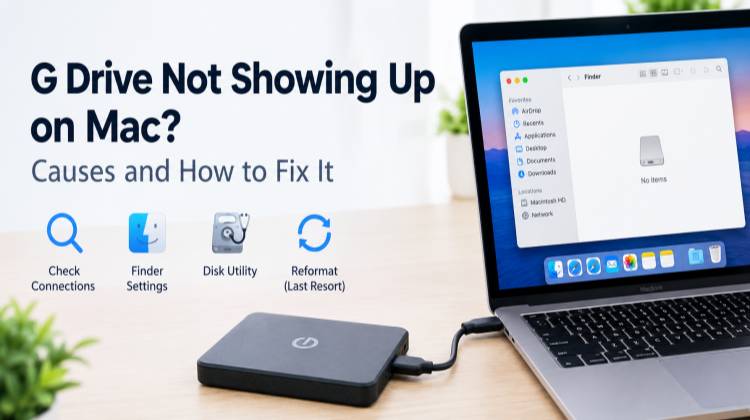
External storage devices, such as G Drives from brands like SanDisk, WD, and LaCie, provide additional storage space and help back up important data. However, when a G Drive fails to appear on a Mac, users may face difficulties accessing their files and recovering lost data. This article explores effective solutions to troubleshoot and resolve the G Drive not showing up on Mac issue.
Why Is the G Drive Not Showing Up on Mac?
Several factors can prevent a G Drive from appearing on a Mac:
Hardware Issues
- A damaged USB or Thunderbolt cable may prevent the Mac from detecting the G Drive.
- A faulty USB port or insufficient power supply can stop the drive from functioning properly.
- Some high-capacity G Drives require an external power adapter.
Software Compatibility Issues
- An outdated macOS version may cause compatibility issues with the external drive.
- Drives formatted with the NTFS file system are generally readable but not writable on macOS without additional software.
Corrupted Partition or File System
- Improper ejection or sudden power loss can corrupt the drive’s file system.
- File system errors involving APFS or exFAT may prevent the G Drive from mounting correctly.
- Partition corruption can make stored files inaccessible.
Incorrect Finder Settings
- The G Drive may not appear on the desktop or in Finder’s sidebar because of incorrect Finder preferences.
Also read: Erase Assistant Is Not Supported on This Mac? 2026 Complete Fix Guide
How to Fix G Drive Not Showing Up on Mac
Mac users may experience the G Drive not showing up on Mac issue when their external drive fails to appear on the desktop, in Finder, or in Disk Utility. This problem can prevent access to important files and interrupt daily workflows. In this guide, we’ll explore effective troubleshooting methods to fix G Drive not showing up on Mac and restore access to your stored data.
1. Check Connections and Hardware
A faulty cable, damaged port, or insufficient power supply can prevent your G Drive from appearing on your Mac. Checking the physical connections helps identify hardware-related problems. If your G Drive not showing up on Mac, try another cable or port and test the drive on a different computer to determine whether the issue is connection-related. This is a common external hard drive not showing up problem.
Steps to Fix:
- Disconnect the G Drive from your Mac.
- Inspect the USB or Thunderbolt cable for visible damage.
- Connect the drive using a different cable, port, or adapter.
- Ensure the drive receives sufficient power.
- Connect the G Drive to another computer to check whether it is detected.
2. Make the G Drive Visible in Finder
Sometimes, your Mac detects the external drive but does not display it on the desktop or in Finder. Incorrect Finder preferences may hide external storage devices. If your G Drive not appearing in Finder, adjusting Finder settings can restore its visibility without changing the stored data or reformatting the drive.
Steps to Fix:
- Open Finder on your Mac.
- Click Finder > Settings from the menu bar.
- Select the General tab.
- Enable External disks under the desktop display options.
- Open the Sidebar tab and select External disks under Locations.
- Check whether the G Drive appears on the desktop or in Finder.
3. Use Disk Utility to Mount or Repair the Drive
Disk Utility is a built-in macOS tool that helps identify, mount, and repair storage devices. When your G Drive not showing up on Mac, it may still appear in Disk Utility but remain unmounted. Checking the drive’s status and running First Aid, when appropriate, may help resolve mounting issues and file system errors. If you encounter G Drive not showing in Disk Utility, check whether the physical device appears after selecting View > Show All Devices.
Steps to Fix:
- Open Applications > Utilities > Disk Utility.
- Click View > Show All Devices.
- Locate your G Drive in the sidebar.
- Select the volume and click Mount if the option is available.
- If the drive reports errors, select the volume and click First Aid.
Follow the on screen instructions and check whether the drive becomes accessible.
Note: If the drive contains important files, consider recovering them before performing repairs that may modify the file system.
Also read: SSD Not Showing Up? 7 Proven Fixes for Windows Users
4. Reformat the G Drive
Reformatting can resolve certain file system errors and compatibility issues when a G Drive not showing up on Mac. However, this process erases the existing data stored on the selected volume. Before formatting, recover important files and choose a file system compatible with your intended use, such as APFS for Mac-only storage or exFAT for Mac and Windows.
Steps to Fix:
- Open Disk Utility on your Mac.
- Click View > Show All Devices.
- Select the correct G Drive volume and click Erase.
- Enter a name for the drive.
- Choose APFS for Mac-only use or exFAT for cross-platform compatibility.
- Confirm your selection and click Erase to complete the process.
Important: Formatting permanently deletes existing data from the selected volume in normal use. Do not proceed until you have recovered or backed up any files you need.
If your G Drive not mounting issue continues after trying these methods, check the drive on another computer before considering further troubleshooting.
Conclusion
In conclusion, the G Drive not showing up issue can often be resolved by checking cable connections, adjusting Finder settings, or using Disk Utility. If the drive remains inaccessible, consider data recovery before reformatting. Regular backups and proper drive ejection can help prevent future data loss and keep your important files safe.
FAQs: G Drive Not Showing Up on Mac
Can I fix G Drive not mounting without losing data?
Yes, in many cases. Check the connections, restart your Mac, and try mounting the drive through Disk Utility. Avoid formatting or performing potentially modifying repairs until you have assessed the risk to your data.
Does reformatting fix G Drive Not Showing Up on Mac?
Reformatting may resolve certain file system errors and compatibility issues. However, it erases existing data from the selected volume. Recover or back up important files before formatting.
How to recover data when G Drive Not Showing Up on Mac?
First, check the cable, port, and power supply. If the drive is detected but inaccessible, consider data recovery software or professional recovery services. Avoid formatting or writing new data to the drive before recovery.
How do I fix G Drive not appearing in Finder on Mac?
Open Finder > Settings > General and enable External disks. Then open the Sidebar tab and enable External disks under Locations. Check whether your G Drive appears.






Leave a comment