






Is your iPhone microphone not picking up your voice during phone calls, video recordings, or FaceTime? It can be frustrating when people cannot hear you clearly. Fortunately, you can try several simple solutions at home before visiting a repair shop.
If your iPhone microphone not working issue is affecting your daily communication, this guide will help you identify common causes and find practical solutions. Whether you are experiencing a software issue or blocked microphone openings, these easy fixes can help you troubleshoot the iPhone microphone not working issue.
Why Is Your iPhone Microphone Not Working?
Before trying different solutions, it is important to understand what might be causing the problem. Your iPhone uses multiple microphones for calls, recordings, and noise cancellation, so an issue may affect one function but not another.
Common causes include:
- Dust or debris blocking the microphone openings
- Incorrect microphone permissions for an app
- Temporary software glitches
- An outdated iOS version
- Bluetooth devices interfering with audio input
- Physical damage caused by drops or moisture
Identifying the possible cause can help you choose the right troubleshooting method to fix the iPhone microphone not working.
Also read: iPhone Speaker Not Working? 10 Solutions You Can Try at Home
How to Fix iPhone Microphone Not Working Issue at Home
1. Test Your iPhone Microphone
Before changing any settings, check whether your microphone works in different apps. Sometimes, one microphone or application may have problems while others work normally. Testing your device first can help you understand what is causing the issue.
Steps to follow:
- Open the Voice Memos app.
- Record a short voice message.
- Play the recording and listen carefully.
- Record videos using the front and rear cameras.
- Compare the audio quality.
If your iPhone microphone not working issue appears in every test, continue with the following fixes.
2. Clean the Microphone Openings
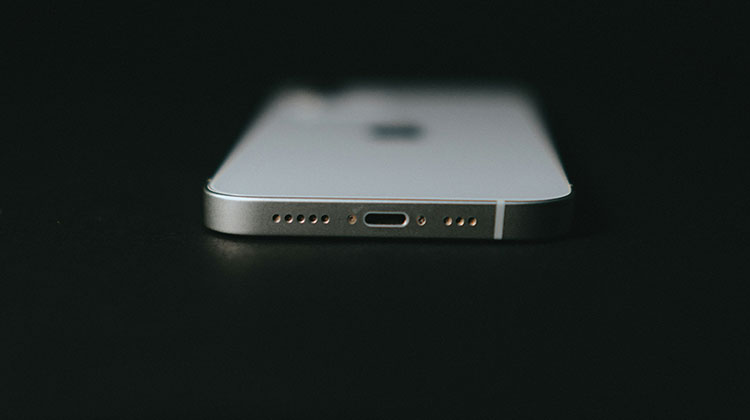
Dust, lint, and debris can block your iPhone’s microphone openings and make your voice sound muffled. If you are searching for iPhone mic not working, cleaning the microphone area is a sensible first step, especially when the sound has gradually become quieter.
Steps to follow:
- Remove your iPhone case.
- Inspect the microphone openings for visible debris.
- Use a clean, dry, soft-bristled brush.
- Gently remove dust without pushing it inside.
- Test your microphone again.
- Avoid sharp objects, cleaning liquids, and compressed air.
3. Check Microphone Permissions
If your microphone works in phone calls but not in a particular app, the app might not have permission to access it. Checking these settings can help resolve problems without changing other system configurations.
Steps to follow:
- Open Settings.
- Tap Privacy & Security.
- Select Microphone.
- Find the affected app.
- Enable microphone access if it is disabled.
These steps are useful when troubleshooting microphone not working on iPhone problems limited to specific applications.
4. Disconnect Bluetooth Devices
Your iPhone might be using a connected Bluetooth headset or wireless earbuds instead of its built-in microphone. A faulty accessory can prevent others from hearing you clearly during calls.
Steps to follow:
- Open Settings.
- Tap Bluetooth.
- Disconnect your connected audio accessories.
- Temporarily turn Bluetooth off.
- Make a test call.
If your iPhone Microphone Not Working issue disappears, reconnect your accessories individually to identify the cause.
5. Restart Your iPhone
A temporary software glitch can sometimes affect microphone performance. Restarting your device refreshes system processes and may resolve minor problems without deleting your personal information.
Steps to follow:
- Turn off your iPhone using its shutdown controls.
- Wait approximately 20 seconds.
- Turn it back on.
- Open Voice Memos.
- Record and play a short message.
Restarting is a quick solution to try before moving on to more advanced troubleshooting.
6. Update Your iPhone Software
An outdated iOS version can sometimes contribute to software bugs or compatibility issues. Installing an available update may improve system performance and resolve certain microphone problems.
Steps to follow:
- Open Settings.
- Tap General.
- Select Software Update.
- Check for available updates.
- Follow the on-screen instructions to install an update.
After updating, test your microphone again. If your iPhone microphone not working problem persists, continue with the next solution.
7. Remove Your iPhone Case
Some phone cases or accessories can partially cover microphone openings. This may make your voice sound distant or unclear, even when the microphone itself is functioning correctly.
Steps to follow:
- Remove your iPhone case.
- Check whether any accessory covers a microphone opening.
- Open Voice Memos.
- Record a short message.
- Compare the sound quality.
If the audio improves, replace the case with one designed for your specific iPhone model.
Also read: iPhone Speaker Grayed Out During Calls? 7 Easy Solutions To Try
8. Check How to Turn On Your iPhone Mic
If you want to know how to turn on your iPhone mic, start by checking microphone permissions rather than looking for a universal microphone switch. iPhones generally manage microphone access through privacy settings and individual app permissions.
Steps to follow:
- Open Settings.
- Tap Privacy & Security.
- Select Microphone.
- Enable access for the app you want to use.
- Reopen the app and test the microphone.
If an app is missing from the list, open it and try a feature that requires microphone access to trigger a permission request.
9. Reset All Settings
If basic troubleshooting has not helped to fix the iPhone microphone not working, incorrect system configurations could be contributing to the problem. Resetting all settings may help, although it will not repair physical damage.
Steps to follow:
- Open Settings.
- Tap General.
- Select Transfer or Reset iPhone.
- Tap Reset.
- Choose Reset All Settings and confirm.
This process does not erase your photos, messages, or apps, but it resets several preferences, including network and privacy settings. Review the confirmation screen before proceeding.
10. Contact Apple Support
If your iPhone microphone not working issue continues after trying these solutions, your device may have a hardware fault. Damage from drops, moisture, or internal component failure may require professional diagnosis.
Steps to follow:
- Visit Apple’s official Support website.
- Select your iPhone model.
- Describe the microphone problem.
- Follow the recommended troubleshooting steps.
- Arrange a diagnostic appointment if necessary.
Avoid opening your device yourself unless you have the appropriate repair expertise.
Conclusion
Microphone problems can interfere with phone calls, voice messages, and video recordings, but you do not always need a repair to fix them. Test different apps, check permissions, clean microphone openings carefully, and disconnect Bluetooth accessories.
If your iPhone microphone not working problem persists after following these steps, contact Apple Support or an authorized service provider. Identifying when the issue started and which apps are affected can help you find the right solution faster.
FAQs: iPhone Microphone Not Working
Why is my iPhone microphone not working during calls?
If people cannot hear you during calls, check whether your microphone openings are blocked or a Bluetooth accessory is connected. Test your microphone using Voice Memos. If the problem continues across different apps, your device may need professional diagnosis.
Why is my iPhone microphone volume so low?
Low microphone volume can result from blocked microphone openings, a poorly fitted phone case, or an audio accessory problem. Remove your case, gently clean visible debris with a soft, dry brush, and test your microphone again.
Can a software update fix an iPhone microphone problem?
Yes, an iOS update may resolve software bugs that affect microphone performance. Go to Settings, select General, and tap Software Update. However, an update will not repair physical damage or a blocked microphone opening.
How much does it cost to repair an iPhone microphone?
Repair costs depend on your iPhone model, the damaged component, and whether other parts need replacement. Contact Apple or an authorized service provider for a diagnosis and an accurate estimate before approving a repair.








Leave a comment