






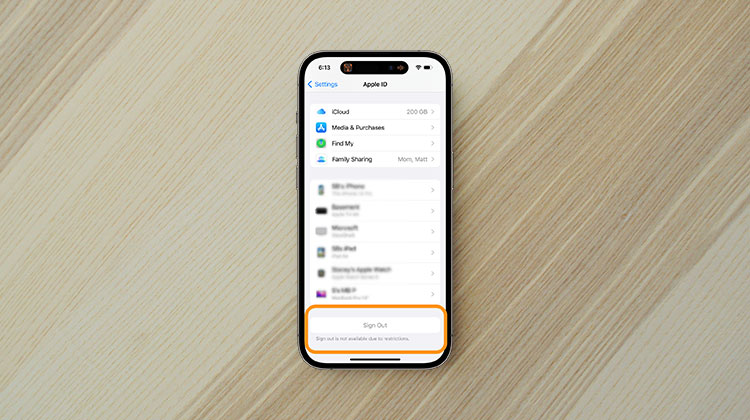
If you have purchased a new iPhone and want to sign out of your Apple ID from your previous device, you may see the sign-out button grayed out, and it says, “Sign out is not available due to restrictions.” The annoying line of text could make your day miserable. In fact, many Apple users have experienced similar issues and do not know how to resolve them.
So, don’t think about this issue anymore since we’ve discovered helpful hacks and a bonus tip to solve it. It’s important to understand the causes of this issue, and you’ll find them in the next section. Then, we’ll go over the most efficient solutions to resolve the ” can’t sign out Apple ID problem.
Why is Apple ID Sign Out Not Available due to Restrictions?
The following causes could trigger an “Sign out is not available due to restrictions” message to pop up:
- Screen Time Restrictions – Account changes are blocked in Screen Time settings.
- Content & Privacy Restrictions – The Sign Out option is disabled for security reasons.
- Family Sharing Controls – Parent or child account restrictions prevent sign out.
- MDM Profile Installed – School or work devices may restrict Apple ID access.
- Lost Mode or Activation Lock – Security protection limits account changes.
- Software Glitches – Temporary iOS bugs can cause the error.
- Outdated iOS Version – Older software may create account-related issues.
Also read: Fix There Was an Error Connecting to the Apple ID Server: 2026 Ultimate Guide
How to Fix Sign Out is Not Available Due to Restrictions
1. Restart Your iPhone
“Sign out is not available due to restrictions.” Could be the result of a malfunction in your Apple device. It is as simple as rebooting your Apple device. This is the initial method to solve this problem. Here’s how to accomplish it.
- Press and hold the Power button and Volume button.
- Slide to power off your device.
- Turn the iPhone back on after a few seconds.
- Check if the Sign Out option is available.
2. Turn Off Screen Time
Disabling the screen time on the iPhone is an excellent option to resolve the error sign out is not available due to restrictions. If you’re not sure how to accomplish this:
- Open Settings on your iPhone.
- Scroll down and tap Screen Time.
- Select Turn Off Screen Time.
- Enter your Screen Time passcode if prompted.
- Confirm your action.
Your screen time will be switched off. Go to the account information in Settings and verify the cause of your error.
3. Update Your iPhone
Sometimes it’s just a difficult day, and you’re not able to find a solution. It’s time to reveal the card that will be revealed. To avoid any issues with the iPhone, iOS must be updated. So, you need to check whether an iOS upgrade solves this “Sign out is not available due to restrictions” error. If it is, then take it down and download the update in the hope that it fixes your device. Follow the steps below to upgrade to the latest iOS version:
- Open Settings.
- Tap General.
- Select Software Update.
- If an update is available, tap Download and Install.
- Wait for the installation process to complete.
Also read: Guided Access Not Working on IOS? 8 Proven Fixes You Can Try
4. Remove MDM Profile
A person or an organization could have access to your Apple device’s functionality, including the procedure for signing out of your Apple ID. You can delete the profile using the proper credentials. The steps below will help you to remove it.
- Open Settings.
- Go to General.
- Tap VPN & Device Management.
- Select the MDM profile.
- Tap Remove Management.
Important Things to Remember
Before attempting any changes:
- Back up important data
- Confirm whether the device is personally owned
- Avoid removing management profiles without permission
- Ensure you know your account credentials before signing out
Final Thoughts
The Sign Out is Not Available Due to Restrictions Apple ID issue can be a problem if you need to erase the account from Apple devices. It’s a good thing that this article provides the simplest methods of solving this error.
FAQs: Sign Out Is Not Available Due to Restrictions
What Does 'Sign Out Is Not Available Due to Restrictions' Mean?
This message means your iPhone settings are preventing Apple ID sign out. It is usually caused by Screen Time restrictions, parental controls, or an MDM profile from school or work. As a result, the Sign Out button becomes greyed out or disabled.
Why Is the Sign Out Option Greyed Out on iPhone?
The Sign Out option is usually greyed out because restrictions are enabled on your iPhone. This can happen due to Screen Time settings, parental controls, MDM profiles, or account change restrictions. Disabling these settings can restore the Sign Out option.
What is an MDM profile on iPhone?
MDM (Mobile Device Management) is used by schools or companies to control device settings and restrictions.
How do I remove “Sign Out Is Not Available Due to Restrictions”?
You can fix the issue by disabling Screen Time, updating iOS, restarting your device, or removing the MDM profile.








Leave a comment