






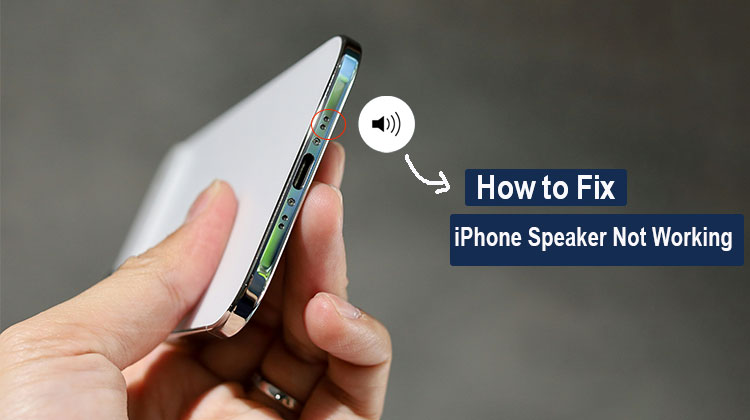
Many users have complained that their iPhone speaker not working. They claimed they couldn’t hear anything coming from the device. What can they do? In this article, we’ll cover 10 effective ways to fix an iPhone speaker not working issue.
Why Is My iPhone Speaker Not Working?
There are several reasons why your iPhone may suddenly stop producing sound. Sometimes the solution is as simple as increasing the volume or disconnecting a Bluetooth device. In other cases, dirt, software problems, or physical damage may be responsible.
Common causes include:
- Silent mode is enabled
- Volume is too low
- Bluetooth is connected
- Audio is routed through AirPlay
- Dust or debris is blocking the speaker
- A case is covering the speaker opening
- iOS has a temporary software glitch
- The speaker has physical or liquid damage
Let’s look at the best ways to troubleshoot the problem.
Also read: iPhone Speaker Grayed Out During Calls? 7 Easy Solutions To Try
1. Check Volume and Silent Mode
The first thing to do when your iPhone speaker not working is check the basic sound settings. Your iPhone may simply be muted or have the volume turned down. Increasing the volume and checking Silent mode can solve many basic audio problems within seconds.
Steps
- Press the Volume Up button several times.
- Open Settings → Sounds & Haptics.
- Increase the Ringtone and Alerts volume.
- Make sure Silent mode is disabled.
- Play a video or song to test the sound.
2. Turn Off Bluetooth
If your iPhone speaker not working issue started after using AirPods, headphones, a car stereo, or another wireless device, Bluetooth may be routing your audio elsewhere. Temporarily disabling Bluetooth lets you determine whether another connected device is receiving your sound.
Steps
- Open Settings.
- Tap Bluetooth.
- Turn Bluetooth off.
- Play music or a video.
- Check whether sound comes from the iPhone speaker.
If the sound returns, reconnect your Bluetooth devices individually to identify the source of the problem.
3. Check AirPlay Audio Output
Sometimes your iPhone speaker appears to be broken because audio is being sent to another AirPlay device. This can happen when you previously connected your iPhone to a TV, HomePod, or other compatible device.
If you are experiencing an iPhone audio not working problem, checking the selected audio output is an important step.
Steps
- Open Control Center.
- Play a song or video.
- Tap the audio output or AirPlay icon.
- Check the currently selected device.
- Select your iPhone.
- Test the speaker again.
4. Clean the iPhone Speaker
Dust and debris can block the speaker grille and make sound quiet, muffled, or distorted. If you want to clean iPhone speaker openings, use a gentle method instead of inserting objects into the grille.
Apple recommends checking the speaker and receiver openings and using a clean, dry, soft-bristled brush when necessary.
Steps
- Turn off your iPhone.
- Remove the case.
- Inspect the speaker grille under good lighting.
- Use a clean, dry, soft-bristled brush.
- Gently brush away visible debris.
- Turn the iPhone back on.
- Test the speaker.
Avoid using sharp objects or putting liquids directly into the speaker opening.
5. Remove the Case or Screen Protector
A case or screen protector that does not fit correctly can interfere with the speaker or receiver. This is especially worth checking if the sound problem started after installing a new accessory.
Removing the case is a simple way to determine whether it is contributing to your iPhone speaker problem.
Steps
- Remove your iPhone case.
- Check the speaker and receiver openings.
- Remove any protective film that may be blocking the receiver.
- Play music or a video.
- Make a test call.
- Check whether the sound improves.
6. Check Headphone Mode
Sometimes an iPhone may continue routing audio to headphones or another audio output even after you have stopped using them. If your iPhone speaker not working problem appeared after disconnecting AirPods, check your available audio outputs.
Steps
- Disconnect wired headphones if connected.
- Turn off Bluetooth temporarily.
- Open Control Center.
- Check the audio output.
- Select the iPhone as the output device.
- Play a video to test the speaker.
If the speaker remains silent, continue with the next troubleshooting method.
7. Restart Your iPhone
A temporary software glitch can cause audio problems. Restarting your iPhone refreshes system processes and may resolve a temporary iPhone speaker not working issue without changing your data or settings.
This is one of the easiest troubleshooting methods and should be tried before performing more advanced resets.
Steps
- Press and hold the appropriate side and volume buttons.
- Slide to power off.
- Wait a few seconds.
- Turn the iPhone back on.
- Increase the volume.
- Play music or a video.
- Test the speaker.
8. Check the Speaker During Phone Calls
If your main problem is iPhone speaker not working for calls, the issue may involve the receiver rather than the main loudspeaker.
Try both normal call audio and speakerphone. This helps determine whether the problem affects the receiver, speakerphone, or the entire audio system.
Steps
- Make a phone call.
- Press Volume Up while the call is active.
- Listen through the normal receiver.
- Tap the Speaker button.
- Check whether speakerphone produces sound.
- Inspect the receiver opening for debris.
- Try another call.
If you can hear the caller through speakerphone but not the receiver, you may have an iPhone ear speaker not working issue.
Also read: Why Is My iPhone Not Ringing? Troubleshooting Guide 2025
9. Update iOS
If basic troubleshooting does not solve the problem, check whether your iPhone needs a software update. An outdated version of iOS can sometimes cause unexpected system behavior.
Updating your device can also provide bug fixes and system improvements that may resolve an iPhone speaker not working problem caused by software.
Steps
- Open Settings.
- Tap General.
- Select Software Update.
- Check for an available update.
- Download the update if one is available.
- Install it.
- Restart your iPhone.
- Test the speaker again.
10. Reset All Settings or Get Professional Help
If you have tried all the previous methods and the iPhone speaker not working issue continues, you can consider resetting all settings. This does not delete your apps, photos, or other data, but it does restore system settings to their defaults.
If the speaker still does not work afterward, professional service may be necessary.
Steps
- Back up your iPhone before making major changes.
- Open Settings.
- Tap General → Transfer or Reset iPhone.
- Select Reset.
- Choose Reset All Settings.
- Follow the on-screen instructions.
- Test the speaker after the reset.
If there is still no sound, especially after physical impact or liquid exposure, contact Apple Support or an authorized service provider.
How to Fix iPhone Speaker Problems Safely
Knowing how to fix iPhone speaker problems is useful, but it is equally important to avoid methods that could damage the device.
Avoid:
- Inserting pins or needles into the speaker.
- Pouring liquid into the speaker grille.
- Using sharp objects to remove debris.
- Opening the iPhone without proper repair experience.
- Forcing debris deeper into the speaker.
Start with simple settings, audio-output checks, gentle cleaning, and a restart before attempting advanced troubleshooting.
Conclusion
Still dealing with an iPhone speaker not working? Don’t panic—most audio issues have a simple fix. Try these 10 methods from top to bottom, and you may get your sound back in minutes. If these iPhone speaker not working fixes don’t work, professional support can help. Fix it today and enjoy crystal-clear iPhone audio again!
FAQs: iPhone Speaker Not Working
Why is my iPhone speaker not working but headphones work?
If headphones work but the built-in speaker does not, check Bluetooth, AirPlay, volume settings, and the speaker grille. If the problem affects every audio source, the built-in speaker may require professional inspection.
How do I clean my iPhone speaker?
To clean iPhone speaker openings, turn off your iPhone and remove the case. Use a clean, dry, soft-bristled brush to gently remove visible debris. Do not insert sharp objects or pour liquids into the speaker grille.
How do I fix my iPhone speaker not working at home?
Start by checking the volume and Silent mode, then turn off Bluetooth and check AirPlay. Remove the case, gently clean the speaker grille, restart your iPhone, and update iOS. If the speaker still does not work, it may require professional service.
How do I know if my iPhone speaker is damaged?
Hardware damage is more likely when the speaker remains silent or distorted after checking settings, disconnecting Bluetooth, cleaning the opening, restarting, and updating iOS. Physical impact, liquid exposure, persistent crackling, or complete loss of sound can also indicate hardware damage.








Leave a comment