






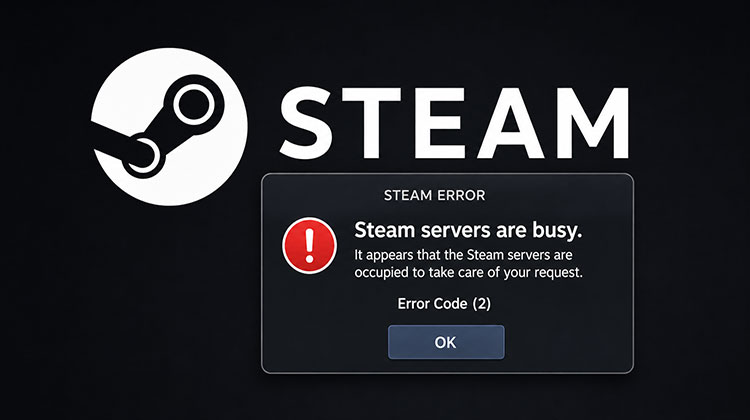
Steam Error Code 2: Servers are busy. This error can appear when a player tries to launch a game or upload files to Steam. In the article below, we’ll fix this issue using easy solutions everyone can use. Here is the exact error message:
It appears that the Steam servers are occupied to take care of your request. Error Code 2
What is a Steam Error Code 2?
Steam Error Code 2 can appear when users try to launch a game or upload content to Steam. According to Steam, the error can prevent the affected game or content from being accessed properly. If you’re seeing this error code, one obvious cause is a server- or network-related issue. However, reports suggest permission issues can also cause the error. If you give users the permission they need, the issue will be solved. If that doesn’t work, try other options.
What Causes Steam Error Code 2?
There are several possible reasons why Steam Error Code 2 appears.
- Steam servers may be busy or temporarily unavailable.
- The Steam game folder may have incorrect permissions.
- Game files may be corrupted or missing.
- Steam Family Sharing may interfere with game content.
- The selected Steam download region may have issues.
- Steam client files may be damaged.
Also read: Steam Error Code E87: How to Fix Login Problems
How to Fix Steam Error Code 2: Steam Servers Are Busy
If you’re experiencing Steam error code 2: The Steam servers are too busy on your Windows PC, try the following solutions.
- Check Steam server status
- Provide users with the necessary permissions
- Try turning off Steam Family Sharing.
- Verify the game’s files
- Check Download Server
- Reinstall Steam
Let’s discuss these in more detail.
1. Check Steam Server Status
Let’s start by checking for a server outage. You can use down-detection tools to check Steam’s Server Status. If Steam’s server goes down, all you have to do is wait for the issue to be fixed. Depending on the cause, it could take minutes or even a few hours, so wait until they fix it. When the server is restored, you’ll be able to enjoy Steam.
2. Check Permissions for the Steam Game Folder
According to a few users, it is because the user isn’t granted the necessary permissions. Follow the steps to fix the problem.
- First, go to the location where you installed Steam; usually, the location is C:\Program Files (x86)\Steam\steamapps, but if you have a custom location, go there.
- Right-click the Common folder and then select Properties.
- Go to the Security tab.
- Check whether Users appears under Group or user names. If it isn’t there, then click Edit, then Add.
- Enter users in the field and then click Check Names.
- Click Ok.
- Close the game and restart the game. This will likely complete the task.
3. Disable Steam Family Sharing Temporarily
In some cases, Steam doesn’t recognize content when users try to upload it to the Workshop server and displays an error message. This occurs when you’ve disabled Steam Family Sharing. We will disable it to check if this helps.
- Open Steam.
- Go to Steam > Settings.
- Click on Family.
- Untick the box to authorize Library Sharing on this machine.
- Click OK to save your changes.
I hope this does the trick help you.
4. Verify the Game Files
If you’re playing a specific game that shows an error message, it means your game files are corrupted. There are Several factors for corrupted game files, such as missing files from the installation package or incomplete in-game downloads. No matter what the cause, you can use the Steam app to repair the issue. Follow these steps to check the game’s files.
- Open Steam.
- Go to Library.
- Right-click on the game you want to repair and choose Properties.
- Go to the Local Files tab and click Verify integrity of game files.
- Allow it to complete, and hopefully the issue will be resolved.
5. Change the Steam Download Region
There may be a problem with the current Download Server, so try changing it to see if it improves. Follow these steps to do it.
- Open Steam.
- Go to Steam > Settings.
- Click on Downloads.
- Change the Download Region and click Ok.
Also read: Best VPN for Steam: Reduce Lag & Bypass Restrictions
6. Reinstall Steam
If none of this works, the last option is to reinstall the Steam client application. First, uninstall Steam, then download the latest version from the official Steam website and install it. Hopefully, it will help you fix this error.
Which Fix Should You Try First?
The best approach is to troubleshoot Steam Error Code 2 from the simplest potential cause to the more involved ones:
- Check whether Steam is experiencing a server outage.
- Check Steam folder permissions.
- Temporarily disable Family Sharing.
- Verify the affected game’s files.
- Change the Steam download region.
- Reinstall Steam if nothing else works.
This approach can help you identify whether the problem is related to Steam’s services, your Windows configuration, or the game’s installation.
FAQs: Steam Error Code 2
Can Steam Error Code 2 be caused by corrupted game files?
Yes. Missing or corrupted game files can cause Steam to encounter problems when launching a game. Use Steam's Verify integrity of game files option to check them.
Will reinstalling Steam fix Error Code 2?
Reinstalling Steam can help if the Steam client installation is damaged. However, try the other troubleshooting methods first before reinstalling it.
Is Steam Error Code 2 related to Steam servers?
Yes, Steam Error Code 2 can appear when Steam servers are busy or temporarily unavailable. However, server problems are not the only possible cause.
What should I do if Steam Error Code 2 happens with only one game?
First, verify that game's files and check the permissions of the Steam library folder. If the issue continues, try changing the Steam download region and restarting Steam.









Leave a comment