




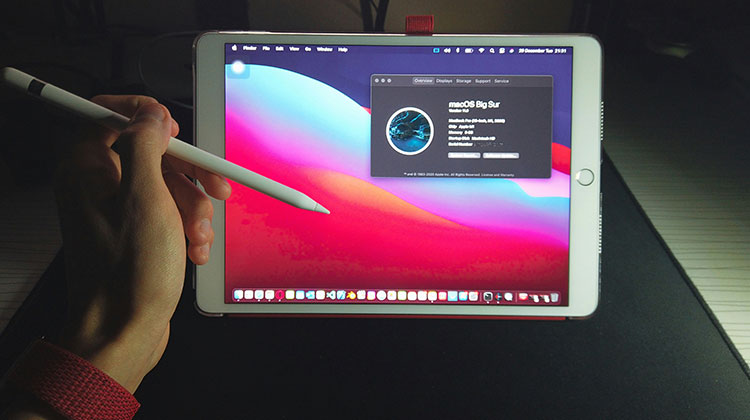
Many iOS users have reported issues with their Apple Pencil, which stops working even when connected to Bluetooth. Most of the time, it is due to a pencil nib losing, which causes any interactions you perform on your iPad with the Apple Pencil to register. However, this may not always be the case; other elements could be the reason for the Apple Pencil not working. However, one thing we can be certain of is that this issue affects some users. As a result, in this blog, we show how to fix the Apple Pencil not working issue.
Why Is My Apple Pencil Not Working?
There are a few common reasons why your Apple Pencil not working on your iPad properly, including:
- Low battery
- Bluetooth connection issues
- Compatibility problems
- Dirty screen or Pencil tip
- Outdated iPadOS software
- Damaged Pencil tip or hardware issue
Knowing the exact cause can help you troubleshoot the Apple Pencil not working issue faster.
Also read: iPad Touch Screen Not Working? 10 Proven Fixes Without Losing Data
How to Fix Apple Pencil Not Working on iPad
1. Charge Your Apple Pencil
Check that your Apple Pencil is charged and that the issue isn’t due to low charge before we begin. If your pencil has been captured and you’re experiencing issues, you may want to consider the solution below.
2. Tighten the Nib
The first thing you should do if you run into the issue described above is to check that the nib of your pencil isn’t loose. The nib plays an important role in transmitting touch input from the Apple Pencil to your iPad. In certain situations, nibs could become loose over time, so the pencil may not transfer the gesture to your iPad properly, even though it is connected.
If this happens, then you’ll need to tighten the Apple Pencil tip to see if this solves the problem. We suggest removing the nib entirely first, before putting it back on. After you’ve made sure that the nib is fitted and tight, if the issue persists, you can move to the next method.
3. Manually Enable Bluetooth
It turns out, according to some user reports, the Apple Pencil not working issue occurred when users used the quick pop-up to turn on Bluetooth to connect their pencil. When they tried to enable Bluetooth manually from the Settings menu, the Apple Pencil not pairing issue appeared to disappear, and users could use their Apple Pencil without issue. So, you can try the same process to see if it results. For this, follow these steps listed below:
- Open the Settings app on your iPad
- Go to Bluetooth
- Turn Bluetooth off
- Connect your Apple Pencil
- Go back to Settings and manually turn Bluetooth on
- Avoid using the quick pop-up to enable Bluetooth
- Wait for your iPad to detect the Apple Pencil
Try to determine if your iPad Pencil problem has been resolved. If it doesn’t work initially, proceed to the next method.
4. Perform a Hard Reset
Another method to solve the issue is to perform a hard reset. A hard reset is a forced restart of the device instead of the usual process. So you don’t need to worry about losing any data, since no data will be erased.
After you’ve performed a hard reset, you’ll re-pair your Apple Pencil to your iPad, and hopefully, this will resolve the issue. To accomplish this, follow the steps:
- Press and release the Volume Up button
- Immediately press and release the Volume Down button
- Press and hold the Power button
- Keep holding until the Apple logo appears
- Release the Power button
- Wait for the iPad to restart
After the device boots up:
- Open Settings
- Tap Bluetooth
- Select your Apple Pencil
- Tap Forget This Device
- Reconnect and pair the Apple Pencil again
After you’ve paired the Apple Pencil once more, check that the Apple Pencil is working now.
Also read: How to Jailbreak iPad: Top 5 Tools You Can Use
5. Change the Pencil Tip
If your Apple Pencil not working, the issue may be caused by a worn-out or depleted tip that needs replacement. The tip may wear off over time, and eventually, you’ll need to replace pencil tips and check that your Apple Pencil functions properly again.
If the tip is depleted, touch actions won’t be communicated to your iPad, and as a result, the Apple Pencil will not function properly. It is easy to change your tip Apple Pencil at the nearest Apple store.
Bottom Line
These are the five fixes for Apple Pencil not working problems. We hope that this article has helped you solve an unresponsive Apple Pencil and that you’re ready to draw with your iPad. Please let us know which technique works for you. If you have any queries, contact us through the comments section below.
FAQs: Apple Pencil Not Working
Why is my Apple Pencil connected but not working?
This usually happens because of a software glitch, unresponsive nib, or pairing issue. Even if Bluetooth shows it is connected, the Pencil may not respond if the tip is loose or the device needs to be re-paired.
How do I reset my Apple Pencil?
To reset your Apple Pencil, go to Bluetooth settings, forget the device, then reconnect it to your iPad. This refreshes the connection and fixes most pairing issues.
Why is my Apple Pencil not working on the lock screen?
Apple Pencil may not work on the lock screen if “Notes access from Lock Screen” is disabled or if the iPad is locked to restricted settings.
How do I fix an unresponsive Apple Pencil?
Restart your iPad, re-pair the Apple Pencil, check the nib tightness, and ensure Bluetooth is active. These steps fix most unresponsive issues.








Leave a comment