






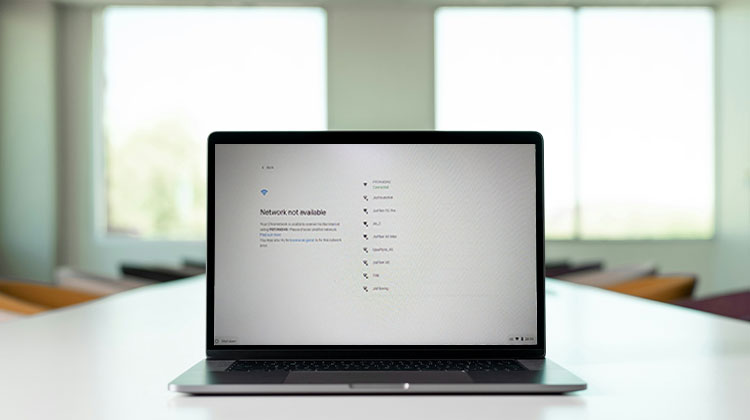
Seeing the “Chromebook Network Not Available” message can be frustrating, especially when you need to browse the web, attend an online class, or get work done. The problem can come from your WiFi connection, router, saved network settings, DNS, ChromeOS, or a public network that requires sign-in.
The good news is that most Chromebook network problems can be fixed at home. If you are dealing with a Chromebook not connecting to internet issue, try the 10 solutions below before contacting support.
Why Does My Chromebook Say Network Not Available?
The Chromebook Network Not Available message means your Chromebook cannot establish a usable internet connection. Your device may not be connected to Wi-Fi, or it may be connected to the router but unable to access the internet.
Common causes include a temporary Wi-Fi problem, router failure, incorrect saved network information, DNS issues, public Wi-Fi login pages, or outdated ChromeOS.
Try these fixes one by one to solve the Chromebook Network Not Available issue.
Also read: Why Is My Chromebook So Slow Compared to Before? 9 Easy Solutions
Chromebook Network Not Available: 10 Ways to Fix It
1. Check Your Wi-Fi Connection
First, make sure Wi-Fi is enabled and your Chromebook is connected to the correct network. A weak signal can also cause connection problems.
Steps:
- Click the time in the bottom-right corner.
- Open the Wi-Fi settings.
- Make sure Wi-Fi is turned on.
- Select your correct network.
- Check the signal strength.
- Try opening a website.
Also connect your phone to the same Wi-Fi. If your phone and other devices also have no internet, the problem may be with your router or internet service rather than the Chromebook.
2. Turn Wi-Fi Off and Reconnect to Your Network
A quick Wi-Fi reset can fix temporary connection problems and may resolve the Chromebook Network Not Available message. If simply turning Wi-Fi off and on does not work, forget the saved network and reconnect with the correct password.
Steps:
- Click the Quick Settings panel in the bottom-right corner.
- Select Wi-Fi.
- Turn Wi-Fi off and wait a few seconds.
- Turn Wi-Fi back on.
- Select your Wi-Fi network from the available networks.
- If the problem continues, open the network settings and choose Forget for the saved network.
- Select the network again and enter the Wi-Fi password.
- Open a website to check whether the internet is working.
3. Restart Your Chromebook
Restarting your Chromebook can clear temporary system and network problems. It is one of the simplest troubleshooting methods and should be tried before changing advanced settings.
Steps:
- Save your work.
- Click the time.
- Open the power menu.
- Select Restart.
- Wait for ChromeOS to load.
- Connect to your Wi-Fi network.
- Open Chrome and test a website.
If you still see Chromebook Network Not Available, move on to restarting your router.
4. Restart Your Wi-Fi Router
The problem may not be your Chromebook. Your router can temporarily lose its internet connection or experience a networking error.
Steps:
- Turn off your router.
- Unplug it from power.
- Wait approximately 30 seconds.
- Plug it back in.
- Wait several minutes for the connection to return.
- Connect your Chromebook to Wi-Fi.
- Test the internet.
If every device connected to your router has no internet, contact your internet service provider if restarting the router doesn’t solve the problem.
5. Try Another Wi-Fi Network
Connecting to another network helps determine whether the problem is your Chromebook or your current Wi-Fi connection. You can use your phone’s mobile hotspot as a quick test.
Steps:
- Turn on your phone’s hotspot.
- Open Wi-Fi on your Chromebook.
- Select the phone hotspot.
- Enter the hotspot password.
- Wait for the Chromebook to connect.
- Open Chrome.
- Visit a website.
If the Chromebook works with the hotspot, your original router or network configuration may be causing the problem.
6. Enable Network Sharing
Network Sharing can allow your Chromebook to share its available network connection with compatible devices or use supported connection-sharing features. The exact options can vary depending on your Chromebook model, ChromeOS version, and network administrator settings.
Steps:
- Open Settings on your Chromebook.
- Select Network.
- Check the available connection and sharing options.
- Look for Network Sharing or a similar sharing option.
- Turn on the available sharing feature if your Chromebook supports it.
- Follow the on-screen instructions to configure the connection.
- Connect the other supported device or network.
- Check whether the connection is active.
- Open a website on the Chromebook or connected device.
- If the sharing option is unavailable, your Chromebook model, ChromeOS version, or administrator settings may not support it.
Also read: Mobile Network Not Available on Android? Try These Fixes
7. Try Guest Mode
Guest Mode can help determine whether the Chromebook Network Not Available issue is connected to your regular Chromebook profile or its settings. If the internet works normally in Guest Mode, your main account or profile settings may need further troubleshooting.
Steps:
- Sign out of your Chromebook.
- On the login screen, look for Browse as Guest.
- Select Browse as Guest.
- Wait for Guest Mode to open.
- Click the network icon in the bottom-right corner.
- Turn on Wi-Fi if it is disabled.
- Select your Wi-Fi network.
- Enter the network password and connect.
- Open a website and check the connection.
- If Wi-Fi works in Guest Mode but not in your normal account, the problem may be related to your account or profile settings.
8. Change DNS Settings
DNS converts website names into IP addresses. If DNS isn’t working correctly, your Chromebook may connect to Wi-Fi but fail to open websites.
ChromeOS allows you to use Google name servers as an alternative DNS option.
Steps:
- Open Settings.
- Select Network.
- Choose Wi-Fi.
- Select your connected network.
- Find Name servers.
- Select Google name servers.
- Close Settings.
- Try opening a website.
If you’re using a school or work Chromebook, DNS settings may be controlled by an administrator.
9. Update ChromeOS
An outdated version of ChromeOS can sometimes contribute to system and connectivity problems. Checking for updates is therefore worth trying if the Chromebook Network Not Available error continues.
Steps:
- Click the time.
- Open Settings.
- Select About ChromeOS.
- Check for updates.
- Install any available update.
- Restart the Chromebook if necessary.
- Reconnect to Wi-Fi.
If your Chromebook cannot download an update because it has no internet access, try another Wi-Fi network or a phone hotspot.
10. Run Chromebook Diagnostics
If none of the previous fixes resolve the Chromebook Network Not Available issue, use the built-in ChromeOS Diagnostics tool. It can help identify connectivity problems and provide additional information about your Chromebook’s network connection.
Steps:
- Open Settings.
- Select About ChromeOS.
- Open Diagnostics.
- Find the connectivity or network tests.
- Run the available tests.
- Review the results.
- Follow any recommended troubleshooting steps.
If the tests don’t identify an obvious problem and you continue experiencing a Chromebook network error, try connecting to another network. If the Chromebook still cannot connect anywhere, contact the manufacturer for further assistance.
What If Chromebook Network Not Available Appears During Setup?
If you see Chromebook Network Not Available while setting up a new Chromebook, try connecting it to another network first. A phone hotspot can be useful for testing.
If the Chromebook connects successfully to the hotspot but not your regular Wi-Fi, the original network may have compatibility, authentication, or configuration issues.
For school or work devices, network restrictions may also be controlled by an administrator.
Final Thoughts
The Chromebook Network Not Available error can usually be fixed by checking the Wi-Fi connection, restarting the Chromebook and router, reconnecting to the network, testing another connection, and checking ChromeOS settings.
Start with the simple fixes first. If your Chromebook works on another network, focus on the original router or network. If it cannot connect anywhere, use ChromeOS Diagnostics and consider contacting the manufacturer for further help.
FAQs: Chromebook Network Not Available
Why does the network not available on Chromebook message appear?
The network not available on Chromebook message may appear when your device cannot detect or properly connect to a wireless network. Check whether Wi-Fi is enabled, move closer to the router, and restart your network equipment.
Can a VPN cause a Chromebook network error?
Yes. A VPN or certain network extensions can sometimes interfere with internet connectivity. If you continue experiencing a Chromebook network error, temporarily disconnect the VPN or disable related extensions and test the connection again.
How do I fix Chromebook Network Not Available on public Wi-Fi?
Public Wi-Fi may require a login or acceptance of terms before providing internet access. Connect to the network and open a website to trigger the sign-in page. Complete the required login or terms-and-conditions process before testing your connection.
What should I do if none of the Chromebook Network Not Available fixes work?
If the basic fixes do not work, test your Chromebook on another Wi-Fi network. If it works elsewhere, investigate your router or original network. If it fails on multiple networks, use Chromebook Diagnostics and consider contacting your administrator, internet provider, or device support.










Leave a comment