




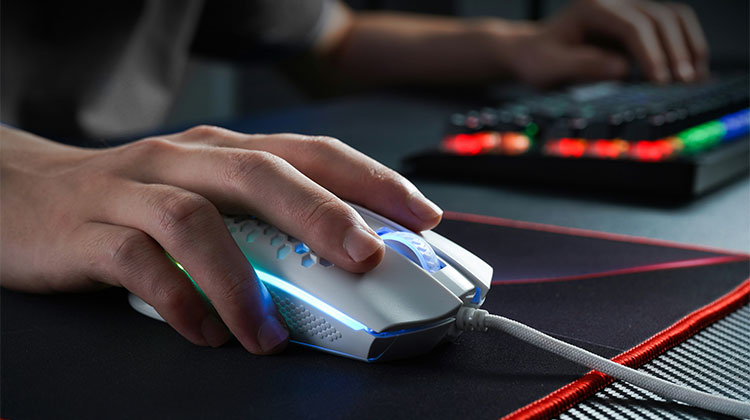
A mouse should respond to one click with a single action. But it begins registering two clicks, and even simple tasks like opening folders or selecting files can become increasingly cumbersome and inconvenient. If you’re dealing with a mouse double clicking issue, it may be related to hardware, Windows settings, or a connection issue.
Before replacing your mouse, it may be worth checking a few potential causes of mouse double clicking. A quick setting change, cleaning, or connection review might get things working again.
Why Is My Mouse Double Clicking?
There are several reasons a mouse may register two clicks when you press the button once. One of the most common is a worn-out mouse switch, especially on an older device that has seen years of regular use. Dust around the button can also affect how the switch responds.
Other causes include incorrect double-click speed, a weak wireless battery, USB connection problems, outdated drivers, or custom mouse software. Gaming mice can also experience unwanted clicks when the debounce setting is too low.
If your mouse double clicking problem started recently, try the following fixes before assuming the hardware has failed.
Also read: Mouse Not Working? Try These 10 Quick Solutions
How to Fix Mouse Double Clicking
1. Test the Mouse on Another Computer
One of the easiest ways to find out where the problem is coming from is to use the mouse on another computer. You do not need to install anything for this test. Just connect the mouse and use it normally for a few minutes.
Try clicking folders, selecting files, and using the affected button. If the same issue happens on another computer, the mouse is probably the problem. If it works normally, your original computer may have a software or settings issue.
2. Adjust the Double-Click Speed
Windows has a setting that controls how quickly two clicks need to happen before they are treated as a double click. If this setting does not suit your clicking speed, normal mouse actions may feel inconsistent.
Steps:
- Open Settings.
- Go to Bluetooth & devices > Mouse.
- Select Additional mouse settings.
- Open the Buttons tab.
- Find Double-click speed.
- Move the slider and test the folder icon beside it.
- Click Apply and then OK.
This is a useful setting to check if mouse double clicking happens mostly when opening files or folders.
3. Check File Explorer by Click Settings
Sometimes the mouse is working correctly, but Windows is using a different click behavior than you expect. File Explorer can be configured to open items with one click instead of two, which can make mouse behavior seem strange.
Steps:
- Open File Explorer.
- Click the three-dot menu and select Options.
- Find the Click items as follows section.
- Select Double-click to open an item (single-click to select).
- Click Apply and then OK.
- Test a few folders and files.
If the problem only appears while opening files, this setting is worth checking before trying more complicated fixes.
4. Clean Around the Mouse Buttons
Mouse buttons collect dust and dirt over time, particularly around the small gaps near the edges. In some cases, debris can interfere with the button mechanism and cause inconsistent clicks. Carefully cleaning the outside of the mouse may help fix the issue.
Disconnect or switch off the mouse first. Use short bursts of compressed air around the affected button and wipe the surface with a dry microfiber cloth. Avoid putting liquid inside the mouse or forcing the button while cleaning.
5. Recharge the Mouse or Replace the Battery
Wireless mice can behave strangely when their battery is almost empty. You might notice delayed clicks, cursor movement problems, random disconnections, or other inconsistent behavior along with unwanted double clicks.
Fully charge the mouse or replace its battery, depending on the model. Then reconnect it and test the affected button. If the mouse continues double clicking after a full charge, the battery is probably not the main cause.
6. Try a Different USB Port
A USB connection problem can sometimes be mistaken for a mouse hardware problem. This is especially worth checking if you are using a wired mouse or a wireless receiver connected through a USB hub.
Unplug the mouse or receiver and connect it directly to another USB port. Give Windows a moment to recognize the device, then test it again. If the problem disappears, the original port or connection may have been causing the issue.
7. Update the Mouse Driver and Software
Your mouse usually works with basic Windows drivers, but some devices also rely on manufacturer software for advanced settings. An outdated driver or configuration utility can sometimes cause unexpected input behavior.
Steps:
- Search for Device Manager in Windows.
- Open Mice and other pointing devices.
- Find your connected mouse.
- Check whether a driver update is available.
- Open the manufacturer’s mouse software if you use one.
- Install available software or firmware updates.
- Restart your computer and test the mouse.
Updating the software can help when mouse double clicking began after a Windows update, software change, or configuration issue.
8. Increase the Debounce Setting
If you use a gaming mouse, check whether its software includes a debounce setting. This setting determines how soon the mouse accepts another click after the first one. A very low value can sometimes allow unwanted duplicate inputs.
Steps:
- Open your mouse’s configuration software.
- Look for the Debounce option.
- Increase the value slightly.
- Save the new setting.
- Test the affected button.
- Adjust it again only if necessary.
Debounce can help with minor switch chatter, but it cannot permanently repair a worn-out physical switch.
9. Reset the Mouse Profile
Gaming mice often let you create profiles, macros, and custom button actions. A wrongly configured profile can cause a button to perform unexpected actions, including repeated inputs. Restoring the default profile is a simple way to rule out a configuration problem.
Steps:
- Open the mouse configuration software.
- Select the profile currently in use.
- Choose Default or Reset.
- Temporarily disable custom macros.
- Save the profile.
- Test the mouse again.
If mouse double clicking stops after restoring the default profile, the problem was likely caused by a software configuration rather than the mouse switch.
Also read: Function Keys Not Working? 6 Easy Fixes You Need to Try
10. Repair or Replace the Mouse
If the same problem continues on another computer after trying the software and connection fixes, the internal mouse switch may be worn. This is especially true if one button is affected, and the issue occurs over time.
If your mouse is still under warranty, contact the manufacturer before opening it. For an older device, a professional may be able to replace the faulty switch. However, compare the repair cost with the price of a new mouse before making a decision.
When mouse double clicking continues despite basic troubleshooting, replacement may be the simplest option.
How to Stop Mouse Double Clicking Issue
The best way to stop mouse double clicking is first to identify whether the problem is with the mouse or the computer. Test it on another system, then check Windows settings, battery levels, USB connectivity, drivers, or mouse software.
If the issue follows the mouse to another computer, there is a good chance that the switch is wearing out. In that situation, software changes may only provide a temporary solution.
Final Thoughts
A mouse double clicking problem is irritating, but it doesn’t always mean the mouse needs immediate replacement. Start by checking simple items such as the double-click setting, battery power status, and profile. If the issue continues across different computers, then an internal switch may be the source, making repair or replacement the best option.
FAQs: Mouse Double Clicking
Why is my mouse double clicking only sometimes?
Intermittent double clicking can be an early sign of a worn mouse switch. Dust, loose connections, wireless problems, or software settings can also cause occasional duplicate clicks. If the problem becomes more frequent over time, hardware wear is more likely.
Does changing the debounce setting fix double clicking?
Increasing the debounce setting can reduce duplicate clicks caused by switch chatter on supported gaming mice. However, it cannot repair a physically worn or damaged switch. If the problem continues, the mouse may need professional repair or replacement.
How can I test if my mouse is double clicking?
Connect the mouse to another computer and test the affected button repeatedly. You can also use an online mouse click tester to check whether a single physical click is being registered as two clicks.
Should I replace my mouse if I have mouse double clicking?
If the mouse is under warranty, contact the manufacturer first. For an older mouse, a replacement may be possible, but compare the repair cost with the price of a new mouse before deciding.





Leave a comment