






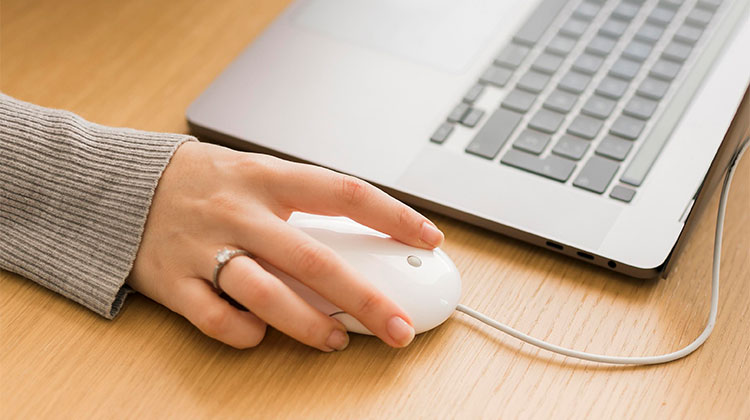
The mouse plays a vital role in your laptop. But most people only realize its importance when it suddenly stops working until the day you sit down to work and see your mouse not working. In this moment, you realize how dependent you are on your mouse. You aren’t sure if the issue is hardware or software-related, or how to fix it.
There are numerous options to try, and some of them solve the issue, whether it’s a hardware or software-related issue. These are only a few of the solutions. We suggest trying each option at a time until the ” mouse not working on laptop ‘ issue is resolved.
Common “Mouse Not Working” Problems
Before jumping into fixes, identify your issue:
- Mouse cursor not moving
- Left or right click is not working
- Mouse not detected by computer
- Wireless mouse not connecting
- Mouse lagging or freezing
Why Is My Mouse Not Working On PC?
There are several possible reasons the mouse does not work:
- Dead batteries (wireless mouse)
- Faulty USB port
- Outdated or corrupted drivers
- Bluetooth connection issues
- System bugs or updates
- Hardware damage
Also read: Fix Computer Stuck on Restarting Issue: 16 Quick & Advanced Solutions
How to Fix Mouse Not Working on Laptop or Computer
1. Clean Your Mouse
If the mouse is moving but the movements are not as smooth or less responsive than normal, you can clean your mouse. Regular maintenance of your mouse, including cleaning dust or dirt, can help solve these issues.
2. Replug Your USB Cable or Receiver
This is only applicable when you are using a wired mouse or a USB wireless mouse. The first thing you need to determine is if the mouse is correctly connected. You could try plugging your USB cable into another port to determine whether the connection is the issue. Remove your USB cable, let it sit for 2 minutes or so, and then plug it back in. Try another mouse to determine whether the problem is in the mouse itself.
3. Restart Your Laptop
A simple restart of your PC can resolve many small issues, such as the mouse not working on Windows 7/10. If you have checked the mouse connections, but the mouse does not work, you can try restarting your computer. This is a great option to remove some bugs that may be the issue.
4. Mouse Software or Driver Conflict
To determine if there’s a driver or software conflict that’s causing the laptop mouse not working issue, restart your computer in safe mode. If the mouse is working in Safe mode, it is a driver conflict that you can address with these steps:
Step 1: Open Windows Device Manager (you will find it by typing ” device manager” in the search box).
Step 2. Select ” Mouse” to expand it. Then take away all the mice connected to your device. Highlight the mouse, then press ” Uninstall device” on the keyboard.
5. Replace the Batteries
It is also possible to replace the battery or charge the wireless mouse. In most cases, the wireless mouse stopped working issue may just be drained batteries. You might also need to reinstall the battery or charge the mouse.
6. Use the Mouse on a Proper Surface
While certain mice can be used on almost any surface, others have limitations and might not work well on specific surfaces. This is usually the case when you need a mouse pad, particularly if the mouse you’re using is quite old. Some mouse models might not be able to detect the movement of shiny surfaces or on surfaces with dark or light shades.
7. Update Mouse Drivers
It is also possible to upgrade your device’s driver. Outdated drivers can cause a device to fail at the most inconvenient times. Fortunately, driver updates are available on the device’s website or through numerous driver updater programs online.
8. Try a Different USB Port
As we mentioned earlier, it is also possible to disconnect the receiver or mouse and try another USB port. The issue could be with your computer’s USB ports, and as many computers have more than one port, you can solve this by trying another port.
Also read: Laptop Keyboard Not Working? 10 Easy Fixes You Can Try
9. Check for Hardware Issues
If none of the above options fix the PC mouse not working issue, it could be due to the device itself. Therefore, it may need to change the device. If you try a new mouse but it does not function, the issue might be in the mouse ports. As we’ve seen earlier, test the connection or use another USB port. If all ports on the computer do not work, then the motherboard might be the issue and will need to be repaired.
10. Corrupted Operating System Files
If your mouse does not function despite trying all the suggestions above, there is a chance that the system’s operating system or files are affected. In this situation, the only way to fix the issue is to repair the operating system using the installation disc. You could also back up Windows to a time when the mouse was functioning.
Final Thoughts
A mouse not working on a laptop can interrupt your work, but in most cases, it’s easy to fix. The solutions above will help you get your mouse back to normal. Please share your feedback with us about which one is best for you.
FAQs: Mouse Not Working
Why is my mouse not working but keyboard works?
This usually happens due to a driver issue or a problem specific to the mouse hardware or connection.
What should I do if my wireless mouse is not working?
Check the batteries, reconnect the USB receiver, re-pair the Bluetooth connection, and ensure there is no signal interference.
How do I fix a frozen or lagging mouse?
Restart your system, clean the mouse sensor, use a proper surface, and update your drivers.
How do I fix mouse not working on Windows 11?
Restart your PC, check connections, update drivers, and run the Windows troubleshooter to fix mouse issues in Windows 11.










Leave a comment