






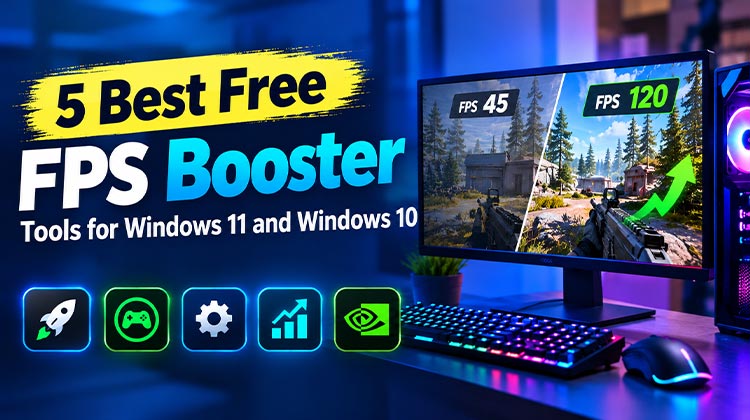
Are you experiencing low FPS, lag, or stuttering while playing games on your Windows PC? A free FPS booster can help optimize system resources, manage background applications, and improve gaming performance. Although these tools cannot guarantee higher frame rates, they may help your computer run games more smoothly.
Here are five options to consider when choosing the Best FPS booster for Windows 11 and Windows 10, along with their features, pros, and cons.
Top 5 FPS Boosters for Windows 10 or 11
1. Wise Game Booster
Wise Game Booster is a lightweight utility for Windows PCs for gaming. It helps users close unnecessary applications and background services that consume system resources.
The software includes a My Games section where you can add your favorite games for convenient access. It also allows you to optimize your system with a few clicks or manage background processes.
By reducing unnecessary background activity, this FPS booster may improve system responsiveness, particularly on older computers with limited RAM.
Pros:
- Simple interface for beginners.
- Helps manage unnecessary background processes.
- Includes a convenient My Games list.
- Offers manual optimization options.
Cons:
- FPS improvements may be limited on modern PCs.
- Closing essential processes can cause system issues.
- Lacks advanced GPU tuning features.
Best for: Beginners who want a simple way to manage background applications before gaming.
Also read: What Is Screen Tearing? How to Fix It for Smooth Gaming
2. Razer Cortex: Game Booster
Razer Cortex: Game Booster is a free tool to improve gaming performance by reducing unnecessary background activity. When you launch a supported game, it can automatically apply selected optimizations.
Its Game Booster feature can close certain nonessential applications and processes, freeing up system resources for gaming. Another feature, Booster Prime, provides game-specific optimization options for supported titles.
This FPS Booster may help users boost game FPS when background apps consume significant system resources.
After your gaming session, some temporary changes can be reversed, depending on the settings used.
Pros:
- Automatically detects supported games.
- Helps reduce background activity.
- Offers game-specific optimization options.
- Free to download and use.
Cons:
- Performance gains may be small on optimized PCs.
- Closing applications can interrupt other tasks.
- Results vary depending on hardware and games.
Best for: Gamers who prefer automated optimization with minimal manual effort.
3. MSI Afterburner
MSI Afterburner is a popular GPU overclocking and hardware monitoring tool. Despite its name, it supports many graphics cards manufactured by NVIDIA and AMD.
Users can adjust supported GPU clock speeds, memory frequencies, and fan settings to fine-tune graphics performance. The software also displays real-time statistics, including GPU temperature, utilization, and clock speeds.
Its in-game monitoring overlay helps identify overheating and performance bottlenecks. This tool can help you understand whether a hardware limitation is preventing an effective FPS boost.
However, overclocking should be performed carefully because unstable settings can cause crashes.
Pros:
- Supports many NVIDIA and AMD graphics cards.
- Provides detailed hardware monitoring.
- Offers GPU tuning and fan controls.
- Includes an in-game performance overlay.
- Free to use.
Cons:
- Overclocking requires technical knowledge.
- Incorrect settings can cause instability.
- Higher clock speeds may increase heat and power consumption.
- Performance gains depend on hardware limitations.
Best for: Advanced users who want to monitor and fine-tune GPU performance.
4. EZ Game Booster
EZ Game Booster offers several system optimization options intended to improve Windows performance, stability, and network responsiveness. Users can experiment with different settings to prepare their computers for gaming.
One advertised feature is game file defragmentation, which may reduce loading times on traditional hard drives when file fragmentation is a contributing factor. However, defragmentation is generally unnecessary for SSDs.
Some features may require a paid upgrade, and individual tweaks do not always produce measurable improvements. Before installing this FPS booster, verify its official download source and available features.
Pros:
- Offers multiple system optimization settings.
- Provides options for managing Windows performance.
- Includes tools intended to improve gaming responsiveness.
- Offers some free functionality.
Cons:
- Some advanced features require payment.
- Certain tweaks may have little effect on modern PCs.
- Aggressive changes can cause unexpected issues.
- FPS improvements are not guaranteed.
Best for: Users interested in experimenting with system-level optimization settings.
5. NVIDIA GeForce Experience / NVIDIA App
NVIDIA users can use NVIDIA’s gaming software to optimize supported games, update graphics drivers, and record gameplay.
The older GeForce Experience utility included automatic game optimization and ShadowPlay recording. NVIDIA has since introduced the NVIDIA App, which combines many of these capabilities in a newer interface.
The software lets users apply recommended graphics settings for supported games. It also offers gameplay recording, screenshots, and an in-game overlay, depending on the graphics card and available features.
For compatible NVIDIA users, this FPS booster provides a convenient way to manage graphics drivers and supported game settings.
Pros:
- Provides graphics driver updates.
- Offers optimization options for supported games.
- Includes gameplay recording and screenshot capture.
- Provides a convenient interface for NVIDIA users.
- Free to use.
Cons:
- Most features require a compatible NVIDIA graphics card.
- Optimization is limited to supported games.
- Recommended settings may not suit every player.
- FPS gains depend on hardware and graphics settings.
Best for: NVIDIA GPU owners who want driver updates and game optimization in one application.
Also read: Top 5 Fan Control Software for Windows PCs
Other Ways to Increase FPS in Games
You do not always need third-party software to improve gaming performance. Try these practical steps first.
- Update graphics drivers: Install compatible drivers from your GPU manufacturer’s official website.
- Lower demanding settings: Reduce shadows, reflections, and ray tracing when necessary.
- Close unnecessary applications: Free up CPU and memory resources before gaming.
- Check temperatures: Overheating can reduce CPU and GPU performance.
- Enable Windows Game Mode: This built-in Windows feature helps manage resources for gaming, but it is not a separate FPS Booster.
These adjustments may increase FPS in games; results vary by system and the specific game. An FPS booster cannot guarantee improvements when your hardware is already operating at its limits.
Final Verdict
The Best FPS booster depends on your requirements. Razer Cortex excels at background activity, MSI Afterburner excels at hardware monitoring, and NVIDIA App is a practical option for compatible NVIDIA graphics cards. Wise Game Booster may suit beginners, while EZ Game Booster requires further verification before recommending a download.
FAQs About FPS Booster
What is the best FPS booster for Windows 11?
The best FPS booster depends on your PC and gaming needs. Razer Cortex helps manage background processes, MSI Afterburner monitors GPU performance, and NVIDIA App offers game optimization for compatible NVIDIA graphics cards.
Do FPS boosters really increase FPS?
Yes, some tools may improve FPS by reducing unnecessary background activity or optimizing supported settings. However, results depend on your hardware, game, and system configuration. No FPS booster guarantees higher frame rates.
Which FPS booster is best for low-end PCs?
Wise Game Booster and Razer Cortex may help low-end PCs by reducing unnecessary background activity. However, they cannot overcome major CPU or GPU limitations.
Can I increase FPS without using an FPS booster?
Yes. Updating graphics drivers, lowering demanding graphics settings, closing unnecessary applications, enabling Windows Game Mode, and checking for overheating can help improve gaming performance.
Should I use multiple FPS boosters at the same time?
Using multiple optimization tools simultaneously is generally unnecessary. They may apply overlapping settings or interfere with each other. Choose a tool that addresses your specific performance problem.







Leave a comment