






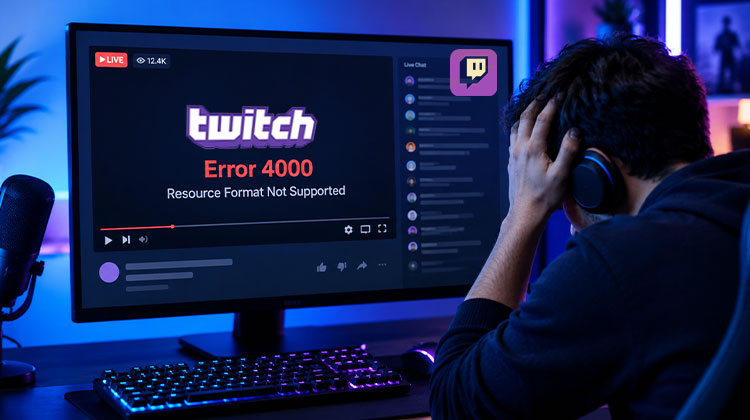
Twitch Error 4000 can interrupt your favorite live streams when the browser fails to play the requested media. You may see a message such as “resource format not supported”, making it impossible to watch the stream normally.
This Twitch playback error can be frustrating, especially when everything else on your computer appears to be working properly. Fortunately, there are several troubleshooting methods to fix Twitch Error 4000 and restore normal playback.
What Causes Twitch Error 4000?
The error 4000 Twitch users encounter can be associated with several browser and audio-related issues. Common causes include browser cache and cookies, temporary internet disconnections, other active audio or media players, incorrect audio output drivers, and autoplay settings.
When Twitch cannot properly load or play the requested media, you may see the Twitch error 4000 message or the “resource format not supported” notification.
Also read: Twitch Error 3000: 5 Easy Methods to Restore Smooth Streaming
How to Fix Twitch Error 4000
1. Clear Cache and Cookies
Corrupted or outdated Chrome cache files can sometimes cause Twitch Error 4000. Clearing your browser’s cache and cookies is one of the first troubleshooting methods you can try.
Follow these steps:
- Open Google Chrome.
- Press Ctrl + Shift + Delete to open the Clear browsing data window.
- Go to the Advanced tab.
- Select All time from the time range dropdown.
- Check Browsing history, Download history, Cookies and other site data, and Cached images and files.
- Click Clear data.
After clearing the data, open Twitch again and check whether the Twitch playback error has been resolved.
2. Refresh the Twitch Stream
A temporary loading problem or internet disconnection can prevent a Twitch stream from loading correctly. Refreshing the page may help fix Twitch Error 4000 when the issue is only temporary.
To refresh the stream:
- Open the browser tab containing Twitch.
- Click the Refresh button.
- Wait for the stream to load completely.
- Check whether the error has disappeared.
If the problem was caused by a temporary loading interruption, refreshing the page may restore playback.
3. Close Other Active Media Players
Other applications that provide audio playback may interfere with Twitch. Closing active media players can help determine whether another application is contributing to the Twitch playback error.
Try the following:
- Check which audio or media players are currently running on your computer.
- Close applications that are playing audio.
- Return to Twitch.
- Reload the stream and check whether the problem is fixed.
This can help determine whether another active media application is interfering with Twitch playback.
4. Select Default Audio Drivers
Incorrect audio output settings may contribute to Twitch Error 4000. Selecting the correct default audio driver for your output device is another troubleshooting method you can try.
Here is how to change the default audio driver in Windows:
- Right-click the sound icon in the bottom-right corner of your desktop.
- Select Open Sound settings.
- Open the Sound Control Panel.
- Click the Playback tab.
- Identify the correct audio driver for your output device.
- Right-click it and select Set as the Default Device or the equivalent option shown on your system.
Once you have selected the appropriate audio driver, return to Twitch and test the stream.
Also read: 5 Best Twitch Ad Blockers to Use in 2025
5. Change Autoplay Options
Changing Chrome’s autoplay settings is another method you can try when browser autoplay behavior interferes with Twitch playback.
Follow these steps:
- Open Google Chrome.
- Type chrome:flags into the address bar and press Enter.
- Search for Autoplay policy.
- Select Document user activation is required if the option is available.
- Restart Google Chrome.
- Open Twitch and try playing the stream again.
Check whether the Twitch error 4000 has disappeared after restarting the browser.
How to Prevent Twitch Playback Errors
You can reduce the chances of encountering future playback problems by following a few simple practices:
- Keep your browser updated.
- Avoid running too many Twitch streams simultaneously.
- Review browser extensions that affect video playback.
- Restart your browser when streaming becomes unstable.
- Keep your audio drivers and operating system updated.
- Use a stable internet connection for live streaming.
These practices can help maintain a smoother Twitch viewing experience and reduce the possibility of encountering another error 4000 Twitch users sometimes experience.
Final Thoughts
Twitch Error 4000 can prevent you from enjoying live streams, but the five methods in this guide provide a practical starting point for troubleshooting. Begin by clearing cache and cookies, then try refreshing the stream and closing other active media players.
If the problem continues, check your default audio drivers and change Chrome’s autoplay options. With the right troubleshooting approach, you may be able to restore Twitch playback and get back to enjoying your favorite content.
FAQs: Twitch Error 4000
What is Twitch Error 4000?
Twitch Error 4000 is a playback error that can appear when Twitch cannot play a stream properly. It may be associated with a message such as Resource Format Not Supported.
Why am I getting a Twitch playback error?
A Twitch playback error can occur for different reasons, including corrupted browser cache or cookies, connection interruptions, conflicting media players, incorrect audio output settings, or browser autoplay settings.
Is Twitch Error 4000 a browser problem?
It can be related to your browser, especially if cached data, cookies, autoplay settings, or other browser-related factors interfere with Twitch playback. However, the error can have different causes.
What should I try first for Twitch Error 4000?
Start with the simplest solutions: refresh the Twitch stream and clear your browser cache and cookies. If the problem continues, move on to the other troubleshooting methods.








Leave a comment