






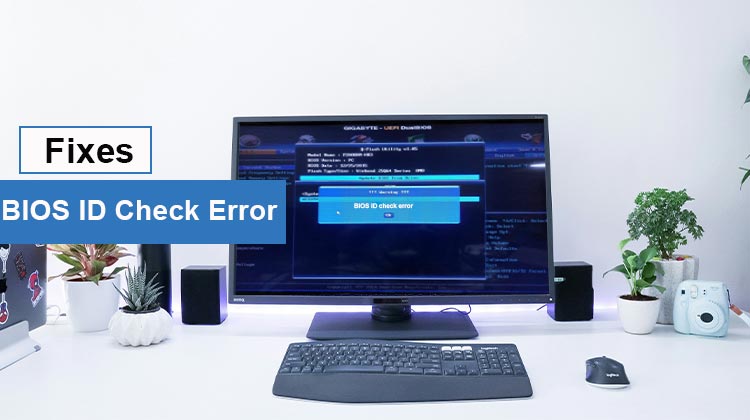
Many users have reported that BIOS ID check errors occur when updating their BIOS. What is the cause of that Gigabyte BIOS ID check error? What is the solution? Let’s now look into the solutions in this article.
Common Causes of BIOS ID Check Error
Incorrect BIOS File
The most common cause is downloading a BIOS file designed for a different motherboard model.
Wrong Motherboard Revision
Some motherboards have multiple hardware versions or revisions. Each revision may require a different BIOS file.
Manufacturer Restrictions
Laptop manufacturers often limit BIOS updates to specific models to avoid compatibility issues.
Corrupted BIOS Download
If the BIOS file was not downloaded correctly or became corrupted, the flashing tool may detect an invalid BIOS ID.
Using an Unsupported Flashing Tool
Sometimes the BIOS file must be installed using the manufacturer’s official update utility.
Also read: Kernel Data Inpage Error: 9 Easy Fixes for Windows Users
How to Fix BIOS ID Check Error
How do you fix the BIOS ID check error that occurs when upgrading the BIOS? After reviewing numerous user complaints from various community forums, we discussed six possible troubleshooting strategies. Try them out in sequence until the error is fixed.
Tips: Before you start, make sure you have a reliable internet connection. You should also remove all unnecessary peripherals.
1. Download the Correct BIOS Version According to Your Motherboard
As mentioned above, the root cause of the BIOS Update ID Check error is due to a mismatched BIOS version. Most users on the Reddit forum have reported that the issue can be resolved by downloading the correct BIOS version.
There are 3 motherboard models. If your motherboard is v1.0 or 1.1, Gigabyte v1.2. Click to download the BIOS. Once you have downloaded it, follow the guide below to flash/update the BIOS GIGABYTE
2. Reset BIOS
Resetting the BIOS to default settings may help remove certain compatibility issues. This solution has been proven by some users to be useful. Let’s give it a try.
- Completely shut off your laptop.
- Start your computer, and then hit the F2 or delete key as soon as the first screen of logs is displayed. After that, you’ll enter the BIOS.
- Find a menu item titled Restore defaults/Reset to Default or some other. If you find it, choose this option and then press the key F10 to save and close your BIOS screen. Additionally, attempt pressing the F9 key to reset the BIOS.
3. Check Your USB Flash Drive
Other causes of the Gigabyte BIOS ID check error could be a damaged or corrupted USB flash drive. Additionally, the BIOS update needs a USB formatted to FAT32. It is therefore necessary to test your USB drive. A partition management tool that can convert a USB bigger than 32GB to FAT32 and also look for drive errors.
4. Change the BIOS Boot Mode
A few users have reported that their BIOS update ID error can be solved by changing their BIOS boot mode. Let’s try it.
- Enter BIOS as we have described above, and then go to the Boot or Security tab.
- Change the BIOS default booting mode from UEFI to legacy. After that, you can activate the secure boot option.
- Press F10 and then enter the buttons to save your changes and close the window.
Also read: Getting Windows Ready Stuck? 6 Easy Fixes to Get Your PC Again
5. Reset CMOS
The CMOS memory is a tiny amount of memory located on the motherboard of a computer that holds the Basic Input/Output BIOS) settings. If you’re still encountering a BIOS ID Check error when updating your BIOS, you may consider clearing the CMOS. This procedure can restore your boards and BIOS settings to their default settings. Be careful, as improper operation could lead to damage to your motherboard or computer.
6. Check or Replace the Motherboard
If the previous BIOS ID check error fixes do not work, it may indicate a problem with the motherboard. In this instance, you’ll need to check whether your motherboard is faulty or good. If it’s not, visit a professional repair center to diagnose the problem and repair or replace the damaged motherboard if necessary
Ending Notes
In the end, fixing the BIOS ID Check Error on Windows PC is crucial to keep the system stable and functioning properly. Users can easily identify and resolve the issue by following the troubleshooting steps. Be sure to start by making simple adjustments, such as upgrading the BIOS firmware, and ensure the device is compatible with your computer.
FAQs: BIOS ID check error
What is a BIOS ID Check Error?
A BIOS ID Check Error occurs when the BIOS update file does not match the motherboard’s BIOS identification. This prevents incompatible firmware from being installed and protects the motherboard from potential damage.
Can the wrong BIOS version cause BIOS ID Check Error?
Yes. If the BIOS file is designed for a different motherboard model or revision, the system will detect the mismatch and show a BIOS ID Check Error.
How can I fix BIOS ID Check Error?
Download the correct BIOS version for your motherboard, reset BIOS settings, check the USB drive used for the update, or clear the CMOS to restore default BIOS configuration.
Does resetting BIOS fix BIOS ID Check Error?
Sometimes. Resetting BIOS can remove configuration conflicts causing the error.








Leave a comment