



There are myriad reasons an external hard drive not showing up on your Windows PC. It’s frustrating and irritating. However, you can resolve the issue by taking steps. Here, we offer various solutions to fix external hard drive errors.
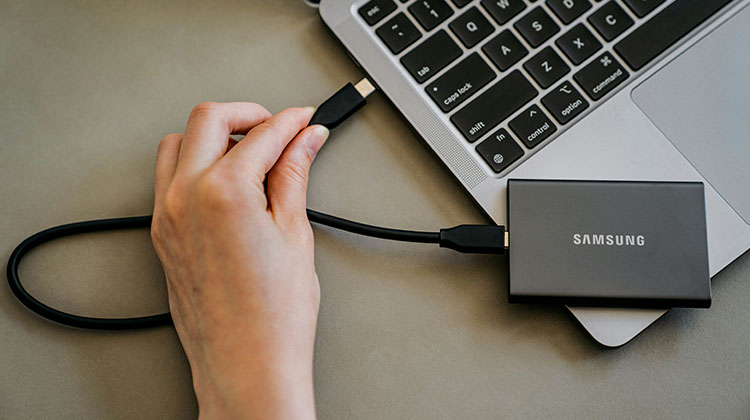
External hard drives are commonly used to expand PC storage capacity and back up Windows and data, or transfer documents between devices. You must connect the external drive to your computer, and then run operations on it.
Have you tried any of the solutions for an external hard drive not showing up in Windows 11? Before you identify the reasons for the Windows 11 external hard drive not being detected.
Common Causes of an External Hard Drive Not Showing Up
An external hard drive not showing up in Windows 11 can be caused by multiple factors. There are several reasons Windows 11 is not recognizing external hard drives, including the following.
- Faulty or non-working USB port
- The drive is hidden or not visible in File Explorer
- Outdated or corrupted device drivers
- Physical damage (drops, heat, moisture exposure)
- Insufficient power supply
- Incompatible file system
- Missing drive letter
- Unallocated or uninitialized disk
Additionally, if your external hard drive not showing up in Windows 11, you may also encounter the following error.
Also read: USB Drive Not Showing Up On Computer? 3 Easy Fixes For Windows
How to Fix an External Hard Drive Not Showing Up in Windows
1. Check the Physical Connections
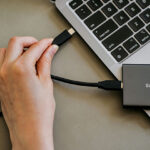
Before you look into software-related solutions, be sure to look at the physical characteristics of the connection of your external hard drive. It may seem easy, but faulty or damaged cables can cause a variety of external hard drive problems. Check that your USB cable is securely connected to both the drive and the computer. Try another USB port or a different cable to verify the issue. Sometimes, the external drives are not connected due to worn or broken cables.
2. Restart Your Computer
It might seem basic solution, but restarting your computer can often resolve the issue. Sometimes the operating system fails to recognize an external drive due to an issue or a conflict with another device connected to the computer. A PC reboot can refresh your system and fix minor issues that prevent the external hard drive from being recognized. If the problem persists, it might be time to repair the hard drive.
3. Check Disk Management
For Windows users, disk system management could be the reason. If your external hard drives are connected but not showing, they may not have a specific drive letter or be unallocated. Let’s look at how to verify:
- Click Win + X to select Disk Management.
- You will need to locate your external hard drive in the list of disks available.
- Click on the letter of your drive and choose “Change Drive Letter and Paths” if the external drive does not display its drive letter.
- Give a new drive letter. An external drive will now be displayed inside File Explorer.
- If the drive is not allocated (no partitions have been formatted), create a new partition, and formatting a new section of the drive will be necessary. This will erase everything that is stored on your drive. So make sure you take a backup.
4. Update or Reinstall Drivers
An external hard drive not showing up is due to old or corrupted drivers. The drive may not be detected when your computer isn’t running the appropriate driver, or it could be damaged.
You can resolve this issue by
- Open your Device Manager by pressing Win + X, and then choose Device Manager.
- External hard drives can be found under the “Disk Drives” section.
- Right-click the external drive to update the driver. Follow the instructions in the pop-up for the update process.
- This could increase the likelihood of repairing the external hard drive problem.
5. Test the External Drive on Another Computer
If the external hard drive is not showing up, my recommendation is to check a different computer. If it appears on a different system, your system will experience an issue. If, however, it isn’t recognized on the second computer, that means the external drive is not powered up properly. External drive repair services need to be contacted in such a situation.
Also read: 5 Free Disk Cloning Software for 2025
6. Run CHKDSK (Disk Check Tool)
The built-in tool Windows provides for fixing file system issues, that knowing as Check Disk or chkdsk. This can resolve the issue if the external hard drive has bad sectors. If the issue persists after running chkdsk, you need to use external drive repair to fix more serious hardware issues.
7. Format the External Hard Drive (Last Resort)
If none of the suggestions above failed and your external hard drive not showing up, your system’s file system may be too damaged to recover normally. If that is the case, you might need to format the external drive. In some cases, you might have to format the drive if you are in this circumstance. Be aware that formatting can eliminate all data on the drive.
Final Thoughts
To summarize this article, provide possible causes and Easy fixes for an external hard drive not showing up in Windows 11. It can be used as a reference if you encounter the same issue.
FAQs: External Hard Drive Not Showing Up
Why is my external hard drive not showing up on my computer?
This issue can occur due to several reasons, including a faulty USB cable, damaged USB port, missing drive letter, outdated drivers, or a corrupted file system. In some cases, the hard drive itself may be physically damaged.
Why does my external hard drive appear in Disk Management but not in File Explorer?
This usually happens when the drive does not have a drive letter assigned or the partition is not properly formatted. Assigning a drive letter can quickly fix this problem.
How do I fix a corrupted external hard drive?
You can try built-in tools like disk repair utilities (e.g., CHKDSK on Windows or First Aid on Mac). If the corruption is severe, professional data recovery may be required.
How can I fix an external hard drive that is not detected?
Start with basic troubleshooting, such as trying a different USB port or cable. Then check Disk Management (on Windows) or Disk Utility (on Mac) to see if the drive is recognized. Assigning a drive letter or updating drivers often resolves the issue.






Leave a comment