






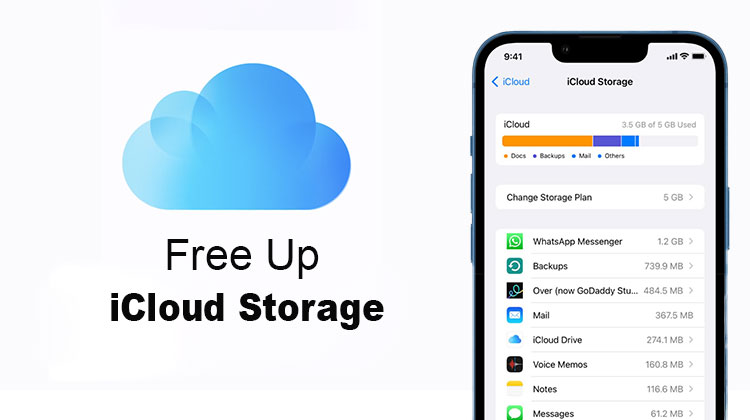
Apple provides only 5GB of free storage on iCloud, which can fill up quickly if you store photos, backups, and app data. Many users don’t want to upgrade to a paid plan, but eventually run into storage issues.
If your Apple iCloud storage is almost full, don’t worry. This blog is for you. We discuss how to free up iCloud storage without spending money.
Why Your iCloud Storage Fills Up So Fast
Before jumping into solutions, it’s important to understand what’s consuming your storage:
- Photos and videos (the largest contributor)
- Device backups
- Messages with attachments
- iCloud Drive files
- App data and sync
Most high-ranking guides emphasize one thing: you don’t need to delete everything—just manage it smarter.
How to Free Up iCloud Storage on Mac and iPhone?
1. Use a Mac Cleaner Tool
The purpose of a cleaning tool is to help you remove junk and unnecessary documents from your computer. This is a great method to clear iCloud storage on a Mac without worrying. By using this method, you can save a lot of storage. And you can do it anytime, with no issues. It is worth giving it a try, since it can provide incredible value over the long term.
Using a cleaner tool is one of the easiest ways to start when learning how to free up iCloud storage efficiently.
Also read: How to Free Up Space on iPhone: 10 Best Storage Cleanup Tips
2. Remove Old iCloud Backups
Another option is to erase older backups. The Mac will automatically upload backups to the cloud when you set it up this way. Go to your iCloud Storage overview in your system settings, and then select backups. Choose the ones you want to eliminate, delete them, and you’re in good shape. In this way, you will conserve quite a bit of space, and it’s always worthwhile.
Naturally, you could also perform this via your smartphone. The most important thing is to try to keep just 1/2 backups at a time. In most cases, you’ll have multiple backups in iCloud. This is why removing old backups is among the most efficient ways to free storage.
3. Manage and Delete Photos
It is recommended to log in to your iCloud account to see what pictures you’ve uploaded. After that, you might have to remove them fast. This may not seem like an amount initially, but managing your images could be highly beneficial. It is highly recommended to delete duplicate images and unwanted images, as there may be many storage clear.
4. Remove old Messages and Chats
You can see the iPhone iCloud storage overview, and there you will choose to control your account settings. In the Messages section, you can disable and delete chats while keeping messages from being stored in the cloud. However, it is important to back up your current messages in case you decide to save them.
5. Clean iCloud Drive Files
In iCloud Drive, you’ll need to delete some files. You can delete those big, unwanted, and unused files in the future. Most users can do this to improve the way they manage data in their iCloud solution. The reality is that it can consume quite a bit of space. At all times, it can seem sensible to clean out iCloud storage, and each small amount of clutter you delete will assist in this.
6. Remove Unused Apps and Data
Some apps might sync to iCloud, too. It is important to look for any chance to delete these apps from the cloud. In this way, you can delete iCloud storage. It makes the process simple. This is a great idea to consider, and the possibility of freeing up space in the process is more beneficial. It’s certainly one of the best ways to clear out old debris and malware, and make sure you have plenty of space in iCloud.
Also read: Why Is My iPhone So Slow? 12 Fixes to Speed Up The iPhone
7. Delete Large Files
Large files generally lead to low storage issues, particularly when storing in ICloud. For most people, it’s the massive files you could end up having to manage. If you’re thinking of deleting them or moving them to an external storage drive, you must consider this. In the final analysis, it’s crucial to analyze the file size and ensure you’re getting the greatest value and expertise. What’s important is implementing the entire process completely.
Best Practices to Maintain iCloud Storage
To avoid running out of space again:
- Review storage monthly
- Delete unnecessary files regularly
- Avoid duplicate photos
- Keep backups minimal
Consistency is key to mastering how to free up iCloud storage long-term.
Summing Up: How to Free Up iCloud Storage
We all know how challenging it is to manage iCloud storage. What is more important is how you accomplish that, and the methods you can use to clear storage.
In the end, the strategies listed above are effective and can help you free up iCloud storage easily, while also implementing procedures more efficiently. It’s a good idea to think about how to free up iCloud storage without unnecessary upgrades. Start implementing these tips today, and you’ll notice immediate improvements in your available storage.
FAQs: How to Free Up iCloud Storage
Why is my iCloud storage full even after deleting photos?
Your iCloud storage may still be full because deleted photos remain in the 'Recently Deleted' folder for 30 days. You need to permanently delete them to free up space immediately.
How to free up iCloud storage on iPhone quickly?
You can quickly free up iCloud storage by deleting old backups, removing photos and videos, clearing large files, and deleting unnecessary app data. Emptying the “Recently Deleted” folder also helps free space instantly.
How much free storage does iCloud offer?
iCloud provides 5GB of free storage for every user, which is shared across backups, photos, and app data.
How can I see what is taking up my iCloud storage?
Go to Settings → iCloud → Manage Storage to view a detailed breakdown of what’s using your storage.
Will turning off iCloud Photos free up storage?
Turning off iCloud Photos will stop syncing, but it won’t delete existing data from iCloud. You’ll need to manually delete photos to free up storage.










Leave a comment