






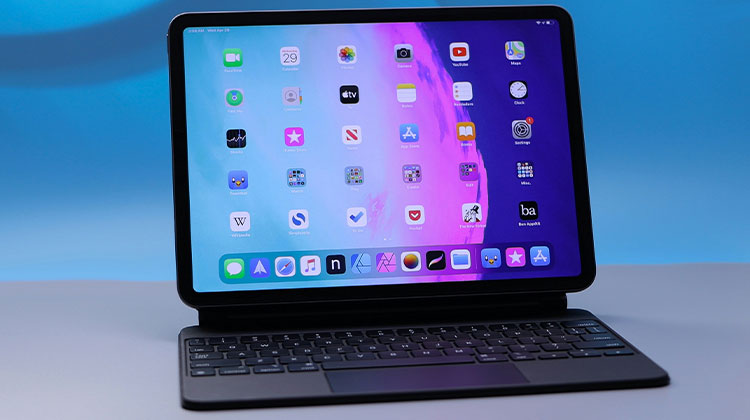
Compared to an on-screen keyboard, you may prefer the sensation of pressing the keyboard. It’s a bit similar to a computer keyboard. While you enjoy the functionality and soft feel, some iPad smart keyboard not working problems are highlighted in Apple Community.
Based on data gathered from various question and answer platforms, iPad smart keyboards, specifically the iPad Pro Smart keyboard is not responsive at times, cannot connect to the iPad, cannot be recognized, and may even cease functioning.
Why is My iPad Smart Keyboard Not Working?
Smart keyboard not working on iPad. It is caused by two factors: software issues and hardware problems. When faced with these problems. You can fix the iPad smart keyboard not working in the following article.
How to Fix iPad Smart Keyboard Not Working Issues
1. Make Sure the Device Model Is Correct
Some iPad users ignore this method when the iPad keyboard not working. But the compatibility between the iPad and iPad smart keyboard determines whether the latter can work normally. So, the first step to take if you notice your iPad smart keyboard not working is to verify compatibility.
Also read: Laptop Keyboard Not Working? 10 Easy Fixes You Can Try
2. Check Smart Connector
Unlike Bluetooth keyboards, the smart keyboard connects to your iPad via its Smart Connector, which is located on the rear of your tablet and connects to three magnets. So, you must ensure no dust or obstructions on the port, and that the smart keyboard has been securely connected to the iPad. In addition, if the connector has been damaged or is not compatible with Apple or other devices, it’s best to replace it and use a different Smart Connector.
3. Check Your Internet Connection
Certain iPad users have also reported that poor Internet connectivity could cause problems with the recognize smart keyword features. Therefore, if you’re on an unstable network, you can switch to a more stable network connection.
Try the following:
- Refresh your Wi-Fi connection
- Switch to a different network
- Enable Cellular data (if available)
- Disable VPN temporarily
To reset Wi-Fi:
- Go to Settings → Wi-Fi
- Tap your network → Forget This Network
- Reconnect or join a new network
4. Reconnect iPad Smart Keyboard
If your iPad smart keyboard has been cleaned due to being blocked by dust, disconnect it from the iPad when it is still not working. Then, connect the device to it. Pay attention to not using the keyboard included in the software, which appears on your iPad display.
5. Remove Third-Party Keyboards
To remove the third-party keyboard, which can contain viruses or bugs, you can delete external keyboards and use your Apple Smart Keyboard.
In Settings, go to the General tab, then tap Keyboards, and then locate the editing tab. Then, select the other keyboards and tap the delete icon to delete them. Verify that the iPad smart keyboard not working issue has been resolved. If you need to, try disconnecting and reconnecting the smart keyboard.
6. Force Restart iPad
It is well-known that a hard reset iPad can solve the most common iPadOS issues and fix system glitches and errors. In fact, it’s the simplest and most effective method to resolve such iPad smart keyboard not working issues. However, there’s nothing wrong with giving it a chance.
- For iPad with a Home button: First, press the Home and Power buttons simultaneously. When the Apple logo appears at the top of your screen, release both buttons.
- For iPad without a Home button: First, press the volume up button, and then release it immediately. Next Press the volume down button in the same manner. Third, press the Top button until you see the Apple logo.
Also read: How to Jailbreak iPad: Top 5 Tools You Can Use
7. Reset All Settings on iPad
If the solutions mentioned above do not fix the iPad keyboard not showing issues, resetting your iPad may be an option. While it’s not widely appreciated, the way it works, you can reset the settings on your iPad to get rid of system issues if you have backups in iTunes or iCloud.
- At first, disconnect your smart keyboard. Next, go into Settings, then select General, and then select the transfer or reset iPad option.
- Tap Reset and select “Reset All Settings,” and then enter the passcode for your iPad to confirm the operation.
- After resetting, reconnect your smart keyboard.
8. Factory Reset or Restore iPad
If you’re experiencing the iPad smart keyboard not working issue that hasn’t been resolved, then you might want to consider resetting your iPad back to its default settings. To do this, you may use the Settings program to delete iPad information or use iTunes to restore your iPad.
- Factory reset iPad by using settings: Settings – General – Transfer or Reset iPad to erase all Content and Settings.
- Restore iPad via iTunes: Connect iPad to iTunes and click the iPad icon> Summary> Restore iPad.
Final Thoughts
We hope these solutions can fix the iPad smart keyboard not working. If none of the methods work, there are likely hardware problems, whether on the iPad or a smart keyboard. You can contact Apple Support center or send your iPad and smart keyboard to your local Apple store to get assistance. If your keyboard is covered under warranty, you can iPad smart keyboard not working issue fixed by an experienced technician at no cost.
FAQs: iPad Smart Keyboard Not Working
Why is my iPad Smart Keyboard not responding?
It may be due to software glitches, a dirty Smart Connector, compatibility issues, or hardware damage.
How do I fix an unresponsive keyboard on my iPad?
Restart your iPad, reconnect the keyboard, clean the connector, update iPadOS, or reset settings.
Does the iPad Smart Keyboard use Bluetooth?
No, the Smart Keyboard from Apple connects through the Smart Connector and does not require Bluetooth or charging.
Can I use any Smart Keyboard with any iPad?
No, Smart Keyboards are model-specific. You must use a keyboard compatible with your iPad model.








Leave a comment