






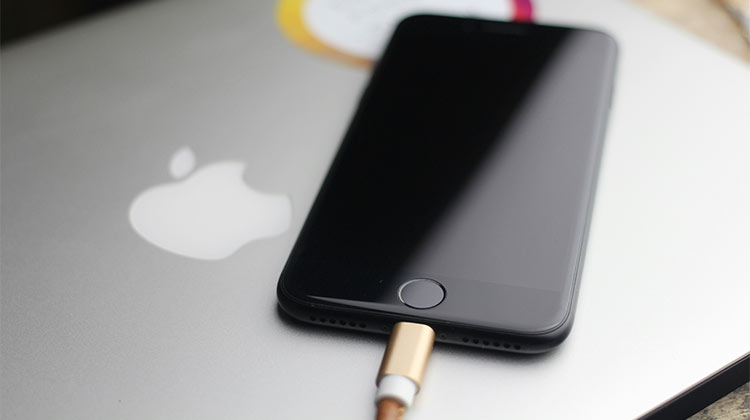
If your iPhone does not charge when you plug in the charger, you’ve encountered a major issue. We’re not going to lie that there could be simple solutions; however, it could be as serious and expensive as a defective battery. Here is a list of possible solutions to consider if your iPhone not charging.
Why Is My iPhone Not Charging? Possible Reasons
1. Damaged Charging Cable or Adapter
Wear and tear are inevitable in the long-term, so this is a good candidate. Your cable could be suffering from a split or heat damage caused by the electricity that flows through it. The prongs of your adapter plug can, in turn, have been bent when they’ve been slipping into and out of sockets in the wrong direction. If your iPhone not charging, you should stop using broken accessories right away and buy replacements.
2. Loose Connection Between the Charger and the Phone
An iPhone not charging issue seems obvious, but it’s important not to overlook it. Maybe your cable isn’t fitting perfectly into its socket, or a cable isn’t connected to your adapter properly, or your iPhone. This is often the case when you own an iPhone case with a poorly designed cutout. Loose Connectors can block a lot or none of the electricity from flowing.
Also read: AirPods Case Not Charging? 6 Quick Fixes for Apple Users
3. Your iPhone Doesn’t Support Wireless Charging
Wireless charging is popular right now. However, if you own an iPhone earlier than that, the charging pads don’t work — or anything that uses MagSafe to charge an iPhone.
4. Dust or Debris Inside the Charging Port
If you’re in the habit of putting your iPhone in your purse or pocket without a sealed case, it’s not uncommon for debris, dust, or any other materials to accumulate inside the charging ports. iPhone not charging due to a blocked charging port.
5. Optimized Battery Charging Stops at 80%
When Apple released iOS 13, it introduced the feature known as optimized battery charging. It helps increase your battery life by stopping charging at 80% when it is predicted that the iPhone is charging for a long time — for example, if you often keep your iPhone on during work.
When the feature is activated, an iPhone will charge only to 100% within a few minutes after the predicted period; therefore, if your iPhone is still at 80%, that’s likely the reason. You can turn off this feature by going to Settings menu > Battery Health and charging.
6. Charging From a Computer in Sleep Mode
When you connect your iPhone to the laptop’s USB port, it might not be able to do anything when the computer remains in sleep mode. This can be solved by adjusting the settings to keep your computer active, and fix the iPhone not charging issue when charging from a MacBook.
7. Outdated iOS Software
It’s unlikely, but occasionally an iOS update can solve bugs or issues that slow iPhone charging. Apple-certified accessories typically use an “handshake” with iOS, for instance, and if the handshake isn’t acknowledged, the iPhone may block charging when the device would function.
Also read: Why Is My iPhone So Slow? 12 Fixes to Speed Up The iPhone
8. Hardware Issue
If your iPhone battery not charging, you may experience internal iPhone damage or degradation, depending on whether the battery or a different component is at fault. Apple may be able to fix some problems; however, in this scenario, you might require a new phone.
How to Solve Your iPhone Not Charging Issue?
It’s time to solve iPhone charging issues. Here are a few possible ways to fix iPhone not charging issues.
1. Check Your Charging Cable and plug
Use your charging cable to take it to the maximum length. You can now slowly slide your fingers across it, looking for any cracks within the coat. Check your charging ports. Do you see any damage? Are any of the cables damaged or burnt? Does the cable appear to be becoming brown because the electricity is burning it? These are all indications that a cable is damaged and your iPhone not charging properly.
It is easy to purchase new cables from the Apple Store or Apple’s website. There are also plenty of third-party alternatives from companies such as Anker, AmazonBasics, Belkin, and Mophie, which are significantly less expensive. Be sure to stick with major brands, but be aware that unofficial cables can (sometimes) cause danger or even break fast.
2. Restart Your iPhone
If the cable is in good condition but your iPhone won’t charge, try restarting your iPhone for a few minutes and observe if it helps. If you’re not in the habit of restarting the phone (and who is nowadays? ), then a simple reboot can do miracles.
This option isn’t a viable one when the battery is dead. Also, don’t think about it when the battery is 5percent or less. You might not be able to put it back up.
3. Try Using a Different Charger
Even if you own an iPhone that supports wireless charging, this feature may not be functioning, so your iPhone will not charge. This could be due to an alignment issue, a glitch on your phone, or a problem with the charging pad. Wireless charging is a great option.
4. Clean the Charging Port
Shake your iPhone, and check if any debris has fallen out in the charging port. Then, blow into the socket or use a toothpick to clean it and see if you can remove everything. This can fix the iPhone not charging issue. Try using compressed air to remove dust and blockage. However, aim it at an angle so you don’t risk liquid getting into the port.
5. Check Your Computer’s Status if You Are Charging Your iPhone From It
The iPhone can be charged via a laptop or desktop computer. However, that computer typically must be awake throughout the entire process. When it enters sleep mode, it will stop charging the iPhone.
As stated, you’ll have to open the settings menu and turn off sleep, at the very least, until charging is completed. It’s not advised to keep sleeping off for a long time, since it could affect your computer’s overall performance. For Windows, go to Settings > System > Power and Battery > Sleep and screens.
If you’re a Mac user, you can go into System Updates > Battery and Power Adapter and then turn the display off after the bar until it’s never. Also, uncheck the option to stop your Mac from automatically shutting down while the display is off.
Also read: iPhone Touch Screen Not working? Try These 11 Quick Fixes
6. Check for iOS Software Updates
It’s a simple thing to accomplish, but it could be time-consuming. On your iPhone, open Settings > General> Software Update. If you can find any available (non-beta) downloads, you ought to consider installing them, but most likely not if you need to use your iPhone for the next 30 to 45 minutes, or the phone is already running low on battery. If that’s the case, think about other options first.
7. Reset and Restore Your iPhone
The final option to consider before scheduling an appointment for an iPhone not charging issue is to restore the iPhone to its original settings. There’s a chance that a glitch or setting is interfering with the settings, and you’re not likely to discover the issue until you erase and reset the entire device.
It is possible to restore your iTunes backup. However, an important thing to keep in mind is that you might be reinstalling an issue, and you’ll be back to square one. While it’s not a bad idea to rule restoring out, it could be a good time to start from scratch. Naturally, you should back up your data, photos, calendars, contacts, and emails first. At the very least, you should back them up to iCloud or your personal computer and to other cloud services such as Google Drive or Dropbox.
Visit an Apple Store or a Trusted Repair Shop
If none of these solutions fix iPhone not charging, you are dealing with an internal hardware issue. It is recommended to visit the Apple Store or an authorized Apple repair facility to have the iPhone evaluated. They will be able to open it and identify the problem and, if needed, replace the battery. However, they could inform you that your device is at the end of its lifespan and you should consider replacing the battery.
FAQs: iPhone Not Charging
Why is my iPhone not charging when plugged in?
Your iPhone may not charge due to a damaged cable, debris in the charging port, or a faulty power source. Checking the charger and cleaning the port often solves the issue.
Why is my iPhone not charging from my Macbook?
Your iPhone may not charge if the Macbook is in sleep mode or the USB port is not supplying enough power.
Why is my iPhone charging slowly?
Slow charging may happen because of a low-power charger, background apps, overheating, or poor battery health.
How do I fix my iPhone not charging after getting wet?
If your iPhone is not charging after water exposure, disconnect the charger and let the phone dry for several hours before attempting to charge it again.









Leave a comment