







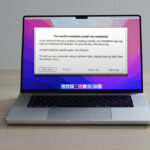
A non-responsive Mac means the Mac won’t turn on press the power button. There is no startup chime, moving fan, or drive sound. There are no visible images on your display. Your Mac appears dead.
If you suddenly encounter an issue, your MacBook Pro or Mac does not turn on and shows a black screen when you press the power button. If your macOS doesn’t start up at all, as it is getting stuck in the Apple logo, or is taking too long to complete loading.
Common Reasons Why Your MacBook Won’t Turn On
There are several reasons your MacBook won’t turn on and load correctly. We suggest some steps to make your Mac usable, particularly when your MacBook won’t turn on but is charging correctly.
- Drained or faulty battery
- Damaged charger or power adapter
- Problematic external devices are connected
- macOS startup or software issues
- Hardware problems like the logic board or display issues
Also read: Why Is My MacBook So Slow? 10 Tips to Speed Up MacBook
How to Fix MacBook Won’t Turn On Issue
If your MacBook won’t turn on, try the following methods to fix it
1. Disconnect All External Devices
During the power-on procedure, an extensive hardware check is conducted, analyzing internal components and external devices that are connected to your computer. A defective accessory could cause your MacBook to not turn on. Usually, the issue is an accessory with poor contact or a short circuit.
You’ll be required to disconnect all external devices connected to your computer, such as printer cables, external disks, external cables, HDMI cables, USB cables, second screen, Magsafe charger, mouse, and so on. Press the power or the Touch ID button on your MacBook again.
This process should work on all Apple Silicon and Intel-based Mac Models (MacBook Pro, MacBook Air, Mac Pro, Mac Mini, and iMac).
If, after all this effort, your Mac does not turn on, we’ll move on to the next step and restart the SMC.
2. Reset the SMC (For Intel-Based Macs)
If your MacBook Pro won’t turn on but is charging, check the SMC, which controls the entire MacBook power-on process. If the SMC hasn’t received power or has failed to provide a power supply to the device circuit, the MacBook won’t turn on.
Reset the SMC on the MacBook that has a non-removable battery:
- Stop completely shutting down your Mac with the power button or Touch ID button for 10 seconds.
Power Your Mac with an efficient power adapter. - Press the shift + control + option keys using your left hand, and then press the power button or Touch ID button on your right hand for 10 minutes.
- Get rid of all keys.
- Click the power button or Touch ID button to see if the issue has been solved.
Reset the SMC on a MacBook that has a removable battery:
- Completely shut down your Mac using the power button or the Touch ID button for 10 minutes.
Take the battery out of your MacBook. - Wait a few seconds until the battery has completely depleted.
- Install the battery in your MacBook and then turn it on again
- This approach, with the same steps, is also applicable to Mac desktops, so you can test this method
If a System Management Controller (SMC) reset doesn’t solve the MacBook won’t turn on issue, follow the steps below to test the following method.
3. Charge the MacBook for a Few Minutes
If you’ve not used the MacBook for a long time or the power adapter and battery are damaged or dead, the MacBook won’t turn on.
In this case, your MacBook not powering on after charging with its power adapter; some models require a minimum battery charge to activate the System Management Controller (SMC). We recommend waiting some time until your battery’s power has reached the minimum.
Press the power button or Touch ID button to check whether your MacBook is powered on. If it doesn’t, the MacBook Pro won’t turn on. Try the following to force start the Mac.
4. Perform a Power Cycle (Intel Macs)
If your MacBook isn’t responding to the power button presses or lid-openings, you could conduct a power cycle to cut the power supply to it and force a restart of the Mac.
For Mac, you must hold down the Power button or Touch ID button for 10 minutes. If you’re using an internal hard drive that is spinning, it will sound like an eerie click. If you own a solid-state drive, then you will not hear any sound.
On a MacBook, you can disconnect the power cable for 10-second intervals before plugging in power.
This will cause the Mac to revert to its Off state and then restart. If you are unable to resolve the issue with the Mac not restarting.
Also read: PS5 Not Turning On? 8 Easy Fixes to Get It Working
5. Check the Display Brightness or Connect an External Monitor
If you’re not seeing any videos or images on the screen, your MacBook won’t turn on at times because you’ve decreased the monitor brightness to its lowest level without realizing it.
Press the brightness-up button several times on your keyboard, or on the Touch Bar on the latest MacBook Pro models, to increase the screen brightness.
Additionally, you can use the caps lock key to ensure that your Mac is running if your light turns on. If you see a dim image or no image appears on your screen, your Mac is likely experiencing a backlight problem.
The ability to connect an external display to your Mac will let you use the Mac while your original monitor is being repaired.
6. Contact Apple Support and Visit Apple Store
If the MacBook won’t turn on after trying all these methods. Contacting the local Apple Stores, Apple Authorized Service Providers, or local third-party computer repair shops for assistance.
The expert repairers will be able to identify the problem and fix or replace damaged components.
It could be expensive, so make sure to verify your MacBook warranty. If it is under warranty, you can get a free quote first.
FAQs: MacBook Won’t Turn On
Why won’t my MacBook turn on even when it’s charging?
Your MacBook may not turn on due to a drained battery, faulty charger, power management issue, or internal hardware problem.
What should I do first if my MacBook won’t turn on?
Connect the charger, wait a few minutes, and press the power button again.
Why is my MacBook stuck on the Apple logo?
It usually indicates a macOS startup problem or disk issue.
Can macOS corruption prevent the MacBook from starting?
Yes, damaged system files can stop macOS from loading properly.





Leave a comment