





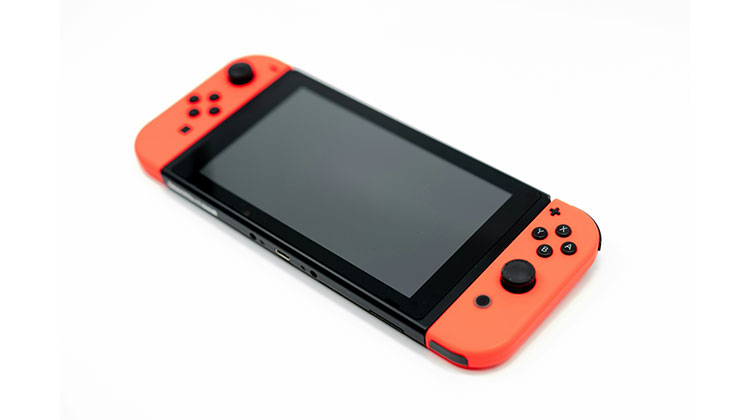
Like all electronic devices, the Switch isn’t flawless in either its software or hardware, and while problems with either should not occur often, they can happen. If your Nintendo Switch won’t turn on or is not charging, there are a few options to help you without hassle.
Common Reasons Why Your Nintendo Switch Won’t Turn On
Before jumping into fixes, it helps to understand why my Nintendo Switch won’t turn on:
- Fully drained battery
- Faulty charging cable or adapter
- System freeze or software crash
- Dock-related power issues
- Overheating or hardware protection mode
- Physical damage or internal hardware failure
Let’s troubleshoot from the simplest fixes to more advanced steps.
Also read: PS5 Not Turning On? 8 Easy Fixes to Get It Working
6 Ways to Fix Nintendo Switch Won’t Turn On
If your console was performing well, but suddenly turned off, there are some things you can try to fix your Nintendo Switch won’t power on.
1. Charge the Console Properly
It’s not that complicated, but we’re all at risk of not realizing it was because the Switch did not have the battery capacity we believed. The screen is likely to blink, showing a charge indicator, letting you know that it’s due for charging. If it’s empty, it won’t have the power to complete that. Charge it using an official Nintendo Switch Power Adapter that was included with the console, and keep it charged for at least one hour. You’ll be amazed that your Nintendo Switch won’t turn on issue will be solved.
2. Perform a Hard Reset
If the above method does not fix the Nintendo Switch won’t turn on issue whatsoever, then the next step is to reset the console completely. This can be done by pressing the power button located on the upper part of your console for about 12 seconds, or for 15 if your second count feature does not meet your expectations. Release the power button from your fingers, and then press it one time like you normally would to turn on the console. If all goes well, things should work as you like them to.
Nintendo Switch Won’t Charge
If your console isn’t taking or retaining a charge, there are a few options you could try before resorting to other options.
3. Use the Official Nintendo Charger
The Switch recharges using a nonstandard protocol, which means that if you’re using an unofficial charger, this could be the reason for Nintendo Switch not charging issues. There are many excellent third-party adapters available; however, we cannot guarantee their safety or reliability. We can recommend using the official charger.
4. Power-Cycle the Adapter
It’s absurd. It’s not, but there’s an astonishing number of gubbins within the power adapter you have. Remove it from your Switch and the wall, and put it aside for 30-60 seconds. This will reset the adapter and get things up properly. Before you try it.
5. Check for Damage
Is the Nintendo Switch in good condition? The power adapter in the official version is fairly robust; however, it’s not totally invincible. Examine the USB-C connector for bent pins, which might not make good contact.
Check cables for signs of fraying since this could cause the cable to shorten (very dangerous), and just as easy as it may sound, make sure there aren’t any cracks or buckles on the wall adapter’s side (genuine fire hazard). If you notice any issues, do not use the adapter as it can put you at risk. Replace it with a different authentic adapter and check whether a brand-new adapter resolves the problem.
6. Leave It Charging Longer
If the battery is depleted, it will need to be recharged slowly due to security reasons. If your console has run out of charge and you plug it into a charger, it’ll be usable within a matter of minutes. When it’s been sitting for a long time, or even for months with no charge, it may take a while to get a response from it.
It should be left on charge (supervised) for at least two hours. However, you should leave it on for a longer time if it isn’t showing any signs of existence. If, after 12-24 hours, you haven’t been able to get it working after trying to switch it on, attempt a reset, as described above, as a last effort to start things up.
Also read: Why Is My Xbox Controller Blinking? 10 Easy Fixes To Try
Contact Nintendo Support
If the Nintendo Switch won’t turn on during warranty time, “Nintendo will repair or replace the defective hardware product or component, free of charge.” Users can arrange repair requests through Nintendo’s client support site or contact the hotline for consumer assistance by dialing 1 (800) 253-3700. This would be the best option if none of the above steps solve the Nintendo Switch not turning on issue, as taking any action to replace damaged parts yourself or through a non-Nintendo-certified shop will void an active warranty.
Conclusion
We hope this article has been helpful for fixing Nintendo Switch won’t turn on issues. If none of the troubleshooting steps work, contacting Nintendo Support is the best option.
FAQs: Nintendo Switch won’t turn on
Why won’t my Nintendo Switch turn on even after charging?
If your Nintendo Switch won't turn on after charging, the battery may be completely drained or the system may be frozen. Leave it connected to the official charger for at least 1–2 hours, then perform a hard reset by holding the Power button for 12–15 seconds.
My Nintendo Switch screen is black, but I hear sound. What’s wrong?
If you hear sound but see nothing, the console is on, but the screen may be damaged or frozen. Try increasing brightness or restarting the system. If the issue persists, the display may need repair.
Does a hard reset delete data on Nintendo Switch?
No. A hard reset only forces the system to restart. It does not delete games, save data, or user profiles.
My Nintendo Switch won't turn on after being unused for months. What should I do?
This is a common issue due to battery discharge. Plug it into the official charger and leave it charging for several hours. Then perform a hard reset to wake the system.




Leave a comment