






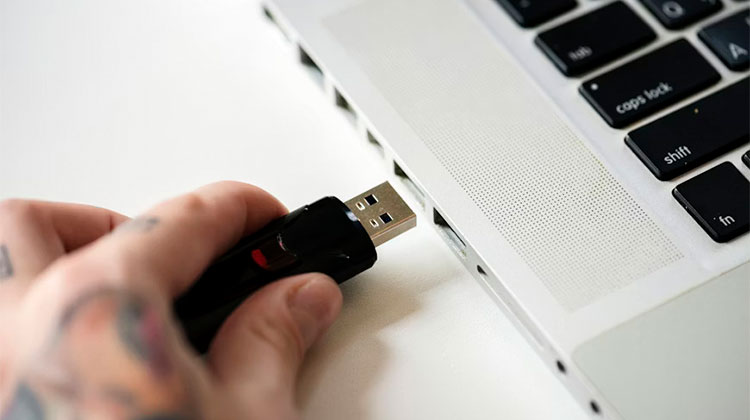
Sometimes, you’ll be able to connect the USB device to your PC via a USB port only to find the USB drive not showing up on Windows 10/11. This issue could result from partition problems on your drive, an incorrect file system, damaged USB ports, drive issues, or other.
A final point: you should not make any modifications to your drive. If you add additional items to it or reformat it, then your data will be erased or overwritten. deleted. Then, you’ll be lost forever.
Check out the article below, and I’ll guide you on how to resolve a USB drive not showing up in a Windows laptop.
Why Is My USB Drive Not Showing Up in the computer?
Before fixing a USB drive not showing up, it is important to understand what might be causing it. A USB drive may fail to appear due to several reasons, including:
- Faulty USB ports
- Outdated or corrupted USB drivers
- Missing or unassigned drive letter
- File system corruption
- USB drive not initialized
- Physical damage to the USB device
Sometimes the problem is minor, such as a loose connection, while in other cases it may involve system configuration or USB driver issues.
Also read: Laptop Not Turning On? 10 Easy Troubleshooting Steps to Try
3 Methods to Fix USB Drive Not Showing Up
Here are three solutions for a USB drive not showing up.
1. Fix USB Flash Drive Not Showing up in Disk Management
Option 1. Check USB ports
- Connect the flash drive to a USB port. Use Win+R to open the Run window. Type diskmgmt.msc in the box, and then click “OK” to open Disk Management. Check if the drive is listed here. Sometimes, it is listed as removable. If it does not contain any partitions, you can still see an unallocated space.
- Connect it to another USB port if your USB drive not recognized in Windows. If it is detected, the USB port is dead. Connect it to several computers. If all computers fail to recognize the drive, then it’s dead.
- If your USB drive is listed in Disk Management, create a new volume using Disk Management if it is marked as unallocated space. If you right-click the unallocated space, select the New Simple Volume option from the context menu, and then follow the instructions in the wizard to complete the remaining steps.
Option 2. Assign a Drive Letter
If you find your USB drive letter isn’t appearing, and you assign a new drive letter to your USB drive. That’s to say your hard drive can be partitioned, it does not have a drive letter, and you can not see it in Windows Explorer. If you right-click on your drive, select Change Drive Letter and Path, and select to add the drive letter to the USB thumb drive.
Option 3. Format the USB Drive
If you can see the drive, but cannot access it, then try formatting it. If you right-click on the drive, choose format from the options, and select the file system. Then click OK to begin the process.
Use a Third-Party Tool to Format a USB Drive
Additionally, you can format your partition using a partition management software. With it, you can format partitions without difficulty. Additionally, the ability to use the program to create partitions and change the drive letter, alter the file system, etc.
Some of the most popular options:
- AOMEI Partition Assistant
- MiniTool Partition Wizard
- EaseUS Partition Master
- Paragon Partition Manager
- GParted
Option 4. Clean the USB Drive Using Diskpart
If you can see the drive, but can not format it using Disk Management, you can use CMD. This could be due to the partition scheme being messy within the disk. Open cmd and enter diskpart, list disk, and select disk n(n is the number of disks on the flash drive) > clean in the command prompt window. After that, press the Enter key.
2. Fix USB Drive Not Showing in Device Manager
If you can observe UBS flash drives in other computers, suggest that your computer might have a driver problem. This is one of the main reasons the USB drive not showing up on Windows 7/8/10.
- Enter devmgmt.msc into the Run box, then click OK to open Device Manager. Select the “Action” tab at the top and then click Scan for hardware changes.
- Expand Disk drives and look for devices with a yellow mark. Right-click on the device, followed by a yellow exclamation mark, choose Properties, and view an error message that includes more details.
- Select the Driver tab and test the options, including Update driver, Roll Reverse driver, and Uninstall. Then, verify whether the USB drive shows in the system.
Also read: 5 Free Disk Cloning Software for 2025
3. Use System Restore
If the USB drive not showing up, try restoring from a system restore point. It will return your computer to its previous state. Here, I’ll explain how to restore your system using restoration points in Windows 7. If your system is Windows 11/10/8 the interface may be slightly different.
- Type the word “system restore” in the search box, then open it.
- Choose the restore point. Recommended restore that includes the most recent restore point. You can select it to begin the pending process. If it’s not working, then you click Choose a different restore point and follow the wizard to complete all steps.
- Connect your drive to the internet and check whether it is recognized.
Ending Notes
If your USB drive not showing up on your computer, verify that it is accessible in Disk Management. You can then apply the various methods discussed in this post. If none of the methods to fix your USB drive not showing up, then the USB may be physically damaged. It is possible to take it to a local repair shop to be repaired and replaced with a new USB flash drive.
FAQs: USB Drive Not Showing Up
Why is my USB detected but not showing in File Explorer?
If your USB drive is detected but not visible in File Explorer, it may not have a drive letter assigned. You can fix this by assigning a new drive letter through Disk Management.
Why is my USB drive not showing up in Disk Management?
If the USB drive does not appear in Disk Management, it may indicate a hardware issue, damaged USB port, faulty cable, or a completely failed USB device.
How do I fix a corrupted USB flash drive?
You can repair a corrupted USB drive using tools like CHKDSK, Disk Management, or third-party partition management software.
How do I recover a USB drive that shows as unallocated?
If your USB drive shows as unallocated space in Disk Management, you can create a new volume by right-clicking the unallocated space and selecting New Simple Volume, then follow the setup wizard.






Leave a comment