






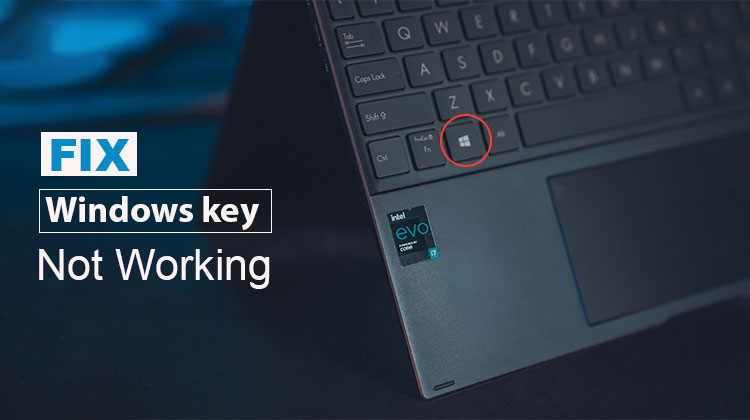
One of the reasons why people use Windows is the ease of use. It is the reason it has occupied 70 percent in the OS market, which includes desktops, Laptops, and certain tablets. There are several reasons the Windows key not working.
What Is the Windows Key Not Working Issue
A computer keyboard is brimming with interesting keys. One of them is the Windows button that allows users to access the Start menu with a single keystroke. It can also provide other options using combination keys like CTRL or ALT, or Shift, which allows you to switch between folders, files, and applications.
However, when the Windows key not functioning, users can’t complete any of those actions. You are not only incapable of opening the Start menu fast and easily, but you are also unable to switch between Windows desktops, and so on.
Therefore, people will want different solutions for the Windows key not working. We’ll continue to discover the solution.
Why isn’t my Windows Key Working
There are many possible reasons why the Windows key not working. According to some experts, it could be due to malware or an easy setting that is disabled in your computer. In other instances, companies make keyboards that block Windows keys when in gaming mode.
To summarize, the point is that your Windows button stopped working due to:
- Windows has disabled it.
- The keyboard has been locked (usual situation on Corsair, Razer, and other gaming keyboards)
- A virus or malware attack could have stopped it
- A service or app has been blocked
- Windows 10/11 Game Mode/Xbox Game bar disabling it
- Your keyboard is damaged
They are the main reasons the Windows key not working. Other scenarios could be an issue with Windows. We’ll continue to discover how to resolve it.
Also read: Laptop Touchpad Not Working? 4 Simple Ways to Fix It
How to Fix Windows Key Not Working Issue
Keyboard shortcuts enable users to complete tasks in a short time. The Windows button is among the most efficient keyboard shortcuts, or even a single key. However, users encountered issues with the Windows button not working. What causes that to occur? Additionally, how do you fix the Windows key not working? Let’s look into it.
1. Turn Off Filter Keys
The first step is to disable filter keys. For this, go to the control panel and disable the filter keys. Here’s how:
- Enter the “Control Panel”.
- Find “Ease of Access” in the search bar.
- Head into “Ease of Access” and find the “Make the keyboard easier to use the option.
- Scroll down, and uncheck the Turn on Filter Keys.
- Press Apply, then click OK.
This resolves the issue if this option is enabled in the first place. If the option is not solved the Windows key not working issue, you can proceed to the next step
2. Registry Editor Fix
This method will take you to a specific area of the registry editor. Thus, you must add the directory to your registry. Here’s how:
- Start by opening “Registry Editor” as an administrator.
- Enter the address below in the Registry Editor’s Bar. “HKEY_LOCAL_MACHINE\SYSTEM\CurrentControlSet\Control\Keyboard Layout”
- Locate and remove your Scancode Map key.
It’s likely to fix the issue, as games usually create this registry key to prevent Windows keys from interfering. If the Windows key does not work or you do not have the critical entry, move to the next step.
3. Disable Game Mode
The next steps turn off game mode. This usually happens when you open the Xbox Game Bar on your PC. But disabling it is fairly simple. Here’s how:
- Enter your system’s settings.
- Locate “Gaming” and click on it.
- Go to the sidebar and find Game Mode.
- Toggle “Game Mode Off” and Disable It.
By disabling it, you can stop Windows settings from preventing the Windows key. However, if the problem persists, try the following solution.
4. PowerShell Command
Windows PowerShell is one of the essential elements of Windows. It lets you resolve issues that might otherwise appear to be irreparable. This is how you can use this to repair it:
- Click the Start menu button and find PowerShell
- Open PowerShell as Administrator
- In PowerShell, copy and paste this command.
“Get-AppXPackage -AllUsers | Foreach {Add-AppxPackage -DisableDevelopmentMode -Register “$($_.InstallLocation) \AppXManifest.xml”}”
- Then press the Enter key, and wait for it to be completed.
Based on your computer and internet speed, this could take a couple of minutes. If you’re still having trouble with the Windows Key not working, then try the following steps.
5. Perform An SFC Scan
The SFC scannow command can help you find corrupted files on Windows 10/11. Here’s how you can apply this technique:
- Open CMD as an administrator.
- Type ” SFC /scannow” and hit enter.
This could take a moment or two, based on the speed of your PC. After completing the process, restart your computer and verify that the Windows key works.
6. Create a new User Account
Sometimes, a simple thing such as an account on a user’s computer could be the cause. So, must try to create a new account. Here’s how:
- Click on “Settings” and go to”Accounts”.
- On the sidebar, search and click “Family & other users”.
- Select “Add someone else to this PC”.
- Select “I don’t have this person’s sign-in information”.
- Click “Add a user without a Microsoft Account”.
- Enter your username and password.
After the user has been created, sign out of the account or restart your computer. Sign in as the new user and check whether the Windows key works. If it does, remove the previous users.
7. Use the DISM Command
A damaged Windows or corrupted system files are another possible reason why the Windows key not working. Therefore, you should get help from Dism to identify and repair any corrupted files. Here’s how:
- CMD as administrator. CMD as administrator
- Enter the following command: “Dism /Online /Cleanup-Image /StartComponentCleanup, Dism /Online /Cleanup-Image /RestoreHealth.”
- Press the enter button
The replacement of missing files will repair/reinstall damaged Windows applications, services, or files. This will fix the problem. If it continues, move to the next stage.
Also read: Laptop Keyboard Not Working? 10 Easy Fixes You Can Try
8. Check Keyboard Layout For the Windows Lock Key
If you own a gaming keyboard that has a Windows key lock button. It could also contain a shortcut to stop the Windows button from functioning. Here is an example:
What you will see here is that the Corsair Windows key allows you lock off the Windows button. So, you won’t accidentally toggle the start menu while playing games. If the menu is red as shown in the image, you can try pushing it to switch it back off.
Different keyboards may include distinct keys. Some keyboards require that you use the FN+ Windows button to unlock or lock the Windows button. Also, ensure that your keyboard layout includes keys or alternatives similar to those.
9. Unplug & Plug it Back In
Gaming keyboards can also tend to store their memories. They can remember lighting settings and other shortcuts, like macro keys. This is why you’ll need to accomplish:
- Unplug the keyboard.
- Untangle the wire
- Restart the PC
- Reconnect it
This may solve the issue if your keyboard’s driver isn’t working properly. If not, it’s more than likely that your keyboard is experiencing a hardware issue.
10. Try Another Keyboard/Replace Your Keyboard
Find a new keyboard or ask your friend to borrow one if all other options fail. If the new keyboard is equipped with a Windows button working, the problem is a result of your earlier faulty keyboard. If your keyboard is under warranty, you should try to claim the warranty.
11. Replace the Mechanical Key
Although you won’t be able to fix the malfunctioning Windows button, there are mechanical keyboards that allow you change specific keys. If you’d like, you can replace a key with a different one. Here’s how:
- Remove the caps of the Windows button.
- Find the mechanical key using a pair of tweezers and take it out.
- Pull another key in the same manner. Try pulling keys from the Numeric Pad or another key you do not typically use.
- Replace the key you pulled out.
- Try to press the start button now.
If this method is successful and you can use it, then the particular mechanical key is the problem. So, you need to purchase a specific key, not the entire keyboard.
Wrapping Up: Windows Key Not Working Fixes
The most common solutions to fix your Windows key not working issue. In most instances, the problem is more dependent on software than hardware. Because if the hardware for the keyboard fails, then it will not function again.
However, there are always exceptions. The best way to discover this is by trying these 11 techniques. Try each one until you fix the Windows key not working issue.
FAQs: Windows Key Not Working
Why is the Windows key not working on my gaming keyboard?
Many gaming keyboards have a Windows lock feature or FN shortcut that disables the key. Check your keyboard manual or software settings.
How do I fix the Windows key not working on Windows 10/11?
You can fix the Windows key not working issue by turning off Filter Keys, disabling Game Mode, running SFC and DISM commands, checking the registry, or reconnecting or replacing your keyboard.
Can I disable and enable the Windows key?
Yes, the Windows key can be disabled or enabled through the Registry Editor, Group Policy, or keyboard software settings on gaming keyboards.
Why does the Windows key work sometimes and not always?
Intermittent issues may be caused by loose keyboard connections, background apps interfering, driver problems, or early signs of hardware failure.
Can I open the Start menu if the Windows key is not working?
Yes, press Ctrl + Esc to open the Start menu as an alternative shortcut.







Leave a comment