





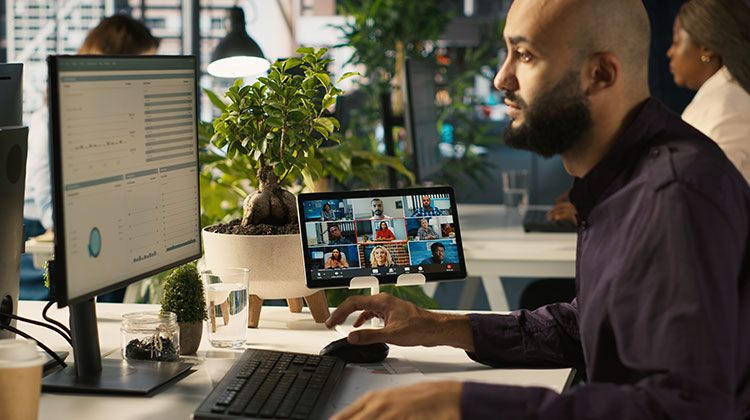
We’ve compiled a list of the best Free Remote Desktop software that makes it simple and easy to connect to your PC without a subscription.
Remote Desktop software can be crucial for updating your software or files in the field, during non-office hours, or when working remotely. It can also be made available to remote workers to ensure a secure and safe connection to your company network.
Based on the software you are using, you may need to install it on both the computer you want to remotely access, also known as the host, and also on the machine you access it from, often referred to as the client. Other programs may require installation on the host.
We have tested the software and selected the best free remote desktop software that you can install and use right now. Below is a list of the best free remote control software programs currently available.
7 Best Free Remote Desktop Software for 2026
1. TeamViewer
TeamViewer is a remote control solution for millions of people, and the company is introducing and enhancing new features. It is available with paid subscriptions and an excellent free version that can be useful for personal use.
It is compatible with a variety of operating systems, including Windows, macOS, Linux, Android, and iOS/iPad. This means it’s not just compatible with all desktops, but also with the entire mobile operating system. It is also compatible with top web browsers such as Chrome, Firefox, Opera, and Edge.
You can also connect to your private devices and assist clients in getting on board by providing them with guidance remotely, even when you’re not with them.
Pros:
- Supports multiple platforms
- Easy setup and intuitive interface
- Strong security with encryption
- Remote printing and file transfer
Cons:
- Free version limited to personal use
- Commercial detection may restrict access
Also read: Top 10 Free WiFi Calling Apps: Make Calls Without a Phone Plan
2. AnyDesk Remote
AnyDesk has been in existence since its launch in 2015. Then, it was time to introduce version 7, which offers a simple user experience. The desktop layout is more streamlined, and the tools for the session are tucked away within a clean toolbar.
It’s extremely useful for individual users and IT teams since it supports Windows and Mac, and mobile devices. Additionally, it comes with an inbuilt file manager to facilitate the file transfer between remote and host computers more simply, although there’s no prerequisite for the drag-and-drop process.
For organizational purposes, it has an address book that maintains a record of all computers accessed remotely. Furthermore, it offers a range of collaboration tools like a text chatbox and a virtual whiteboard, and the capability to invite others to join the network, making it ideal for situations support.
Pros:
- Lightweight and fast with low latency
- Cross-platform support (Windows, macOS, Linux, Android, iOS)
- Built-in file manager for easy file transfer
- Collaboration tools: chat, virtual whiteboard, address book
Cons:
- Some advanced features require a paid version
- Free version not intended for commercial use
3. Chrome Remote Desktop
Chrome Remote Desktop is an extension that is compatible with the Chrome web browser. It can be used to access any computer that runs Chrome. It will allow you to access any computer running the Chrome browser, regardless of whether the user is authenticated or not, and allow users to manage it without any interruption. It is also the best free remote desktop software for temporary access for a specific time.
In addition, Chrome Remote Desktop includes Remote Support, which provides users with a single-time code for accessing a desktop to resolve any technical problems. However, the application doesn’t offer the capability of transferring data between different devices.
Chrome Remote Desktop is an excellent solution for individuals on a smaller scale. It’s extremely useful for those who travel frequently or work from several places. It also has the Remote Support option that allows users to troubleshoot any issue without needing to be physically present or have continuous access.
Pros:
- Browser-based; no heavy software installation needed
- Supports Windows, macOS, Linux, Android, iOS
- Simple interface, ideal for quick access
- Temporary remote support with one-time code
Cons:
- No file transfer feature
- Limited advanced functionality for professional use
4. Microsoft Remote Desktop
Microsoft Remote Desktop enables users to connect to remote devices via their personal computer or mobile application running on iOS or Android, providing an experience that’s equivalent to having the computer directly in front of them.
Administrators can also create remote access resources such as virtual desktops, session-based desktops, and RemoteApp applications. They can also configure the computer to remain alert when not in use for remote access.
Microsoft Remote Desktop is great, especially designed for Windows users who are comfortable with the Microsoft ecosystem, since it functions similarly to other Microsoft applications. It’s user-friendly and intuitive for users who are already familiar with the Microsoft ecosystem, but it’s a great TeamViewer alternative for small and large companies due to the wide range of the above features.
Pros:
- Native Windows support with seamless integration
- RemoteApp and virtual desktop support
- Mobile apps for iOS and Android
- Intuitive for users familiar with the Microsoft ecosystem
Cons:
- Mainly for Windows environments
- Can be complex to set up for beginners
5. AnyViewer
AnyViewer lets users securely connect their computers and access files, applications, and data from any location. One of the primary advantages of AnyViewer is the ability to connect securely to remote computers with support of Elliptic Curve Cryptography (ECC). It also offers the highest degree of encryption to protect data transmissions, which makes it an excellent option for users who require access to sensitive information and secure internal communications.
Another feature of AnyViewer is its compatibility with various platforms. It is compatible with Windows, iOS, and Android. It is also easy to use with a simple user interface, which allows users to quickly learn how to use the software.
If it’s strictly for private use, the free version is perfectly right. It allows you to securely connect to remote devices, transfer files, provide remote assistance, and play games on a computer from anywhere.
Pros:
- Strong security with ECC encryption
- Supports Windows, iOS, and Android
- Simple interface, easy to use
- Free version allows secure connection, file transfer, and remote assistance
Cons:
- Advanced features require a paid version
- Less known compared to TeamViewer or AnyDesk
6. RustDesk
RustDesk is the best free remote desktop software that is open source. It’s incredibly easy to use for public access and downloads within two or three minutes. When compared to other, more powerful software on this list, the time in between pressing “download” and using the software is very short.
RustDesk provides complete encryption of your information to protect your data when you work remotely on a computer. You can set your preferences and track your access log using an intuitive and well-designed interface that is simple to navigate. Most importantly, RustDesk lets you remotely connect to your device via almost every operating system. It’s available on Windows, iOS, macOS, Linux, Android, and even the web.
In contrast to other remote desktop programs, RustDesk has a growing number of followers that can be found via GitHub, Discord, and Reddit. This is extremely useful in the event of any issues that arise using the program and you don’t wish to use their standard email support.
Pros:
- Open-source and free
- Supports Windows, macOS, Linux, Android, iOS, and web
- Fast setup with minimal installation time
- Strong encryption and privacy-focused
Cons:
- Requires more technical knowledge for self-hosting
- Smaller community and fewer professional support channels
Also read: Top 10 Conference Room Cameras and Webcams
7. Distant Desktop
DistantDesktop is ideal for commercial and professional use. It has a minimalist appearance and user-friendly software. It has more than 3 million devices in over 100 nations. All of them are secured with Distant Desktop’s advanced standard Encryption to keep all your files and data safe.
DistantDesktop is compatible with Windows and Android; however, it cannot be used with other OS. It is incredibly user-friendly since it doesn’t require registration or installation. Additionally, using View-only Mode, professionals can express their knowledge or conduct demonstrations without having to grant access to their devices.
DistantDesktop is the best free remote desktop software for Windows since it lets users share their files, secured by AES. It also lets you connect to multiple monitors or mobile devices simultaneously. It is perfect for technical administrators and remote assistants.
Pros:
Minimalist interface, easy to use
- AES-encrypted connections
- No installation or registration needed
- View-only mode for demonstrations
- Connect multiple devices simultaneously
Cons:
- Limited platform support (Windows and Android only)
- Lacks some advanced features found in TeamViewer or AnyDesk
How do you choose the best free remote desktop software?
When selecting the best free remote desktop software, consider the following factors:
- Security & Encryption: Look for strong encryption (AES, TLS, ECC) to protect sensitive data
- Platform Compatibility: Ensure it supports your operating systems and devices
- Ease of Use: A clean interface reduces setup time and learning curves
- Performance & Stability: Low latency and smooth connections are essential
- File Transfer & Collaboration: Useful for remote work and technical support
- Usage Limits: Some free versions restrict commercial or extended use
Final Thoughts
Free remote desktop software is more powerful than ever. Whether you need simple browser-based access, enterprise-grade Windows control, or open-source privacy-focused solutions, there are best free remote desktop software that fits your needs.
FAQs: Best Free Remote Desktop Software
What is free remote desktop software?
Free remote desktop software allows you to access and control another computer remotely without a paid subscription, ideal for personal use, IT support, or remote work.
How does remote desktop software work?
It connects a client device to a host computer over the internet or LAN, enabling full control, application use, and file transfers as if physically present.
Can I use remote desktop software without an internet connection?
Only if devices are on the same local network (LAN). Most remote desktop tools require internet access for remote connections across locations.
Can I transfer files using free remote desktop software?
Many tools, like TeamViewer, AnyDesk, and AnyViewer, allow file transfer between host and client devices, while some, like Chrome Remote Desktop, may not support it.
Do I need to install software on both devices?
Usually, yes. The host computer requires installation, and the client device often needs an app or software, though some browser-based tools only require host installation.







Leave a comment