






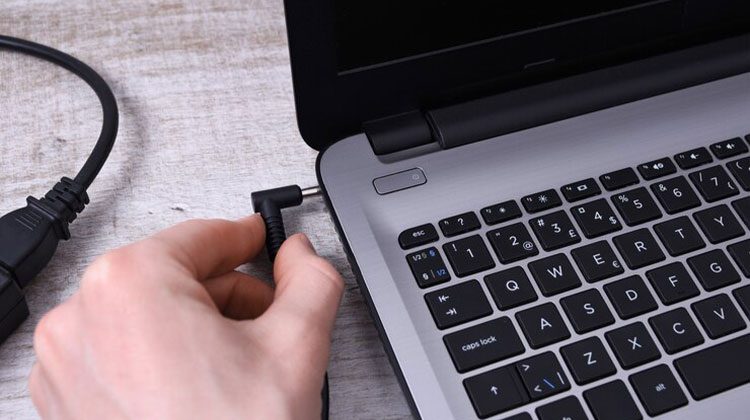
Chromebooks remain a popular option for consumers and students with a limited budget. ChromeOS is user-friendly, does the job, and is compatible with Android applications and Android phones. The perfect ChromeOS experience can be turned upside down when the Chromebook charger does not work. Here are the best solutions to fix a Chromebook not charging issue.
Why Is My Chromebook Not Charging? Common Reasons
Understanding the cause of your Chromebook charging issues can be the first step in solving them. Here are some common reasons behind the Chromebook not charging issue:
- Damaged Charging Port
- Charger or Cable Problems
- Battery Issues
- Software or Firmware Glitches
Also read: Chromebook Black Screen: How to Fix It Quickly (Step-by-Step Guide)
How to Fix Chromebook Not Charging
Here are 10 effective ways to solve the Chromebook not charging problem:
1. Check the Power Source and Adapter
Let’s go over some basic information first. You need to verify whether the power source is working. If it’s not working, then turn it back on and retry again. Also, test the power adapter on another device. If you find that your Chromebook charger not working, it’s time to purchase a new adapter from your local retailer or online store.
2. Check the Charging Cable
It’s a crucial aspect to check before replacing your Chromebook. Be sure to examine the charging cable, and if it has severe damage or cuts on either end, replace the cable with a new one and then try to charge your Chromebook.
3. Use Another Charging Port
Modern Chromebooks come with USB-C ports for you to use. If your Chromebook port isn’t working, switch to another port and then charge your device.
4. Restart Chromebook
The majority of Chromebook users set their laptops to sleep, and they can use them within a few minutes. You should restart your Chromebook to ensure smooth device operations.
Step 1. Click the clock icon at the bottom right corner, then click to power up.
Step 2. After your device has turned off, disconnect the power source.
Step 3. Take some time before turning on the device. Connect a charger to verify whether the Chromebook charges.
5. Run EC Reset
It’s another method to solve the most common ChromeOS issues, such as WiFi not working and batteries not charging. EC (Embedded controller) resets are a hard reset that resets the software and hardware settings. Connect your Chromebook to the power adapter and test the methods below.
Step 1. Switch off the Chromebook (check the steps previously).
Step 2. Connect a charger. Click and hold both the Power and Refresh buttons simultaneously.
Step 3. Press and release both keys once the device is ready to go. It can take up to 5 seconds.
6. Overheating Chromebook
If your Chromebook is overheating due to high usage, it may be a reason Chromebook is not charging to avoid permanent damage to the internals. You should allow the Chromebook to cool down before charging it after some time.
7. Adjust Power Settings
If your Chromebook does not remain idle during sleeping mode, it may drain the battery, and the Chromebook won’t fully charge when the lid is shut. You’ll need to adjust the power settings on your laptop.
Step 1. Select the applications menu and then open Settings.
Step 2. Select Power under Device.
Step 3. Enable the Sleep option after the lid has closed.
Also read: AirPods Case Not Charging? 6 Quick Fixes for Apple Users
8. Run Charge Test
ChromeOS includes an in-built diagnostic tool to test the battery’s condition. You can use the charge test to check the battery’s health, charging cycles, capacity, and battery current.
Step 1. Open ChromeOS Settings (check the steps previously).
Step 2. Choose More About ChromeOS on the right-hand menu.
Step 3. Click Diagnostics.
Step 4. Select System and run the charge test under the Battery menu.
If the battery’s health is less than 70 percent, then you need to replace the Chromebook battery with a new one.
9. Update ChromeOS
An outdated ChromeOS build could trigger Chromebook not charging issues. It is essential to update ChromeOS to the most recent version.
Step 1. Go to the Chromebook settings
Step 2. Select “Check for updates” and install the most recent ChromeOS upgrade on the laptop you are using.
10. Reset Chromebook
Is your Chromebook not charging? It is necessary to restart the system and reset it.
Step 1. Go to ChromeOS Settings (check the steps in the previous paragraph).
Step 2. Choose “Reset settings” and then select Reset.
Quick Tips to Prevent Chromebook Charging Issues
- Avoid using cheap third-party chargers
- Keep the charging port clean
- Don’t let the battery drain completely often
- Update Chrome OS regularly
Ending Notes
A Chromebook not charging could ruin your mood and could result in a dead laptop. Before visiting the nearest repair center, follow the steps above to resolve the Chromebook not charging issue. While you’re there, let us know the technique that worked for you.
FAQs: Chromebook Not Charging
Why is my Chromebook not charging even when plugged in?
This usually happens due to a faulty charger, dirty charging port, battery issues, or a temporary software glitch.
How long should a Chromebook battery last?
A Chromebook battery typically lasts 3–6 years, depending on usage, charging habits, and battery quality.
Is it safe to leave my Chromebook charging overnight?
Yes, modern Chromebooks stop charging once full, but unplugging occasionally helps extend battery life.
What does it mean when a Chromebook says “Plugged in, not charging”?
This usually indicates battery health issues or temperature-related protection that temporarily stops charging.







Leave a comment