





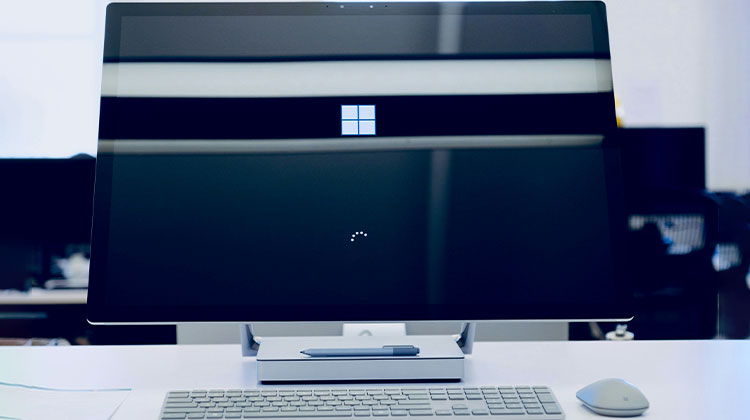
You press the power button, expecting your computer to start normally, but it gets stuck on the Windows logo or loading screen. A PC stuck on boot screen can be frustrating, especially when you need it for work or everyday tasks. Sometimes, Windows freezes during startup, while in other cases, your PC keeps loading without reaching the desktop.
The good news is that you can often fix this problem without professional help. From software conflicts and failed updates to hardware issues, several factors can prevent Windows from starting properly. In this guide, you’ll learn how to fix a PC stuck on boot screen and get the device running again.
Why Is Your PC Stuck on Boot Screen?
Startup happens in a sequence. The hardware powers on, the firmware does a quick check, and then Windows loads its files and drivers one by one. When anything in that chain goes wrong, you end up with a PC stuck on boot screen with no way forward.
The most common causes include:
- Corrupted system files: If key Windows files get damaged, the loading process stalls.
- Failed or interrupted updates: An update that didn’t finish can leave Windows in a broken state.
- Hardware trouble: Faulty RAM, a failing SSD, or even a loose cable can stop startup cold.
- Wrong BIOS or boot settings: If the boot order is off, your PC might look for Windows in the wrong place.
- Problem peripherals: External drives, USB sticks, and some accessories can confuse the boot process.
- Driver conflicts: A new or incompatible driver can freeze Windows mid-load.
Sometimes it’s just a random one-time glitch. Think about what changed before this started — a new update, a new device, a sudden power cut. That clue often points you to the right fix for PC Stuck on Boot Screen.
Quick Checklist Before You Start
Take two minutes before touching any settings. These steps protect your files and prevent a smaller problem from turning into a bigger one.
- Find your BitLocker recovery key. Some Windows devices encrypt the drive by default. Some repairs trigger a key prompt, and you can usually retrieve it from your Microsoft account on another device.
- Plug in your laptop. A battery that dies mid-repair can make things a lot worse.
- Remember when the problem started. Right after an update? After plugging in new hardware? Write it down — it matters.
- Don’t format your drive yet. That’s a last resort, and only after your files are safe.
Once that’s done, you’re ready to fix a PC stuck on boot screen.
How to Fix a PC Stuck on Boot Screen
Go through these fixes one at a time. The first few are fast and risk-free. The later ones go deeper into Windows and your hardware.
1. Unplug External Devices
It sounds almost too simple, but this PC stuck on boot screen fix works surprisingly often. When the BIOS tries to boot from a USB stick or external drive, your computer won’t boot up the normal way — it just gets confused and stops.
Steps to fix:
- Hold the power button until the computer shuts off.
- Unplug USB drives, external hard disks, printers, docks, and card readers.
- Leave only the monitor, keyboard, and mouse plugged in.
- Power the computer back on and see if Windows loads.
If it works, reconnect your devices one at a time to find the one causing trouble.
Also read: Computer Turns On But No Display? Here’s the Easy Fix (2026 Guide)
2. Perform a Hard Restart
A hard restart clears any leftover charge and gives your system a fresh start. It’s especially useful when the screen freezes at the logo after what seems like a random glitch.
Steps to fix:
- Hold the power button until the computer turns off completely.
- Unplug the power cable from a desktop, or disconnect the charger from a laptop.
- Remove the laptop battery only if it’s built to be removable.
- Wait about 30 seconds.
- Reconnect everything and turn it back on.
One thing to watch out for: if your screen says a BIOS or firmware update is running, don’t force a shutdown. Let it finish, even if it looks frozen. Cutting power during that process can permanently damage your firmware.
3. Start Windows in Safe Mode
Safe Mode runs Windows with the bare minimum — just basic drivers and essential services. If your laptop is stuck at loading screen in normal mode but loads fine in Safe Mode, a driver or startup app is likely the cause.
Steps to fix:
- Power on the computer. When Windows starts loading, hold the power button to force a shutdown.
- Do this two or three times. After repeated interruptions, Windows should open the Recovery Environment.
- Go to Troubleshoot > Advanced options > Startup Settings.
- Click Restart, then press 4 or F4 to boot into Safe Mode.
- Uninstall any recently added drivers or applications.
- Restart normally and check whether the problem is gone.
While you’re in Safe Mode, it’s worth running sfc /scannow from an elevated Command Prompt. That command scans for corrupted Windows files and attempts to repair them automatically. If the Recovery Environment never shows up on its own, a Windows installation USB from another computer can get you there.
4. Run Startup Repair
Windows has a built-in Startup Repair tool that checks for common problems blocking your system from loading. When your PC stuck on boot screen because of damaged startup files or a broken boot configuration, this is a solid first move.
Steps to fix:
- Open the Windows Recovery Environment.
- Select Troubleshoot > Advanced options > Startup Repair.
- Choose your Windows installation if the tool asks.
- Sign in with your account credentials if prompted.
- Let it run — this can take a few minutes.
- Restart and see whether Windows loads normally.
This won’t solve hardware problems, and it doesn’t catch every type of corruption. But it’s quick, easy, and doesn’t touch your personal files, so it’s always worth trying early.
5. Uninstall a Recent Windows Update
If your PC stuck on boot screen after update, the update is the first thing to look at. Removing the most recent one can restore normal startup without affecting your personal files.
Steps to fix:
- Open the Windows Recovery Environment.
- Go to Troubleshoot > Advanced options > Uninstall Updates.
- Start with Uninstall latest quality update.
- Follow the on-screen steps.
- Restart and test.
Still having trouble? Try uninstalling the latest feature update if that option is there. This fix also helps when your PC is stuck on restarting over and over following a recent update — the loop usually breaks once the problematic update is removed.
6. Check BIOS Settings and Boot Order
When you face a PC stuck on BIOS screen issue, the system usually can’t locate your storage drive or is looking in the wrong place for Windows. The hardware itself may be perfectly fine — the settings just need adjusting.
Steps to fix:
- Restart and immediately press your BIOS key. Common ones are F2, Delete, or Esc — it varies by manufacturer.
- Check whether your SSD or hard drive shows up in the storage section.
- Open the Boot menu and confirm that Windows Boot Manager is listed first.
- Don’t change anything else unless you know what it does.
- Save and exit.
If your drive doesn’t show up in the BIOS at all, it may be unplugged or failing. Also, avoid switching storage controller modes like AHCI or RAID unless you know exactly what that changes — it can stop Windows from booting on its own.
Also read: BIOS ID Check Error: 6 Easy Ways to Fix It During BIOS Update
7. Check Your RAM and Storage Hardware
When every software fix fails, hardware is worth a look. Faulty RAM or a dying storage drive can cause boot loops, random freezes, or a computer that won’t boot up no matter what you try.
Steps to fix:
- Shut the computer down and unplug the power.
- Look up the manufacturer’s service manual before opening anything.
- On a desktop, carefully reseat the RAM sticks if you’re comfortable with it.
- Make sure the SSD or hard drive cables are properly connected.
- Use your manufacturer’s built-in diagnostics if available — many brands let you access them from a startup menu.
- Only replace components after you’ve confirmed which one is failing.
If your laptop is under warranty, let the manufacturer handle it. And if your drive is making clicking or scraping noises and holds anything important, stop immediately — get a data recovery expert involved before you try anything else.
8. Use System Restore
System Restore takes your Windows installation back to how it was at an earlier point in time. If your Windows stuck on boot screen issue started after installing a driver or software, System Restore can quietly undo that change.
Steps to fix:
- Open the Windows Recovery Environment.
- Select Troubleshoot > Advanced options > System Restore.
- Pick your account and enter your password if asked.
- Choose a restore point from before the problem began.
- Review what will change and confirm.
- Restart and check whether startup is back to normal.
Your personal documents and photos won’t be touched. However, any apps or drivers installed after the restore point you chose will be removed, so keep that in mind.
If Nothing Works: Reset This PC
If you’ve tried everything and your PC stuck on boot screen, go to Troubleshoot > Reset this PC. Select Keep my files to reinstall Windows while holding onto your personal data. You’ll need to reinstall your apps afterward, but it’s a cleaner solution than a full wipe. This is your last software option before going to a repair shop.
How to Prevent a PC Stuck on Boot Screen in the Future
Once your computer is running again, a few small habits can keep boot problems from coming back.
- Get Windows updates and driver updates only from official, trusted sources.
- Back your files up regularly — cloud storage or an external drive both work well.
- Plug your computer into a surge protector to protect against power spikes.
- Never cut power during an update or firmware install, even if it seems stuck.
- Check your SSD health periodically and keep a reasonable amount of free space.
- Clear out startup apps you don’t need and remove any software you don’t recognize.
- Always shut down properly instead of holding the power button.
- Leave BIOS settings alone unless you have a clear reason to change something.
These aren’t big commitments, but together they reduce the chances of landing back in this situation.
Wrapping Up
A PC stuck on boot screen does not always mean your computer has a serious problem. In many cases, disconnecting external devices, performing a hard restart, or using Windows recovery tools can resolve the issue. If these methods do not work, checking BIOS settings, testing hardware, or using System Restore may help. Take your time with each step, protect your important files, and seek professional assistance if you suspect hardware damage. Regular maintenance can also help prevent similar problems in the future.
FAQs: PC Stuck on Boot Screen
Why is my PC stuck on boot screen after an update?
A failed or incompatible Windows update can prevent your computer from starting normally. Open Windows Recovery Environment and select Troubleshoot > Advanced options > Uninstall Updates to remove the latest update.
Can faulty RAM cause a PC to get stuck on the boot screen?
Yes. Faulty or improperly connected RAM can prevent your computer from completing startup. Run available hardware diagnostics or have a technician check the memory modules.
How long should I wait if my PC is stuck on the loading screen?
If Windows is installing an update, allow sufficient time for the process to finish. If the loading screen remains unchanged for an extended period with no signs of activity, investigate the problem using basic troubleshooting methods.
How do I fix a PC stuck on boot screen in Windows 11?
Disconnect unnecessary peripherals and restart your computer. If Windows 11 still fails to load, enter the Windows Recovery Environment and run Startup Repair. You can also try Safe Mode or uninstall a recently installed Windows update.






Leave a comment