






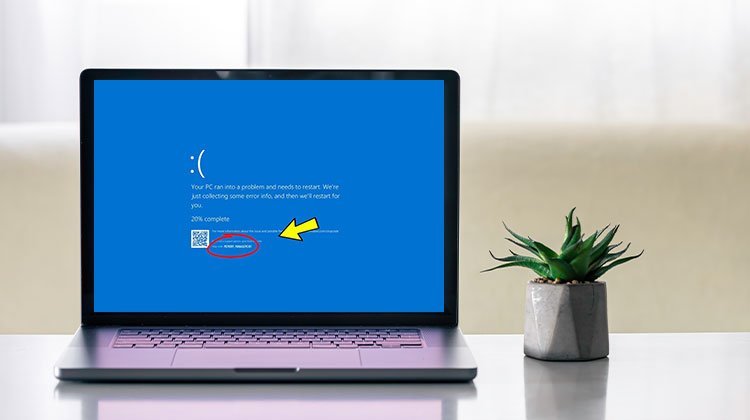
Have you noticed that your computer stopped functioning suddenly? If yes, chances are high that you have issues with the code memory management feature in Windows. “Stop Code Memory Management” in Windows is among the most frequent computer problems. The memory management BSOD error turns the screen blue, disrupting users’ access. The following guide will help you resolve the stop code memory management in Windows.
What is Windows Memory Management?
Windows Memory Management is among the key elements in the Windows operating system, designed to manage the system in a way that is optimally. It maintains the primary memory with perfection and seamlessly transfers procedures out of the primary storage to disk storage while executing different strategies. It is the Windows Memory Management System that coordinates the memory precisely and maintains the memory usage constant.
Windows Memory Management is responsible for everything, from supporting the huge memory or copy-on-write memory to aiding with the memory mapper or cache management. It’s the primary aspect that manages the exchange of memory between physical memory and the system memory while executing the process. Here are the features of Windows Memory Management:
- The greatest thing about Windows Memory Management is the memory allocations for every method.
- The program ensures that memory is retained in memory spaces allocated whenever and however needed.
- It tracks the memory space and releases it at any time and anywhere required for sharing or changing status.
- It is the most crucial component in the computer system and serves as the primary driver behind the smooth and flawless operation of the entire system.
A minor glitch in an issue with Windows Memory Management can effectively impact your entire operating system and trigger a Stop code Memory Management error or memory management BSOD.
Also read: How to Fix Driver Power State Failure in Windows 10 (BSOD Error)
Why is Windows Stop Code Memory Management?
Think about the scenario where you’re trying to access your Windows, but you are faced with a memory management blue screen that blocks your access repeatedly. This is a really frustrating issue.
Windows Stop Code Memory Management can be one of the most gruesome and irritating error problems that block you from using Windows. Many reasons can cause this annoyance; if you want to know what they mean, look at the list of causes that we have listed below.
- Corrupted system files
- Damaged or corrupted RAM
- Disk Errors
- Malware or viruses attack
- System hard drive issues
- Problems with graphics cards
How to Fix Stop Code Memory Management on Windows?
It is essential to fix the Stop Code Memory Management on Windows when it happens. If you aren’t sure how to fix it, you don’t need to worry. We have the entire solution for you.
1. Reboot Your Windows
Rebooting Windows is among the most commonly used and efficient solutions when faced with a Stop Code Memory Management in Windows. Windows OS is extremely efficient and can resolve various issues independently. It is possible to quickly restart their Windows system with just several clicks. This will remove small glitches quickly.
Step 1. Click on the Start menu icon in the bottom left corner of the screen.
Step 2. Click the Power button at the bottom left-hand corner of the Start menu.
Step 3. Choose Restart from the choices that pop up.
Step 4. If prompted, save any work that is not saved before proceeding.
Step 5. Click the Restart button to confirm the reboot.
2. Check for Windows Updates
Old Windows versions can also cause one of the main causes for the irritating problem with stop Code Memory Management in Windows. If you haven’t upgraded the version of your Windows for a while, there is a higher chance that the problem you’re experiencing is a result of this. You can check for the Windows update through:
Step 1. Tap the Windows button and the I button to open the menu option.
Step 2. Go to the Settings option and proceed to the Update and Security section.
Step 3. After you have completed the steps, you should look for pending updates in the Windows Update section in the league.
Step 4. Click on the Install now option to start the download and installation of this Windows update.
Step 5. Wait for the Windows update; save any not saved work, then click the Restart Now button.
Fix 3. Quick Scan Your PC Memory Management
It is among the most effective built-in programs that can help users protect their PCs from malware or attacks by viruses. It’s easy to conduct an effective scan and repair the stop code memory management error with these steps
Step 1. Press the Start button, then navigate to Settings. Settings option.
Step 2. Then, move to the Update and Security section.
Step 3. Once you’ve done that, select the Windows Security option from the left pane.
Step 4. Now tap on the Virus & Threat protection on the right side and go through the Windows Security settings.
Step 5. Next, move to the section Current threats and select”Quick scan option.
Step 6. Once done, Windows Security will initiate a successful scan of your computer to protect you from possible dangers and then fix the issues.
Also read: How to Fix Video Scheduler Internal Error in Windows 10/11
4. Boot Windows into Safe Mode
If you’ve tried the methods mentioned above but you haven’t fix Windows memory management error, you could start Windows 11 in Safe Mode. It will operate your Windows using the smallest possible driver and software, helping you gain access to Windows. What you need to accomplish to do this includes:
Step 1. Launch the Menu option by pressing the Windows key and the I button together.
Step 2. Now select System > Recovery.
Step 3. Click on the Restart button next to the Advanced Startup option.
Step 4. It will reboot your PC into advanced recovery. Then, choose Troubleshoot and then Advanced Options to proceed with the procedure.
Step 5. The next step is to click on the Startup Settings.
Step 6. Now select the Startup Settings option, followed by clicking the Restart button.
Step 7. After you have completed this step, select Restart to enter Safe Mode to enjoy smooth access to your system.
Step 8. Make sure to keep your system in safe mode for a few minutes to determine whether the error was solved effectively or not.
Your Windows PC has now restarted in Safe Mode. This will let you investigate the issue and hopefully solve the issue that you have been experiencing.
5. Update GPU Driver
New or outdated GPU drivers are also among the main reasons for BSOD Errors. The update of GPU drivers is able to perform efficiently and assist you in removing the annoying error. What you need to do is
Step 1. Search for dxdiag in the search box. Then, start Microsoft’s Windows Memory Diagnostic tool on your device.
Step 2. Tap on the Display tab in the tool’s window, and after that, the full listing details of the system’s GPU information will be displayed on your screen.
Step 3. Visit the GPU manufacturer’s site and choose the right GPU driver.
Step 4. Once done, download and install the driver. Then restart your computer to ensure easy access.
It is recommended that you have the most recent GPU driver installed on the Windows PC, which should enhance performance and fix any issues you’re having.
6. Perform a Memory Management Test
Memory test is an excellent way to efficiently resolve Stop Code Memory Management in Windows. What you must complete in this case are:
Step 1. Press the Windows key and type Windows Memory Diagnostic in the search bar.
Step 2. Now tap on the corresponding app and then tap on Restart now. Then, examine the possibility of the issue.
Step 3. Wait for the Memory Test to run efficiently.
Step 4. Once done, the results will be displayed on your monitor. If you spot any issues, you can resolve them.
It is now time to execute the Windows Memory Diagnostic tool on your computer. If you find any issues, then you should make the necessary changes to fix them.
7. Run the CHKDSK
Corrupted system files or disks are the main reason behind the frustrating error message, Windows Stop Code Memory Management. This also prevents users from accessing Windows processes. You can utilize System File Checker for troubleshooting Windows 10. It can detect and repair the corrupted system files within two orders of operation.
Step 1. Enter the command prompt into the search area and then click on the Run as Administrator button.
Step 2. Type the command chkdsk/r into the box provided and then press Enter.
Step 3. Wait for the process to be completed, after which it will start the search for system-related files and fix them efficiently.
You should have now successfully executed the chkdsk command on the Windows PC to search for and repair system-related data if there were any issues.
Also read: BIOS ID Check Error: 6 Easy Ways to Fix It During BIOS Update
8. Reset Windows OS
If you’ve tried all the above solutions but the stop code memory management error persists, resetting the Windows OS will help you find a permanent and secure solution. This will resolve memory management issues and eliminate them efficiently.
Step 1. Tap on the Start button, and then open the Settings menu on your device.
Step 2. Click on the option System > Recovery to continue the procedure.
Step 3. Click on the Reset PC button to initiate the reset.
Step 4. After you have completed the above procedure, your computer will be restarted immediately.
Step 5. Save any unsalvaged data before proceeding to the Get Started tab.
Step 6. Please wait for your PC to restart, then, once it has restarted, choose the most suitable option from the Save my files or delete all option.
7. Please wait for the process to finish and then check if the blue screen errors in memory management are resolved.
That’s it! Now you should reset your computer with your Windows settings to resolve any blue screen errors in memory management you might have experienced.
Several Windows users have proven the effectiveness of these eight solutions for memory management blue screen errors. If any of the solutions can help you solve the stop code memory management issue.
Summing Up
Fixing the Stop Code Memory Management in Windows is much easier right now. We’ve given a range of causes and detailed solutions to solve this stop code memory management error.
FAQs: Stop Code Memory Management
Can RAM problems cause Stop Code Memory Management?
Yes, defective or improperly seated RAM is one of the most common causes of this error.
Is Stop Code Memory Management a serious problem?
Yes, it can be serious if it occurs frequently, as it may indicate hardware failure or system corruption. However, it is often fixable.
Will resetting Windows fix the Memory Management error?
Resetting Windows can fix software-related issues, but it will not resolve hardware problems like faulty RAM.
What is the difference between Memory Management and other BSOD errors?
Memory Management errors are specifically related to how Windows handles RAM, while other BSOD errors may involve drivers, hardware, or system processes.
How do I fix Stop Code Memory Management in Windows 11?
Restart your PC, run memory diagnostics, update drivers, repair system files (SFC/DISM), check disk errors, and update Windows.









Leave a comment