





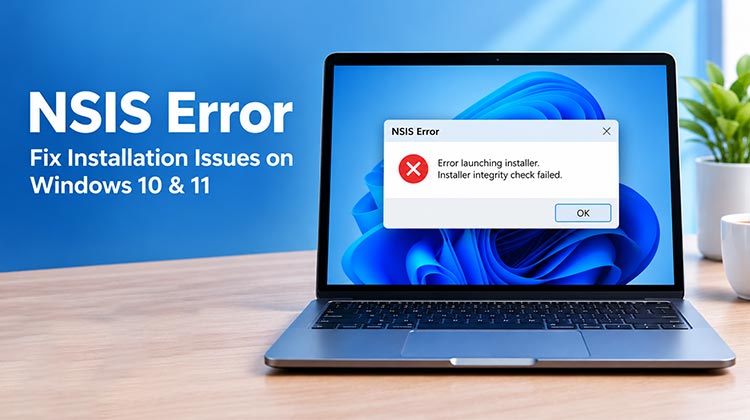
Are you facing an NSIS Error while installing software on Windows? Messages like “Error launching installer” or “Installer integrity check failed” can stop the installation. This guide explains how to fix NSIS errors using eight practical solutions for Windows 10 and 11.
What Is NSIS Error?
NSIS stands for Nullsoft Scriptable Install System, a tool used to create Windows software installers. An NSIS Error occurs when an installer fails an integrity check, or Windows cannot run the setup file correctly.
What Causes NSIS Error on Windows?
An NSIS Error indicates that an installer has failed its integrity check, meaning the installation file may be corrupted, incomplete, or damaged. If you encounter an NSIS Error on Windows 10 while installing a program, the setup file may not have downloaded correctly or could be affected by other issues.
Here are some common reasons why an installer fails to launch or pass its integrity check:
- The downloaded installation files are incomplete due to an interrupted download.
- The downloaded files are complete but have been modified or corrupted.
- The installation media, such as a CD or DVD, is damaged.
- One or more hardware components are malfunctioning.
- Your computer is infected with a virus or malware.
Also read: How to Fix DXGI Error Device Removed in Windows 10/11 Easily
How to Fix NSIS Error on Windows 10 and 11
If you encounter an NSIS Error that prevents you from installing software, there are several troubleshooting methods you can try. The following solutions have helped users resolve similar installation issues. Try them one by one to find the method that works best for your situation.
1. Run the Installer Using Command Prompt
Running an installer from Command Prompt can help determine whether the problem is related to how the file is being launched. However, this method will not repair a corrupted installer.
- Download the setup file from the official website.
- Search for Command Prompt in the Start menu.
- Open it and enter the installer’s full path in quotation marks, such as:
- “C:\Users\YourName\Downloads\setup.exe”
- Press Enter to run the installer.
- Do not use the /NCRC option to bypass integrity checks. If the error persists, try the next solution.
2. Rename or Move the Installer File
A long file path, unusual characters, or a problematic folder location can occasionally interfere with an installer.
To test whether the file location is contributing to the NSIS Error:
- Open File Explorer and find the installer.
- Rename it using a short, simple name, such as setup.exe.
- Move the file to a local folder, such as C:\Installers. Create the folder if it does not exist.
- Double-click the installer to try again.
If the error continues, the issue may be related to the installer itself rather than its name or location. Do not rename the file extension to make an invalid file appear executable.
3. Download the Installer Again
A corrupted or incomplete download is one possible reason for the installer integrity check failed message. Downloading a fresh copy is one of the first solutions worth trying.
Follow these steps:
- Delete or move aside the problematic installer.
- Visit the software developer’s official website.
- Download a fresh copy.
- Wait until the download finishes, then run the setup file.
- Avoid untrusted third-party download websites.
4. Scan for Viruses and Malware
Malware can interfere with Windows operations and downloaded files. Although an NSIS Error does not automatically indicate an infection, running a security scan is a useful troubleshooting step.
To scan your computer using Microsoft Defender:
- Open Windows Security.
- Select Virus & threat protection.
- Click Quick scan.
- Run a full scan if you suspect an infection.
If security software flags the installer, verify its source rather than ignoring the warning.
5. Update Windows
Pending Windows updates can sometimes contribute to compatibility or system component issues. Installing available updates may help resolve an NSIS Error on Windows 10 or Windows 11.
- Windows 11: Go to Settings → Windows Update → Check for updates.
- Windows 10: Go to Settings → Update & Security → Windows Update → Check for updates.
Install available updates, restart your PC, and try the installer again.
6. Check Firewall and Security Settings
Windows Firewall and other security tools help protect your computer from potentially harmful programs. In some cases, security controls may block an installer or its network activity.
Before changing any settings, make sure the installer comes from a trusted, official source.
To review Windows Firewall settings:
- Open Windows Security.
- Select Firewall & network protection.
- Review any relevant security alerts.
- If a trusted application needs network access, check whether it should be allowed through the firewall.
Do not disable your firewall or antivirus just to bypass an NSIS Error.
7. Check Your Hard Drive for Errors
File system errors or storage problems can sometimes prevent Windows from reading installation files correctly. Windows includes the CHKDSK utility to check for file system issues.
- Open Command Prompt as administrator.
- Run:
- chkdsk C: /scan
- If errors require repair, run:
- chkdsk C: /f
- The repair may need to run after restarting your PC. Replace C: if Windows is installed on another drive.
Also read: Hard Drive Not Installed Error on Windows 11/10? Here’s How to Fix It
8. Check Windows Language Settings
Some older or poorly configured installers may have difficulty handling certain system locale settings. Checking your Windows language and regional configuration may help if the other solutions have not worked.
For Windows 11:
- Open Settings.
- Select Time & language.
- Open Language & region.
- Review your preferred language and regional settings.
For Windows 10:
- Open Settings.
- Select Time & Language.
- Open Language and review the installed language settings.
Check the software developer’s language requirements before changing system settings. Restart your computer if you make changes.
Conclusion
An NSIS Error can usually be fixed by checking the installer, downloading a fresh copy, scanning for malware, and repairing disk issues. Follow these steps carefully, and always use trusted downloads to help install your software safely on Windows.
FAQs: NSIS Error
What does Installer integrity check failed mean?
This message means the installer could not pass its integrity verification. The file may be incomplete, corrupted, or altered. Download a fresh copy from the software developer’s official website.
Is NSIS Error dangerous for my computer?
The error itself does not necessarily indicate a security threat. However, you should verify the installer’s source and investigate any antivirus warnings before running the file.
Why does NSIS Error keep appearing after downloading the installer again?
Repeated errors may indicate network problems, storage errors, security software interference, or an issue with the software provider’s installer. Try another reliable network and contact the developer if the problem persists.
Can I bypass the NSIS integrity check?
Bypassing the integrity check is not recommended because it may allow a corrupted or modified installer to run. Download a verified copy from the official source instead.





Leave a comment