






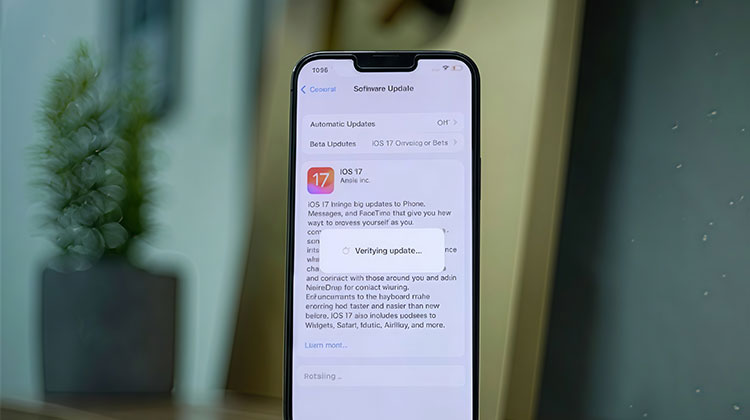
Updating your iPhone to the latest iOS should be quick. However, it could end abruptly. The iPhone stuck on Verifying Update issue leaves your device frozen, and the update is not complete. Many iPhone users have to deal with issues that can arise for various reasons, which are generally easy to fix. This article offers five methods to resolve iPhone Stuck on Verifying Update and get your iPhone back to a normal state in a few minutes.
Why is iPhone Stuck on Verifying Update and Won’t Turn Off?
Before trying any fixes, it’s important to understand the reason behind the issue. Here are common reasons:
Common reasons include:
- Poor or unstable internet connection
- Apple server issues
- Insufficient storage space
- Corrupted update file
- Software glitches
- Battery or power interruption during update
Also read: Cannot Verify Server Identity on iPhone: 8 Ways to Fix It Fas
How to Fix iPhone Stuck on Verifying Update
If you checked the list above and you’re sure not in any of these scenarios, then look up possible solutions to fix your iPhone update stuck on verifying screen.
1. Hard Reset Your iPhone
If your iPhone is stuck in verifying updates, try a hard reset to start the entire process from scratch. After rebooting, check the update again. Hard resetting your iPhone is quite easy, but the procedure can differ depending on your device.
2. Check Your Network
Check that your device is connected to the wifi internet and that your connection is reliable and fast enough. If you’re experiencing a drop in your connection, it could make it difficult to update. A suggestion is to connect your phone to a 5G WiFi connection as soon as it becomes available. If you’re experiencing problems, you could try updating your device close to the router.
3. Update the latest iOS Using iTunes
If you’re facing an iPhone stuck on verifying update issue, the best option is to try updating using iTunes. It’s simple; it’s just a few steps.
Step 1: Connect your iPhone to your computer using a USB or Lightning cable
Step 2: Open iTunes and make sure it is updated
Step 3: Wait for iTunes to sync with your device, then click the iPhone icon
Step 4: Go to the “Summary” section and click Check for Updates
Step 5: Follow the on-screen instructions and keep your device connected until the update is complete
An iTunes update will solve the issue. If, however, you discover your device remains stuck or if you see new issues pop up, you might need to restore it in iTunes.
An iTunes restore refreshes the device by removing all settings and data and then reinstalling them. It is a way to erase all the data stored on your iPhone, and this could be an issue if you do not have a recent backup.
4. Lock and wake your iPhone
What should I do when my iPhone update is stuck? There’s an interesting and easy fix for the iPhone stuck on verifying update issue. It is as simple as hitting the “Power” button on the device repeatedly. The device’s screen will be forced to shut down and then wake up repeatedly. Repeating this process repeatedly (between 5 and 10 times) is known to solve this problem. You’ll know this method has been successful when the screen turns black, and you can see the Apple logo, followed by the progress bar. It is a sign that the solution worked.
5. Put iPhone into DFU Mode
If you are in a pinch, you could try to put your iPhone into DFU mode. This should only be considered if you suspect an issue with the software. A DFU restore can bypass the iOS system and allow you to fix the device without interference from software-related issues.
Step 1:Connect your iPhone to a PC or Mac and open iTunes or Finder
Step 2:Press the Volume Up button, then quickly press the Volume Down button
Step 3:Press and hold the Power button until the device turns off
Step 4:Hold the Power button for about 3 seconds
Step 5:While holding Power, press and hold the Volume Down button for 10 seconds
Step 6:Release the Power button but keep holding Volume Down for about 5 seconds
If the screen stays black, your device is in DFU mode. You can now restore it using iTunes or Finder.
Also read: iPhone Error 4013: Why It Happens and How to Solve It
6. Use iOS Repair Tool
We suggest using iOS Repair to fix your iPhone and run the update without difficulty. The iOS Repair tool will quickly fix any issue that you encounter on your iOS device, assist you in completing the update, and address any issues that bother you. Follow the on-screen steps to resolve your iPhone stuck on verifying update.
This procedure isn’t without risk because it could result in data loss. It’s essential to review the tips above and then see if you find solutions to any of them. Make sure to use the method above as a last resort.
Bonus Tip: Avoid This Issue in the Future
To prevent getting stuck again:
- Always use stable Wi-Fi
- Keep enough storage available
- Avoid updating during peak release times
- Keep your battery above 50%
Conclusion
An iPhone stuck on Verifying Update and won’t turn off? This issue can be a nightmare, but thanks to this article, you’ve learned several options to solve it. From simple steps such as restarting your iPhone to more advanced options such as using DFU modes, each technique solves the root of the issue.
FAQs: iPhone Stuck on Verifying Update
What does “iPhone stuck on Verifying Update” mean?
It means your iPhone is unable to complete the update verification process, often due to network or system issues.
Is it normal for iPhone to get stuck on Verifying Update sometimes?
Yes, it can happen occasionally, especially during major iOS releases or when servers are busy.
Does restarting fix iPhone stuck on Verifying Update issues?
In many cases, yes. A simple restart can clear temporary glitches causing the issue.
Will updating again solve iPhone stuck on Verifying Update problem?
Yes, deleting the update and downloading it again often resolves the issue.
How long should “Verifying Update” take?
Normally, it takes a few seconds to a couple of minutes. If it’s stuck for more than 15–20 minutes, there may be an issue.








Leave a comment