






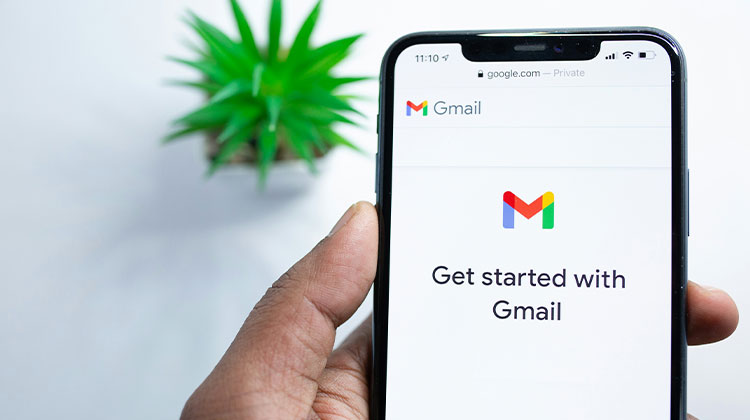
Many free email providers are available online, and Gmail is among the top ones. It comes with useful features such as spam filtering, integrated conversations, chat view, and much more. Gmail will automatically filter spam messages into a different folder. You use Gmail to sign up for various social media applications and websites. It also focuses on the security of your email.
Sometimes, you might suspect that someone else is accessing your Gmail accounts. It’s not a problem, and you should change Gmail password on iPhone right away to avoid data leakage. Whatever the reason, you can change your Gmail password on iPhone. Here are the steps to change Gmail password on iPhone.
What Happens After You Change Your Gmail Password?
Before you change Gmail password on iPhone, know what will happen afterward. After changing Gmail passwords on iPhone 6 or various models, you will be signed out of all active sessions. It’s good if somebody hacks your Gmail account. If you change your password, it will be automatically closed across all devices. However, it will not be the same device you use to change the password; it will be able to sign in on all devices. The Gmail account will require the new password you created to log in before you can access it, even if you have saved your login details to your iPhone.
If you suspect someone has accessed your password, it’s recommended to immediately change Gmail password on iPhone. How can you do this? Read this blog
Also read: iPhone Mail Not Updating? Try These 6 Proven Fixes
How to Change Gmail Password on iPhone Browser
You can change Gmail password on iPhone browser. After reading this article, you will be able to get access to its website quickly. However, for this process, you’ll need a fast internet connection. If not, every step will take a long time to load. If this occurs, you’ll spend a long time waiting for the page to open. To change Google account password on your iPhone using a web browser.
Step 1: Go to the account.google.com website. You will see your email on your screen, requiring you to type in or encode the password. In the Enter Your Password box, you must enter the proper password for the Gmail account. Then, tap the Next button, and then wait for your iPhone to start the process and load the Gmail account.
Step 2: The screen will guide you to a brand new screen. In the New Password box, please fill in at least 8 characters to create the new password. You can utilize an eye icon to view the password and prevent typographical errors. After that, you can enter it into the ” Confirm New Password ” box to confirm the password. Then, tap to change password option to make the modifications. The screen will then load. After the process is completed, it will inform you that you’ve successfully change Gmail password on iPhone.
How to Change Gmail Password on iPhone in Gmail App
Gmail has an application that you can download from the App Store for your iPhone. You’ll have access to all its features. This method is similar in process to the other methods, where you make use of the browser. The only difference is that you have to install the Gmail application.
How do I change my Gmail passwords on iPhone with its application? You can follow the full steps below.
Step 1: If you don’t have the application, download it through your App Store. All you have to do is search for Gmail in its search bar before tapping the Get button. You must wait for the download process to complete and then open it immediately. Then, click on the Profile icon in the upper right-hand corner of the application. A window should open at the top of your screen. Click on the Manage Your Google Account button to view account settings.
Step 2: Click on your personal Info button located at the top. The account information will be displayed. When you swipe down, find your account password Section and click it.
Step 3: On your iPhone screen, you’ll be able to see your Gmail Account. It is best to enter the password of your account to ensure security. You can encode it using your Input Your Password field. Then, press the next button to continue.
Step 4: Enter your new password into the New Password box. Then, you can enter your new password by clicking the Confirm New Password button on the right. Then, press the ” Change Password ” button to make the changes effective on Gmail account.
What happens if you forget your Gmail password by accident? It’s a good thing that the steps to follow are there for you.
Also read: 5 Best Password Manager for iPhone to Secure Your Data
How to Change Gmail Password on iPhone If You Forgot It
This technique will assist you in discovering how to reset Gmail password on iPhone. It’s not difficult to do as you imagine. All you have to do is remember the number that is associated with or linked to your email address associated with the account. They are used as a second confirmation. Follow the link below to learn more about the steps.
Step 1: Go to the account.google.com website, and then tap the Profile icon in the upper right-hand corner of your screen. Select to open the personal Info section and then scroll down to the password section.
Step 2: The account will prompt for your password. If you don’t know it, click on the forgot password button.
Step 3: The code must be entered in case you have a second authentication on your account. After that, click Next to change your Gmail password.
Tips for Creating a Strong Password
To keep your secure Gmail account Password, follow these best practices:
- Use at least 8–12 characters
- Include uppercase, lowercase, numbers, and symbols
- Avoid personal details like your name or birthdate
- Don’t reuse passwords across multiple accounts
Ending Notes
Following these steps, you can quickly change Gmail password on iPhone, which is essential for maintaining your account’s security. Whether you’re updating it regularly or responding to suspicious activity, taking action early can protect your personal data.
By following the steps above, you can easily manage and secure your Gmail account anytime.
FAQs: Change Gmail Password on iPhone
Why can’t I change my Gmail password on my iPhone?
This can happen due to poor internet connection, incorrect current password, or account security restrictions. Make sure your details are correct and try again.
Why should I change my Gmail password regularly?
Regular password updates help protect your account from hackers, data breaches, and unauthorized access.
Can I change Gmail password on iPhone without verification?
No, Google requires identity verification (password, OTP, or recovery method) to ensure your account remains secure.
What makes a strong Gmail password?
A strong Gmail password includes a mix of uppercase and lowercase letters, numbers, and special characters, and should be at least 12 characters long.






Leave a comment