






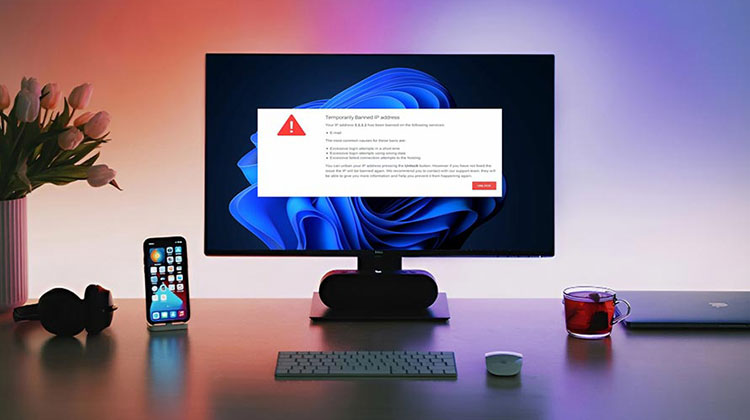
If you’ve ever encountered the issue “your IP has been temporarily blocked” pop-up, then you may be confused or frustrated. But knowing what’s behind it and how to fix it. Let’s dive deep into this error message and find out what it means for web browsing.
IP addresses allow computers connected to the internet or to a private network to recognize each other and exchange information. An IP address allows you to communicate with website servers. However, websites may also use an IP address to block the device’s access to their web pages.
What Does “Your IP Has Been Temporarily Blocked” Mean?
When a website blocks your IP address, it prevents your device or network from accessing that website. Your IP address identifies your internet connection, so a security system may use it to control access.
A temporary block does not necessarily mean you did something wrong. Sometimes, your IP may have been flagged because of previous activity associated with the address or because automated security systems detected unusual traffic.
Why is My IP Address Blocked?
There are several possible reasons for an IP block, including:
- Too many failed login attempts
- Sending a large amount of traffic in a short period
- Suspicious or automated activity
- Malware or viruses on your device
- Using certain VPN or proxy connections
- An IP address previously associated with suspicious activity
- Website security rules or firewall restrictions
Now let’s look at some methods you can try.
Also read: 7 Ways to Fix “This Network Is Blocking Encrypted DNS Traffic Warning
How to Fix the “Your IP Has Been Temporarily Blocked” Issue
1. Wait for the Temporary Block to Expire
The first thing to do when Your IP Has Been Temporarily Blocked is simply wait. Many websites automatically remove temporary restrictions after a specific period.
Avoid repeatedly refreshing the page or making multiple connection attempts because this can cause the security system to continue detecting unusual activity.
2. Remove Viruses or Malware From Your Device
Malware can generate unusual internet traffic without your knowledge. If Your IP Has Been Temporarily Blocked repeatedly, run a complete scan using a trusted antivirus or security program.
If malware is found, remove it and restart your device. This can help prevent unwanted traffic from triggering another block.
3. Use a VPN or Proxy Server
A VPN or proxy routes your connection through another IP address. This can help if the restriction is associated specifically with your current IP.
However, websites may also block VPN or proxy addresses. Therefore, don’t use a VPN to circumvent a restriction when doing so would violate the website’s rules.
4. Connect to a Different Wi-Fi Network
Trying another trusted internet connection can help determine whether the Your IP Has Been Temporarily Blocked problem is specific to your current network.
For example, if the website works normally on another Wi-Fi connection but not your regular connection, your original public IP may be responsible for the restriction.
This can also help confirm whether you need an IP blocked fix from your network provider or the website itself.
Also read: 6 Best Fixes for the WiFi Doesn’t Have a Valid IP Configuration Error
5. Restart Your Router
If your ISP provides dynamic IP addresses, restarting your router may sometimes result in a different public IP address.
Turn off the router, wait briefly, and then turn it back on. Reconnect your device and check the website again.
Keep in mind that restarting your router does not guarantee that your public IP will change.
6. Clear Your Browser Cache and Cookies
Old cookies or cached browser information can sometimes interfere with website sessions.
Clear the cache and cookies for the affected website, close your browser, and then open it again. Afterward, try accessing the website normally.
This step may not remove an actual IP restriction, but it can help rule out browser-related problems.
7. Contact the Website Administrator
If you believe the restriction was applied incorrectly, contact the website’s administrator or support team.
Explain the error, when it started, and what you were doing immediately before the restriction appeared. The administrator may be able to determine why your IP was blocked and advise you about the appropriate way to regain access.
If you are researching how to unblock IP address restrictions, contacting the website is often the safest approach when the block is intentional.
8. Contact Your Internet Service Provider
If the problem continues across multiple websites, your internet connection or public IP may need to be investigated.
Contact your ISP and explain that Your IP Has Been Temporarily Blocked. They can help determine whether your connection has a dynamic or static IP and whether there is an issue affecting your service.
How to Prevent Future IP Blocks
Once the ” Your IP Has Been Temporarily Blocked problem has been resolved, take a few precautions to reduce the chance of another restriction:
- Avoid repeated failed login attempts.
- Keep your operating system and browser updated.
- Scan your device regularly for malware.
- Avoid generating excessive website traffic.
- Disable suspicious browser extensions.
- Follow individual website terms and security policies.
- Use trusted internet connections.
Conclusion
Seeing Your IP Has Been Temporarily Blocked can be frustrating, but it’s usually easy to fix. Try these 10 simple methods to get back online, identify the cause, and prevent the problem from happening again. Start with the easiest fix and work your way down until you regain access.
FAQs: Your IP Has Been Temporarily Blocked
Why is my IP address temporarily blocked?
Your IP may be blocked because a website detected unusual traffic, repeated login attempts, or suspicious activity from your connection.
How long does a temporary IP block last?
Sometimes. If your ISP assigns dynamic IP addresses, restarting your router may give you a different IP address.
Why is only one website blocking my IP?
If other websites work normally, the restriction may be specific to that website’s security system rather than your entire internet connection.
Does clearing my browser history help?
It can help with certain browser-related issues, but it usually will not remove a server-side IP restriction. If Your IP Has Been Temporarily Blocked, you may need to wait until the restriction expires.





Leave a comment