






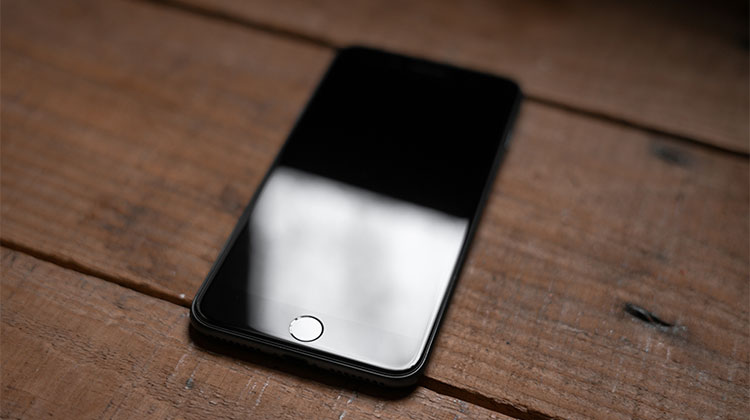
If your iPhone won’t turn on, it can be extremely difficult because you are not only facing unexpected costs to fix it, but you could also lose all your data, such as your iPhone contacts and precious photos. In this article, we explain the possible reasons your iPhone not turning on and possible solutions.
Why Your iPhone Won’t Turn On?
Your iPhone won’t turn on, and you’re not sure why. There could be a myriad of reasons behind this. But the five most commonly reported are:
- Dead or faulty battery
- Physical or screen damage
- Water damage
- iOS software issues
- Internal hardware connection problems
Understanding the cause is the first step toward fixing the issue.
Also read: iPhone Touch Screen Not working? Try These 11 Quick Fixes
How to Fix an iPhone That Won’t Turn On
Depending on what caused the iPhone’s unresponsiveness or iPhone won’t power on, the remedies can differ. These are some steps to fix an iPhone won’t turn on:
1. Charge Your iPhone
If your iPhone worked well before, but stops responding overnight, it is likely it’s battery drains more quickly than you expect. The most effective solution in this case is to connect the phone to the power outlet and leave it for a few minutes. One thing to note is that, unlike other phones, it takes a long time to start up after it is connected to a power source.
When your phone has enough power to turn on, the first step should be to check the battery’s health and see whether it needs a replacement. The next thing you might need to do is find the applications that use the most resource-intensive features and take action as needed to prevent issues like this again.
2. Perform a Hard Reset (Force Restart)
Because of the continuous technological advancements with each new iPhone and iOS over the past few years, the method of hard resets for phones has been drastically altered. The fact is, different iPhone models support different ways to reset their phones.
When you hard reset your iPhone, it removes all power sources from the hardware for a short time before re-powering them to restart the process again, thereby rebooting the entire device hardware level.
Sometimes, hard resetting solves the issue and allows users to use their iPhone normally.
3. Reset Proximity Sensor
There’s no direct option to disable or enable the Proximity Sensor on your iPhone. Apple does not provide an app that you can remove and reinstall. The solutions listed below are worth considering:
Reboot Your iPhone: A normal reboot can resolve the proximity sensor issue. Based on your model might require pressing the Sleep/Wake key, or hold then release Down buttons (one at a time) Down button (one at one time) before pressing the Sleep/Wake button to restart your iPhone.
Hard reset your iPhone: Since a hard reset will disconnect the device’s hardware and battery components for just a brief time, it is recommended to fix the issue with the proximity sensors.
Reset all settings: if restarting or a hard reset fails to resolve the issue. Try setting your iPhone’s configurations. This can be done using the steps listed below:
- Go to Settings.
- Tap General.
- Tap Reset.
- Tap Reset All Settings.
- Tap Reset All Settings to open the confirmation window, which appears at the end of the screen.
Remove or Replace Screen Protector: If the troubleshooting tips above do not work, you might be able to determine if the screen protector on your iPhone’s display is of poor quality. Sometimes, low-quality screen protectors block the proximity sensors from working properly, and replacing them with a high-quality one will fix the problem.
4. Restore Your iPhone Using iTunes or Finder
If there’s no physical damage and the battery is in good working order, updating your iOS through iTunes is the most effective solution if your iPhone won’t turn on. If iTunes is unable to update your device, you may try restoring it. This will erase all data on the iPhone throughout the process. When you decide to update or restore, you need to place the iPhone in Recovery Mode to continue:
Steps to Restore Your iPhone
- Connect your iPhone to a Windows PC or Mac
- Open iTunes/ Finder
- Put your iPhone into Recovery Mode
- Select your device when detected
- Click Update first
- If the update fails, choose Restore
5. Repair Your iPhone Using Third-Party Tools
If Apple’s proprietary solutions fail to resolve the issue, use a third-party iPhone repair tool that is capable of fixing nearly all issues on your iOS Devices. It simplifies the whole troubleshooting process as easily as a child’s game.
Some popular iPhone repair tools include:
- Dr.Fone – System Repair
- Tenorshare ReiBoot
- iMyFone Fixppo
- UltFone iOS System Repair
Also read: iPhone Stuck on Verifying Update: 6 Best Working Methods
6. Contact Apple Support
If the iPhone won’t turn on issue has not been solved, you must request technical help through the Apple Customer Support Team. If the iPhone is still in warranty, they will not charge you any fees, and you’ll have the proximity sensor on your phone functioning within a few minutes.
Solving iPhone Won’t Turn On Problems Easily
You’ve identified the reason your iPhone won’t turn on and what next steps to take if you think it requires repair. If this article has helped you to solve your issue. I’d love to hear your experiences in identifying the problem and how you solved it in the comments below.
FAQs: iPhone won’t Turn On
Why my iPhone won't turn on even after charging?
If your iPhone still won’t turn on after charging, the problem could be caused by a faulty charger, damaged charging port, dead battery, or a software crash. Try using another cable and perform a force restart.
How long should I charge a dead iPhone before turning it on?
Charge your iPhone for at least 15–30 minutes before trying to turn it on again. Fully drained iPhones can take time before showing signs of charging.
Why won’t my iPhone turn on after an iOS update?
If your iPhone won’t turn on after an iOS update, the update may have failed or become corrupted during installation.
Is it safe to use third-party iPhone repair tools?
Yes, reputable tools like Dr.Fone, ReiBoot, and Fixppo are generally safe for fixing software-related iOS issues. Always download them from official websites.







Leave a comment