






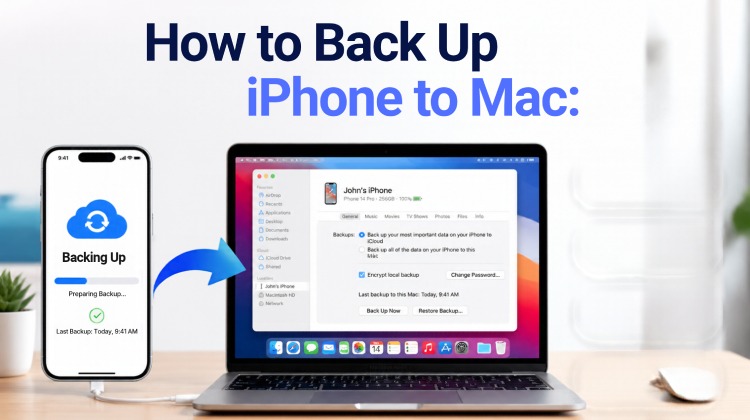
Our smartphones store an incredible amount of valuable personal data—almost our entire lives in digital form! From precious photos and videos to important contacts, messages, and documents, losing this information can be devastating. Fortunately, you can protect your data and avoid such a situation by regularly backing up your iPhone.
But how do you Backup iPhone to Mac? Whether you want to create a local backup, transfer iPhone data to Mac, or use cloud storage, there are several ways to keep your information safe. In this guide, I’ll walk you through four simple methods to help you Backup iPhone on Mac and protect your valuable data.
How to Backup iPhone to MacBook: 4 Methods
1. Backup iPhone to Mac Using Finder
Finder is macOS’s built-in file management tool that allows you to browse and organize files, manage disks, and access connected devices. It also provides a convenient way to Backup iPhone to Mac without installing additional iPhone backup software.
If you’re connecting your iPhone to your Mac for the first time, you’ll need to authorize the connection. Your Mac may ask you to allow the connection, while your iPhone will prompt you to tap Trust This Computer.
- Once both devices are connected and authorized, follow these steps:
- Connect your iPhone to your Mac using a compatible USB cable.
- Unlock your iPhone and tap Trust This Computer if prompted.
- Open Finder on your Mac.
- Find your iPhone under the Locations section in the sidebar.
- Select your iPhone to open its device management window.
- Under the General tab, locate the Backups section.
- Select Back up all of the data on your iPhone to this Mac.
- To protect your backup, select Encrypt local backup and create a password.
- Click Back Up Now to start the backup process.
Wait until the backup is complete before disconnecting your iPhone. Finder also makes it easy to manage your local backup and transfer iPhone data to Mac.
Also read: How to Clone an iPhone: Quick and Easy Guide
2. Backup iPhone to Mac Using iTunes
With the release of macOS Catalina in 2019, Apple replaced iTunes with three separate apps: Music, TV, and Podcasts. However, iTunes is still available on Macs running macOS Mojave or earlier.
If you’re using one of these older macOS versions, you can use iTunes to create a local backup of your iPhone on your Mac. Here’s how:
- Connect your iPhone to your Mac using a USB cable.
- Open iTunes on your Mac.
- Unlock your iPhone and tap Trust if a confirmation message appears.
- Click the small iPhone icon near the upper-left corner of the iTunes window.
- Select Summary from the sidebar.
- Under the Backups section, choose This Computer.
- Select Encrypt iPhone backup if you want to include sensitive information such as saved passwords and Health data.
- Click Back Up Now to begin the backup.
Once the process finishes, your iPhone backup will be stored locally on your Mac.
3. Backup iPhone to Mac Wirelessly
Using a USB cable isn’t the only way to connect your iPhone to your Mac. Finder also lets you enable Wi-Fi syncing, allowing both devices to communicate wirelessly. Once enabled, you won’t need to connect your iPhone with a cable every time you want to create a local backup.
You’ll need to connect your iPhone to your Mac with a cable initially to enable this feature. Here’s how:
- Steps to enable wireless syncing:
- Connect your iPhone to your Mac using a USB cable.
- Open Finder on your Mac.
- Select your iPhone under the Locations section in the sidebar.
- Open the General tab.
- Scroll down to the Options section.
- Select Show this iPhone when on Wi-Fi.
- Click Apply to save your settings.
- Disconnect the USB cable, making sure both devices remain connected to the same Wi-Fi network.
- Open Finder and select your iPhone when it appears under Locations.
- Under the General tab, select Back up all of the data on your iPhone to this Mac and click Back Up Now.
That’s it! You can now Backup iPhone to Mac wirelessly without repeatedly plugging in a USB cable.
Also read: 8 Best iPhone Data Recovery Software: Recover Lost Data
4. Backup Your iPhone Using iCloud
Another convenient wireless option is to backup iPhone to Mac using iCloud. Unlike Finder and iTunes backups, which store your data locally on your Mac, iCloud saves your backup to Apple’s cloud storage.
This means you can access your backed-up data when needed without connecting your iPhone to your Mac. All you need is your Apple Account and an internet connection.
Best of all, you don’t need to connect your iPhone to your computer to create an iCloud backup. Just follow these steps:
- Steps to back up your iPhone using iCloud:
- Open Settings on your iPhone.
- Tap your Apple Account name at the top.
- Select iCloud.
- Tap iCloud Backup.
- Turn on Back Up This iPhone.
- Tap Back Up Now to create a backup immediately.
- Keep your iPhone connected to Wi-Fi until the backup is complete.
Once the process finishes, your iPhone backup will be safely stored in iCloud. You can also enable automatic backups so your iPhone backs up regularly when it’s connected to power, locked, and connected to Wi-Fi.
Backup iPhone to Mac: Which Method Is Best?
Knowing how to Backup iPhone to Mac is essential for keeping your valuable data safe. Whether you use Finder, iTunes, wireless syncing, or iCloud, each method offers a convenient way to protect your photos, videos, contacts, and other important files. Choose the option that best suits your needs and make regular backups a habit to avoid losing your data.
FAQs: Backup iPhone to Mac
How do I back up my entire iPhone to my Mac?
You can back up your entire iPhone using Finder on macOS Catalina or later. Connect your iPhone to your Mac, open Finder, select your device, choose Back up all of the data on your iPhone to this Mac, and click Back Up Now. Enable encrypted backup if you also want to save sensitive information such as Health data and passwords.
Where are iPhone backups stored on a Mac?
By default, Finder and iTunes store local iPhone backups in the following directory: ~/Library/Application Support/MobileSync/Backup/ To access it, open Finder, select Go > Go to Folder, paste the path, and press Return.
Is it better to back up an iPhone to iCloud or Mac?
Both options protect your iPhone data, but they work differently. A Mac backup stores a local copy on your computer, while iCloud stores your backup online. Choose a Mac backup if you prefer local storage and iCloud if you want automatic backups without connecting your iPhone to a computer. Using both provides an additional layer of protection.
Do I need an internet connection to backup iPhone to Mac?
No. A standard local backup through Finder or iTunes does not require an internet connection. However, you need internet access for iCloud backups and may need it to download software updates or certain content during restoration.







Leave a comment